

Set company backgrounds and standards
Upload approved virtual backgrounds for your team and fix the text position and colour so every background looks consistent.
PlansProPremiumCompare plans
ForAdmins
On this page
As an admin, you can give your team approved background images and make sure everyone’s virtual background follows the same layout.
Before you start
- You need to be an admin of the organisation.
- On the Free plan, this section is blurred behind an upgrade panel. See Compare plans.
Open the Virtual Background settings
- In the left-hand menu, click Company Settings.
- In the list of sections, click Virtual Background.
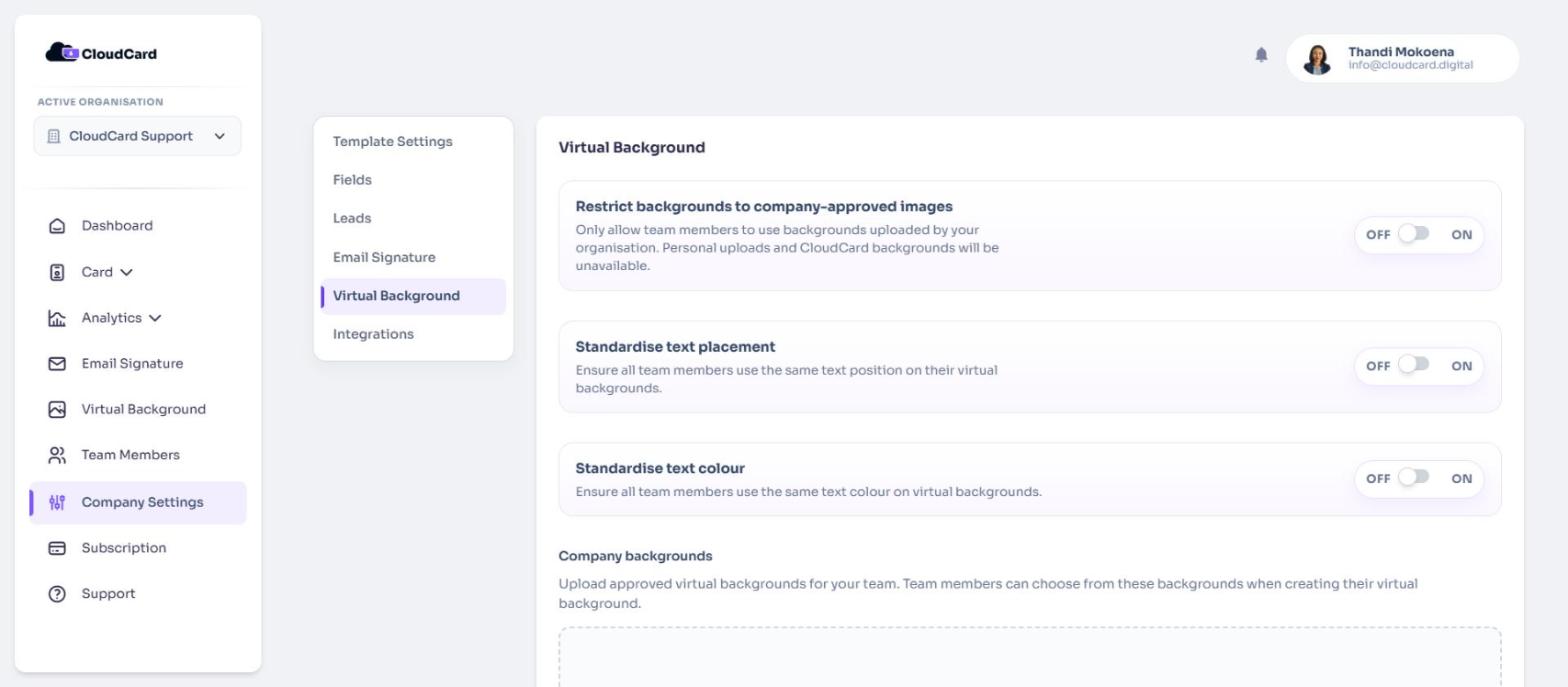
Upload company backgrounds
- Under Company backgrounds, click Click to upload a background.
- Choose a JPG, PNG or WEBP image. It uploads straight away and appears as a thumbnail.
- Repeat for each background you want to offer.
Use landscape images in a 16:9 shape, ideally 1920 × 1080 pixels, because that’s the size of the finished background.
Your team sees these images first under Backgrounds, in a group named after your organisation.
To remove a background, click the × on its thumbnail. It’s removed straight away, without a confirmation step.
Limit your team to company backgrounds
- Switch Restrict backgrounds to company-approved images to On.
- Click Save Settings at the bottom of the page.
Your team can now only choose from your company backgrounds. The Upload Image option and CloudCard’s own backgrounds are hidden. Upload at least one company background first, or your team will see “Your organisation hasn’t added any backgrounds yet.”
Set the text position for everyone
- Switch Standardise text placement to On.
- Under Text position, choose Top left or Top right.
- Click Save Settings.
Set the text colour for everyone
- Switch Standardise text colour to On.
- Under Text colour, choose Light or Dark.
- Click Save Settings.
When a setting is standardised, your team no longer sees that option on the Virtual Background page. Their backgrounds use the position or colour you chose.
Related
Was this article helpful?
Thanks for letting us know.
Still stuck?
Send us a message and we'll know which article you were reading. Or email [email protected].