

Create your virtual background
Make a branded video-call background with your name, job title, company and a QR code to your digital card.
PlansProPremiumCompare plans
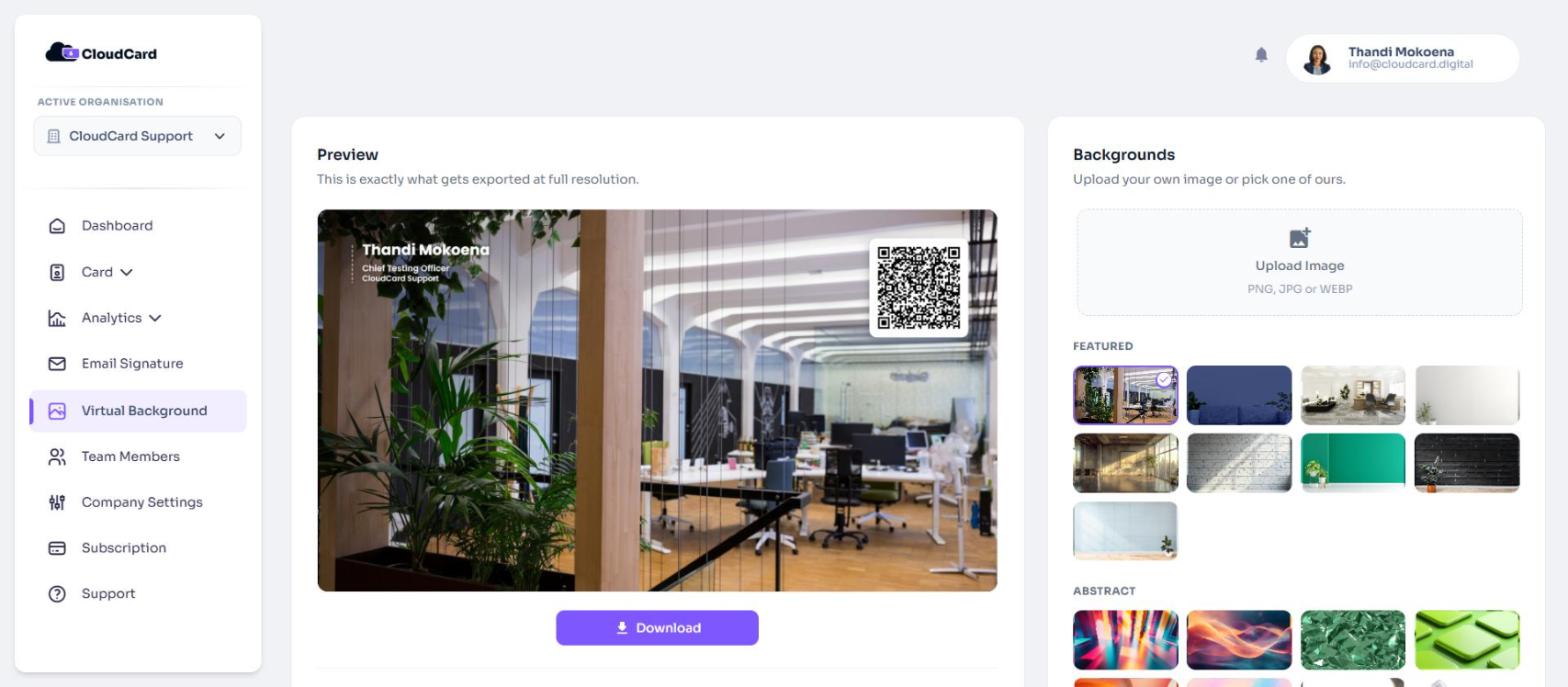
A CloudCard virtual background puts your name, job title, company and a QR code on the image behind you in video calls. People on the call can scan the code to open your digital card.
Before you start
- You need a digital card in the organisation you have selected. If you don’t have one, the page says No digital card yet.
- On the Free plan, Virtual Background in the menu shows a lock icon and the page is blurred behind an upgrade panel. See Compare plans.
What’s on the background
- Your name and job title, taken from your card.
- Your organisation’s name.
- A QR code that opens your digital card.
Scans of this QR code show up in your card analytics as Virtual Background Scans. See Where your views come from.
Steps
- In the left-hand menu, click Virtual Background. The Preview shows your background with the first available image.
- Under Backgrounds, click an image to use it. Or click Upload Image and choose your own PNG, JPG or WEBP file.
- Under Text position, choose Top left or Top right. Your QR code moves to the opposite corner.
- Under Text colour, choose Auto contrast, Light or Dark. Auto contrast picks light or dark text to stand out against your image.
- Check the Preview. It shows exactly what you’ll download.
- Click Download. Your browser saves a JPG at 1920 × 1080 pixels, the size most video apps expect.
Images you upload stay in your browser. They’re used to make your background and aren’t saved to CloudCard.
If some options are missing
Your admin can set company standards:
- If you only see your organisation’s backgrounds and no Upload Image option, your admin has limited you to company-approved images.
- If Text position or Text colour is missing, your admin has set it for everyone.
See Set company backgrounds and standards.
Next step
Was this article helpful?
Thanks for letting us know.
Still stuck?
Send us a message and we'll know which article you were reading. Or email [email protected].