

Connect Salesforce
Send the leads your team captures with CloudCard into Salesforce as Lead records.
PlansProPremiumCompare plans
ForAdmins
On this page
Connect Salesforce and every lead your organisation captures in CloudCard is created as a Lead in Salesforce, ready for your sales team to work.
Before you start
- You need the Admin role in CloudCard.
- You need a Salesforce user who can sign in and create Leads, and who is allowed to approve connected apps.
- Lead capture should be on. See Turn on the lead capture form.
Connect Salesforce
- In the left-hand menu, click Company Settings.
- Click Integrations.
- On the Salesforce card, click Connect Salesforce.
- Sign in to Salesforce and click Allow to give CloudCard access.
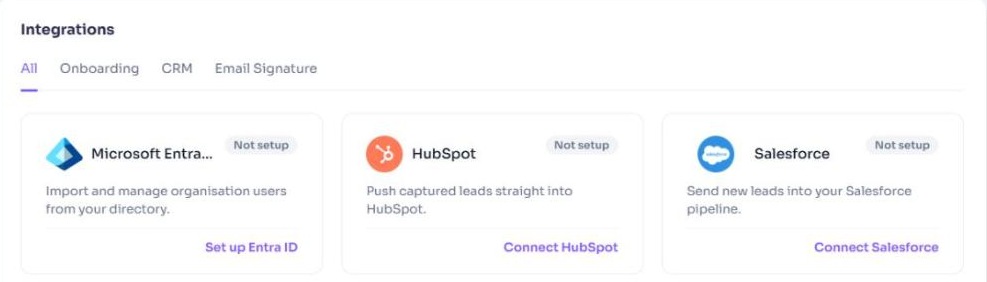
Salesforce sends you back to your organisation’s leads page. You’ll see either “Salesforce connected and N lead(s) synced!” or “Salesforce connected, but no new leads to sync.” The Salesforce card in Company Settings now shows Connected.
You can also connect from the leads page: click Integrate, then Connect Salesforce.
What gets sent to Salesforce
Each lead becomes a Salesforce Lead with:
- First Name, Last Name and Email
- Phone and Title, if the lead has them
- Company. If your Salesforce org doesn’t require Company, CloudCard puts the company name in a comments or description field instead.
- Lead Source, set to “CloudCard - Owner:” followed by the name of the team member who captured the lead
If the last name is missing, CloudCard sends “N/A” because Salesforce needs a value.
When you connect, your existing leads are sent straight away. After that, CloudCard sends new leads every hour.
Disconnect Salesforce
- Open your organisation’s leads page. In the left-hand menu, click Leads, then View All Leads.
- Click Integrate.
- Click Disconnect Salesforce.
You’ll see “Salesforce integration disconnected.” Leads already in Salesforce stay there.
If the connection stops working
If the connection expires or access is revoked in Salesforce, the leads page shows “Your Salesforce connection was disconnected because the token expired or was revoked. Please connect again.” Click Reconnect Salesforce in that message. Leads captured in the meantime are sent once you reconnect.
Using HubSpot instead? See Connect HubSpot.
Was this article helpful?
Thanks for letting us know.
Still stuck?
Send us a message and we'll know which article you were reading. Or email [email protected].