

Turn on the lead capture form
Add a lead form to every card in your organisation so visitors can share their details when they save a contact.
PlansProPremiumCompare plans
ForAdmins
On this page
The lead capture form is an organisation-wide setting. When it’s on, every card in your organisation asks visitors to share their details before the contact downloads. When it’s off, Save contact downloads the contact straight away.
Before you start
- You need to be an admin of the organisation.
- Your organisation needs the Pro or Premium plan. On other plans, the switch is greyed out and shows “Lead capture is available on the Pro and Premium plans.”
Steps
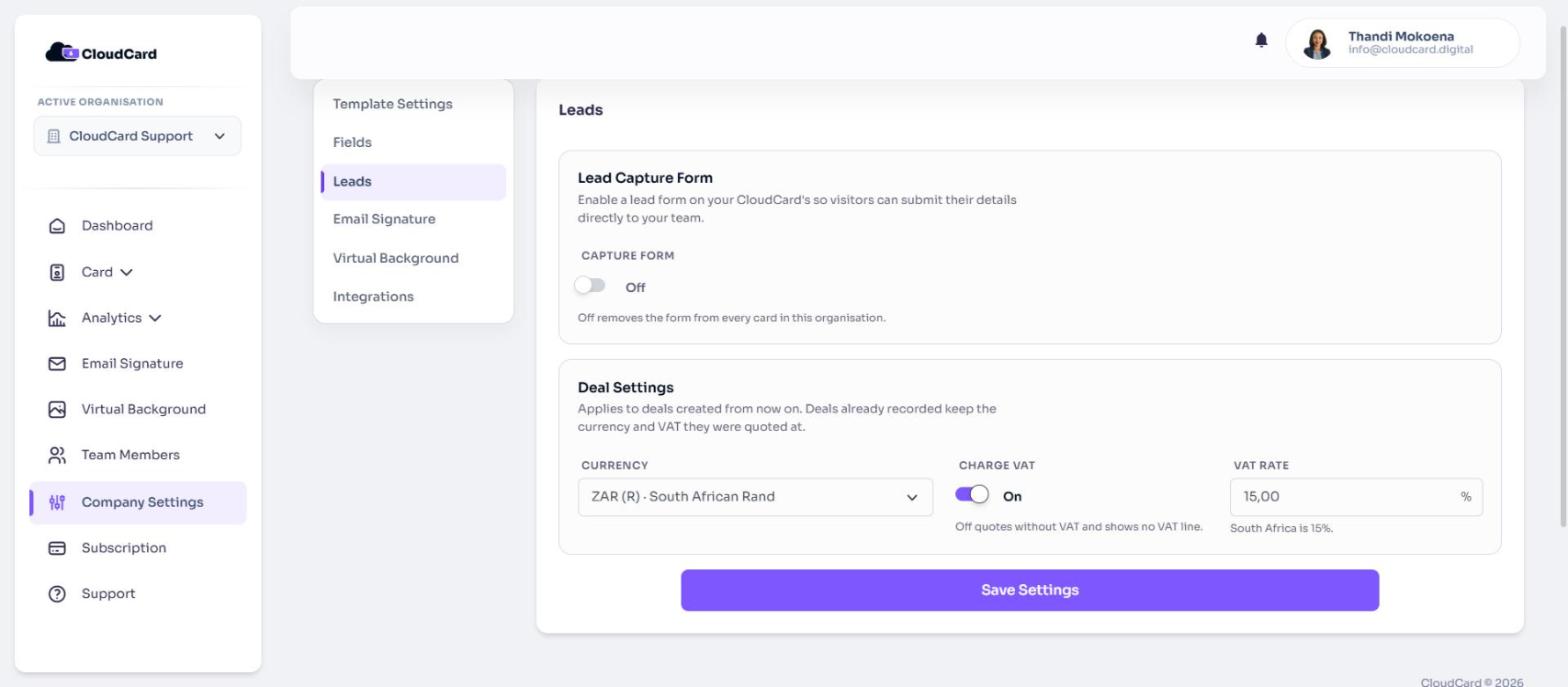
- In the left menu, click Company Settings.
- Click the Leads tab.
- Under Lead Capture Form, turn on the Capture form switch. The word beside it changes from Off to On.
- Click Save Settings.
Open any card in your organisation and tap Save contact to check. You’ll see the form headed “Share your details with” and the cardholder’s name.
Turn the form off
Follow the same steps and set Capture form to Off, then click Save Settings. As the hint under the switch says, “Off removes the form from every card in this organisation.” Leads you’ve already captured stay in your leads list.
Related
Was this article helpful?
Thanks for letting us know.
Still stuck?
Send us a message and we'll know which article you were reading. Or email [email protected].