

Add your card to Apple Wallet or Google Wallet
Keep your card one tap away in your phone's wallet, with a QR code ready for anyone to scan.
ForCardholders
On this page
Adding your card to your phone’s wallet puts a pass with your QR code next to your bank cards and boarding passes. When you meet someone, open the pass and let them scan it. Their phone opens your full digital card.
Steps
- On your phone, open your card. You can tap View card on the dashboard, or open your card link.
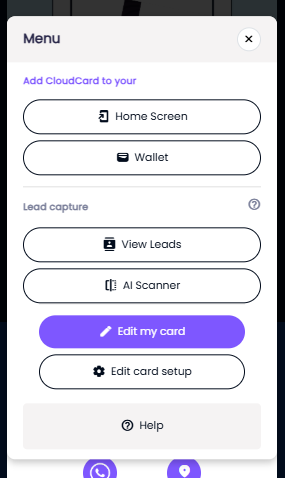
- Tap the menu icon (three lines) at the bottom of the card.
- Under Add CloudCard to your, tap Wallet.
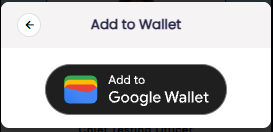
- Tap the wallet button for your phone:
- iPhone: tap the Apple Wallet button.
- Android: tap the Google Wallet button. On Android you may also see a Samsung Wallet button, which works the same way on Samsung phones.
- Your phone shows a preview of the pass. Tap Add (iPhone) or Save (Android).
The pass is now in your Wallet app.
Share your card from the wallet
- Open your Wallet app and tap your CloudCard pass.
- Show the QR code to the other person.
- They scan it with their phone camera, and your card opens in their browser.
Scans of your wallet pass still count as views in your card analytics.
What’s on the pass
- Apple Wallet: your name, phone number and email address from your CloudCard account, your company name on the back, and a QR code to your card.
- Google Wallet: your name, organisation, job title, email and phone number from your card, your company logo, and a QR code to your card. It also has links to view your card, email you or call you.
Keeping the pass up to date
The QR code on the pass always opens your live card, so people always see your latest details. The text on the pass itself doesn’t update by itself, though. If you change your name, number or email, delete the old pass and add it again using the steps above.
If the pass won’t add
See My wallet pass won’t generate.
Related
Was this article helpful?
Thanks for letting us know.
Still stuck?
Send us a message and we'll know which article you were reading. Or email [email protected].