

What people see when they open your card
A tour of your card from the other person's side, including the buttons they can tap and what happens when they do.
When someone opens your link, scans your QR code or taps your NFC card, your card opens in their phone’s browser. They don’t need an app or an account.
Your organisation’s admin chooses one of two designs for everyone’s card: Modern or Classic. Both show the same information in a slightly different layout.
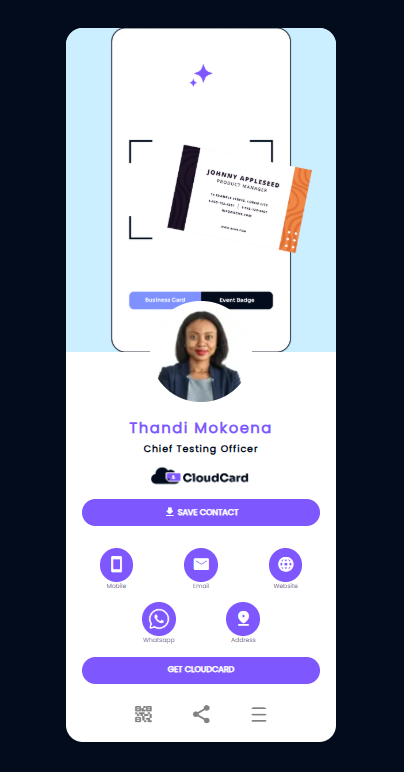
What’s on your card
- Banner (Modern only): an image or video at the top that your organisation uses to promote something.
- Your photo, name, job title and company logo.
- Save contact: saves your details to their phone’s contacts.
- Contact buttons: one for each phone number, email address, link and address on your card.
- Call-to-action button: a button your organisation sets up, for example “Book a demo”.
- Note: any extra text you’ve added, such as a short bio.
- Footer icons at the bottom: QR code, share and menu.
The exact order depends on the design. For example, Classic puts the logo at the very top and the call-to-action button directly under Save contact.
What each button does
| Tap | What happens |
|---|---|
| Save contact | Downloads your details so they can save you as a contact. If your organisation uses lead capture, they’re first asked to share their own details. See What “Save contact” saves. |
| A phone number | Starts a call |
| An email address | Opens a new email to you |
| A link or social icon | Opens that page |
| Address | Opens directions in Google Maps |
| Calendar booking (Modern only) | Opens your booking page |
| QR code icon | Shows your QR code so they can pass your card on |
| Share icon | Opens their phone’s share menu with your card link |
| Menu icon | Lets them add your card to their wallet or home screen |
Lead capture
If your organisation has turned on lead capture, tapping Save contact opens a short form called Share your details with followed by your name. The visitor can fill it in and tap Share & Save Contact, or tap Just save contact to skip it. Either way, they get your contact. See What visitors see on the lead capture form.
On the Free plan
Cards on the Free plan show a Get Started with CloudCard Free bar at the bottom of the screen. It doesn’t appear on the QR code screen, or on cards on paid plans.
See it for yourself
Click View card on your dashboard to open your card as others see it. See View your card as others see it.
Was this article helpful?
Thanks for letting us know.
Still stuck?
Send us a message and we'll know which article you were reading. Or email [email protected].