

Add your card to your phone's home screen
Put your card on your phone's home screen like an app, so it opens in one tap and works even without a signal.
ForCardholders
On this page
Adding your card to your home screen gives you an icon that opens your card in one tap, like an app. Once you’ve opened it, your card and QR code also work when you have no signal.
Start the same way on any phone:
- Open your card on your phone.
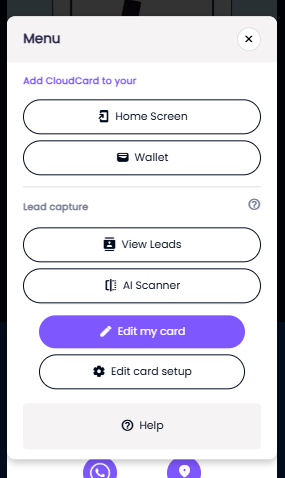
- Tap the menu icon (three lines) at the bottom of the card.
- Under Add CloudCard to your, tap Home Screen.
A pop-up opens with the right steps for your phone. Follow the section below that matches it.
iPhone
On an iPhone, you need to use Safari. The pop-up shows these steps:
- Make sure your card is open in Safari.
- Tap Safari’s share button (a square with an arrow pointing up). It’s at the bottom of the screen, or at the top on some versions.
- Scroll down and tap Add to Home Screen.
- Tap Add.
Android with Chrome
- Tap Install App in the pop-up.
- Your phone asks you to confirm. Tap Install.
The CloudCard icon appears on your home screen.
Samsung Internet
- Tap Install App in the pop-up. If it works, confirm the install.
- If the automatic install isn’t available, the pop-up shows manual steps instead:
- Tap the ☰ menu at the bottom of Samsung Internet.
- Tap Add to.
- Tap Home screen.
If Google Play Protect warns you that the app is unsafe, tap More options, then Install anyway. CloudCard is a web page saved to your home screen, not a downloaded app.
Using your card from the home screen
- The icon is called CloudCard. On most Android phones it shows your profile photo, or your company logo if you don’t have a photo.
- Tapping it opens your card full screen, without the browser’s address bar.
- After you’ve opened it once with a signal, your card and your QR code still open when you’re offline. Use the Offline QR code for people who have no signal either. See Show your QR code.
Remove it from your home screen
Remove it like any other app: press and hold the CloudCard icon, then choose Remove App (iPhone) or Uninstall or Remove (Android). This doesn’t affect your card or your account.
Still stuck?
If the pop-up says “It seems the app is already installed on your device” but you can’t find the icon, tap the link in the pop-up to clear the browser cache and try again.
For more help on an iPhone, see I can’t add my card to my iPhone home screen.
Was this article helpful?
Thanks for letting us know.
Still stuck?
Send us a message and we'll know which article you were reading. Or email [email protected].