

Download your QR code
Download your card's QR code as a PNG image to print on flyers, badges, posters or presentation slides.
ForCardholders
On this page
You can download your QR code as an image and put it anywhere: business cards, name badges, flyers, posters, product packaging or the last slide of a presentation. Anyone who scans it opens your card.
Download from the dashboard
- Sign in and go to your Dashboard.
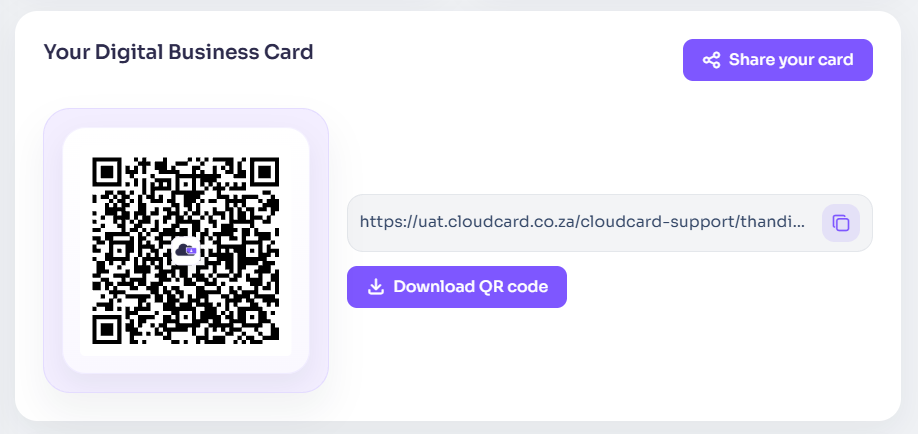
- In the Your Digital Business Card panel, click Download QR code.
Your browser downloads a PNG image of your QR code, named after you and the date, for example thandi-nkosi-26-10-08_09-15-00-qr-code.png.
Download from the sidebar
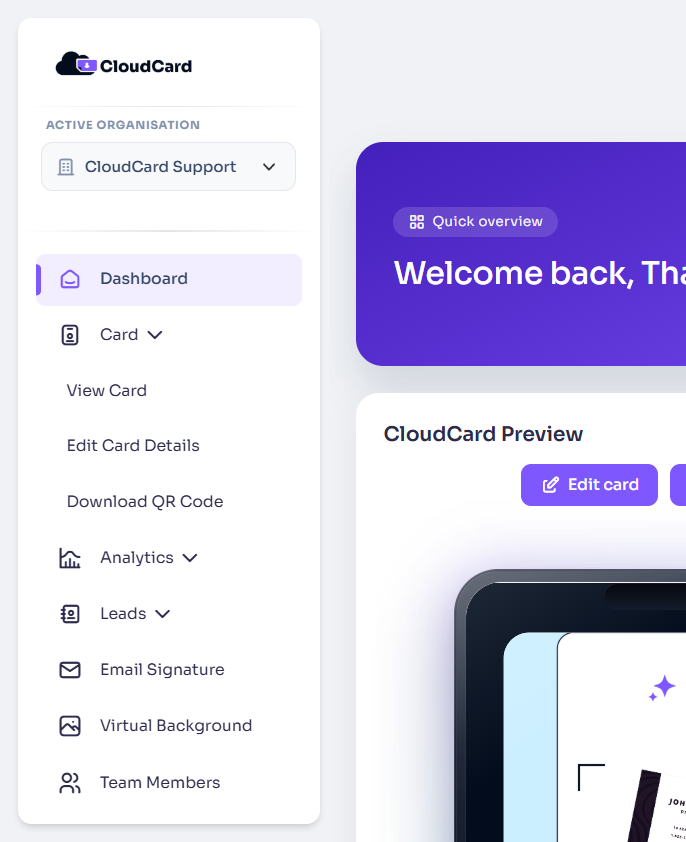
- In the dashboard sidebar, click Card.
- Click Download QR Code.
About the downloaded QR code
- It’s a plain black-and-white code on a white background, which prints and scans reliably.
- It links to your card, so it keeps working when you change your details. You never need to reprint it because your job title or number changed.
- Scans of a downloaded QR code show in your analytics as Physical QR Code Scans, separate from people scanning the code on your screen.
Printing tips
- Print it at least 2 cm wide. Bigger is better for posters or anything people scan from a distance.
- Keep the white border around the code, and don’t stretch it.
- Print on a plain, light background with good contrast.
- Test it with your own phone before you print a large batch.
Related
Was this article helpful?
Thanks for letting us know.
Still stuck?
Send us a message and we'll know which article you were reading. Or email [email protected].