

Show your QR code
Open your card's QR code on your phone so someone can scan it, including an offline QR code for places with no signal.
ForCardholders
The quickest way to share your card in person is to show your QR code. The other person scans it with their phone camera and your card opens on their phone.
Open your QR code
- Open your card on your phone. If you’ve added it to your home screen, tap the icon.
- Tap the QR code icon at the bottom of the card.
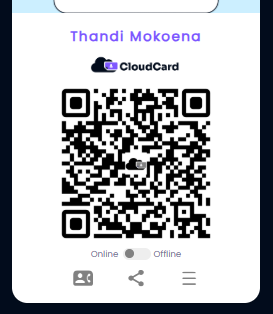
Your QR code fills the screen, with your name and company logo above it. To go back to your card, tap the contact icon at the bottom.
How the other person scans it
Most phones scan QR codes with the built-in camera app:
- They open their camera and point it at your QR code.
- A link or notification appears on their screen.
- They tap it, and your card opens in their browser.
Some older Android phones need Google Lens or a QR scanner app instead.
Use the offline QR code
The normal QR code opens your card online, so the other person needs mobile data or Wi-Fi. If they don’t have a signal, use the offline QR code instead:
- On the QR code screen, slide the switch from Online to Offline.
- The QR code changes. Let the other person scan it.
The offline code holds your contact details themselves, rather than a link to your card. Scanning it offers to save you as a contact straight away, with no internet needed.
The offline code includes the same details as Save contact, but not your photo, and the scan isn’t counted in your analytics. See What “Save contact” saves to someone’s phone.
Related
Was this article helpful?
Thanks for letting us know.
Still stuck?
Send us a message and we'll know which article you were reading. Or email [email protected].