

Change your password
Change your CloudCard password from the dashboard, or set a new one after an admin gives you a temporary password.
You can change your password at any time while you’re signed in. If you’ve forgotten your current password, reset it instead.
Steps
- Click your name in the top-right corner of the dashboard.
- Click Change Password.
- Enter your current password in Old password.
- Enter a New password. The hints below the field turn red until it has 8 characters, an uppercase letter, a number and a special character.
- Type it again in New password confirmation.
- Click Update Password.
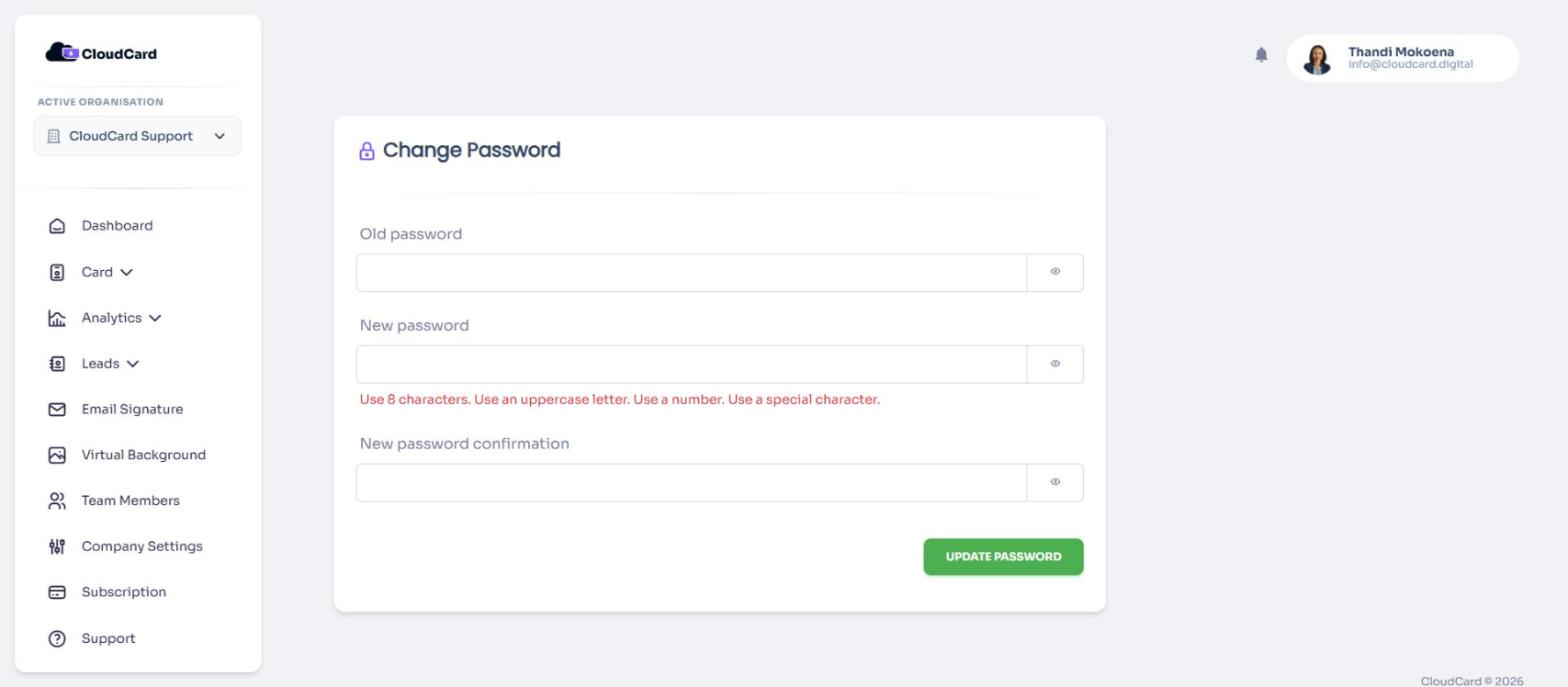
You’ll see “Password updated successfully.” Use the new password next time you sign in.
If an admin reset your password
When an admin resets your password, you get an email titled Password reset on CloudCard with a temporary password. The first time you sign in with it, CloudCard takes you to Change Password with the message “Please choose a new password.”
- Enter the temporary password from the email in Old password.
- Enter and confirm your new password.
- Click Update Password.
You’ll then go to your dashboard. Until you do this, you can’t open other pages.
Messages you might see
- “The old password does not match our records.” The current password you entered is wrong. If you can’t remember it, sign out and reset your password.
- “The new password must be different from your current password.” Choose a password you haven’t been using.
- A message about a data leak. That password has appeared in a known data breach. Choose a different one.
- The confirmation doesn’t match. Retype the new password in both fields.
Was this article helpful?
Thanks for letting us know.
Still stuck?
Send us a message and we'll know which article you were reading. Or email [email protected].