

Two-factor authentication
Add an emailed 6-digit code to your sign-in so no one can get in with your password alone.
Two-factor authentication adds a second check when you sign in. After your password, CloudCard emails you a 6-digit code, and you need that code to get in. Someone who learns your password still can’t sign in without access to your email.
Turn it on or off
- Click your name in the top-right corner of the dashboard, then Edit profile.
- Find Two Factor Authentication and switch it on. The label changes from Disabled to Enabled.
- Click Save.
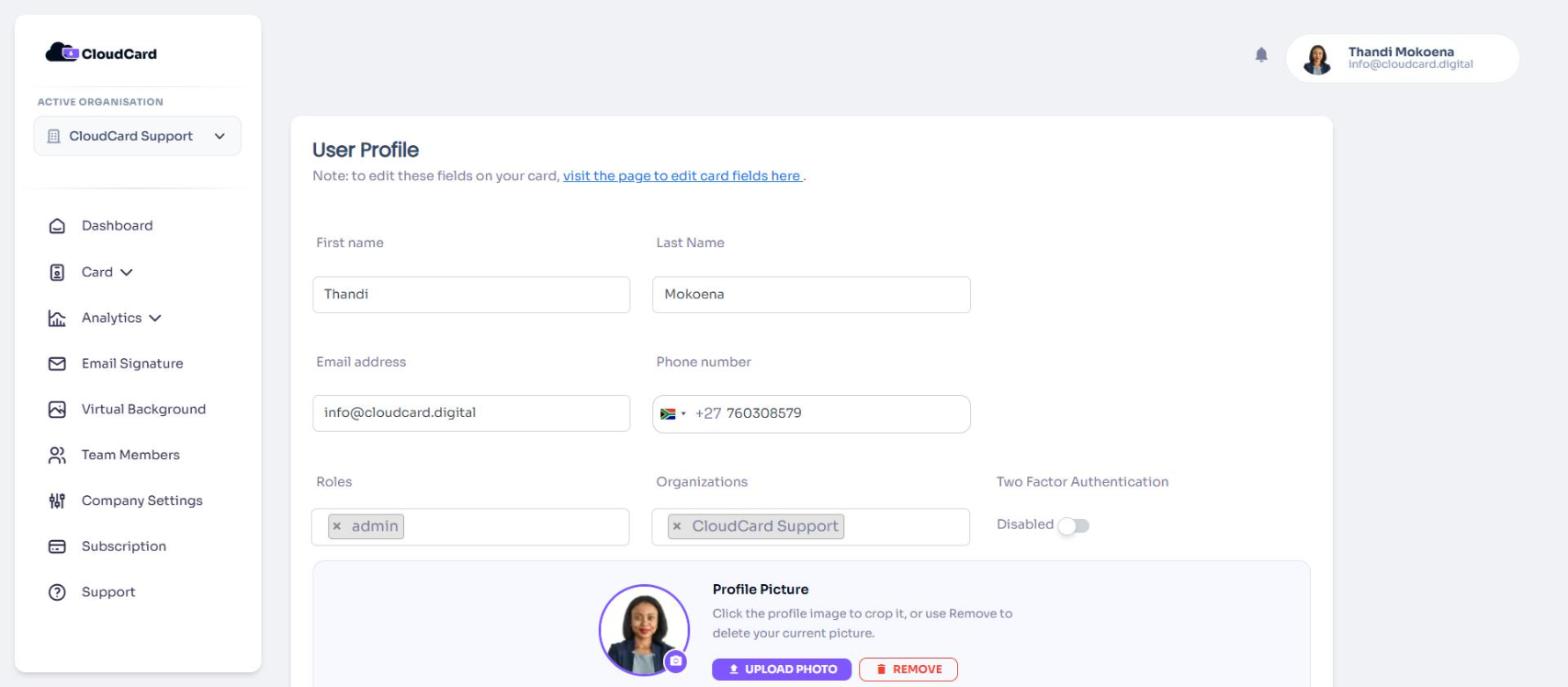
To turn it off, switch it back to Disabled and click Save.
Admins can also turn this on for other people. See Turn on two-factor authentication for a user.
Signing in with two-factor authentication
- Sign in with your email and password as usual.
- You’ll see Two Factor Authentication and “We’ve sent a verification code to your email.”
- Open the email titled CloudCard Two Factor Code. The code is in the subject and the message.
- Type or paste the 6 digits into Verification Code. Pasting fills all the boxes at once.
- Click Verify.
Good to know
- The code expires after 10 minutes. If it expires, CloudCard signs you out and you need to sign in again for a new code.
- Didn’t get the email? Click Resend code. You’ll see “The two factor code has been sent again.” Only the newest code works.
- To leave the code screen, click Logout.
- When you sign in with Microsoft, Microsoft checks who you are, so CloudCard doesn’t normally email a code.
If the code is rejected with “The two factor code you have entered does not match”, see My two-factor code isn’t working.
Was this article helpful?
Thanks for letting us know.
Still stuck?
Send us a message and we'll know which article you were reading. Or email [email protected].