

Sign in to CloudCard
Sign in to the CloudCard dashboard with your email and password, or with your Microsoft work account.
You sign in to the CloudCard dashboard in two short steps: first your email address, then your password or Microsoft account.
Steps
-
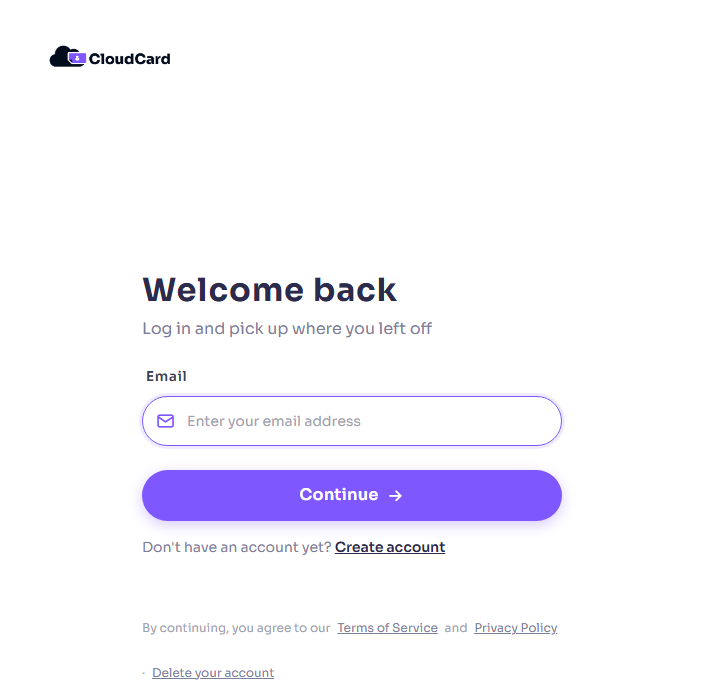
Go to the CloudCard sign-in page. You’ll see Welcome back and “Log in and pick up where you left off”.
-
Enter your Email and click Continue.
-
On the next screen, your email is filled in. Enter your Password. Click the eye icon if you want to check what you’ve typed.
-
If a “not a robot” check appears, complete it.
-
Click Sign in.
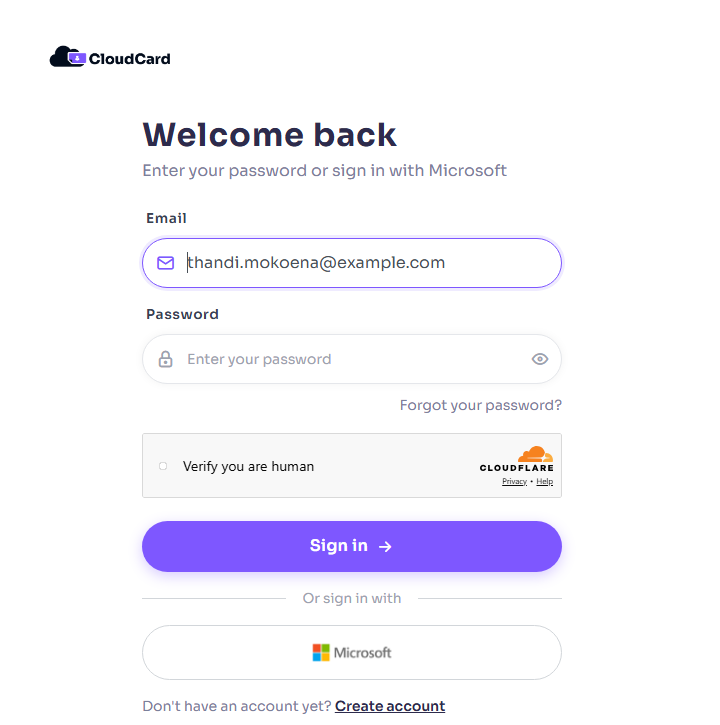
You’ll land on your dashboard.
You might see one more step
- Two Factor Authentication: if two-factor authentication is on for your account, CloudCard emails you a 6-digit code. Enter it and click Verify. See Two-factor authentication.
- Change Password: if an admin reset your password, CloudCard asks you to choose a new one before you continue. See Change your password.
- Verify Your Email Address: if your email hasn’t been confirmed yet. See Verify your email address.
Signing out
Click your name in the top-right corner of the dashboard, then Logout. Next time, the sign-in page remembers your email address.
If you can’t sign in
- “These credentials do not match our records.” The email or password is wrong. Check for typos, or reset your password.
- “Too many login attempts.” Wait for the number of seconds shown, then try again.
- Don’t have an account yet? Click Create account. See Create your CloudCard account. If your company uses CloudCard, ask your admin to add you instead.
For more help, see I can’t sign in.
Was this article helpful?
Thanks for letting us know.
Still stuck?
Send us a message and we'll know which article you were reading. Or email [email protected].