

Sign in with Microsoft
Use your Microsoft work account to sign in to CloudCard instead of a separate password.
PlansProPremiumCompare plans
On this page
If your company uses Microsoft 365, you can sign in to CloudCard with the same work account you use for Outlook and Teams.
Before you start
- You need a CloudCard account with the same email address as your Microsoft work account. Microsoft sign-in doesn’t create a new account.
- Your organisation must be on the Pro or Premium plan. On the Free plan, sign in with your password.
Steps
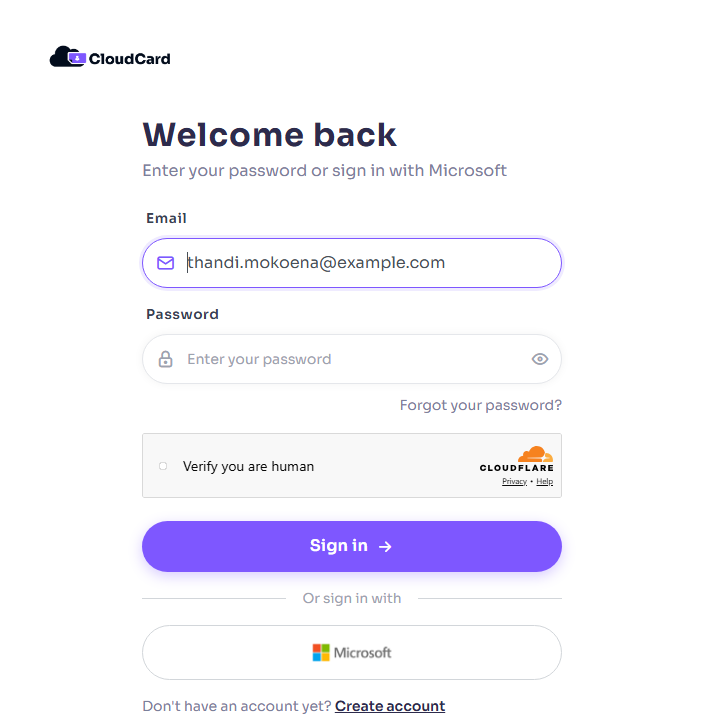
- Go to the CloudCard sign-in page, enter your Email and click Continue.
- On the password screen, under Or sign in with, click the Microsoft button.
- Sign in with your Microsoft work account if Microsoft asks you to. Approve any prompt from your company, such as the Microsoft Authenticator app.
You’ll return to CloudCard and land on your dashboard.
What’s different with Microsoft sign-in
- Microsoft checks who you are, so CloudCard doesn’t normally email you a two-factor code.
- If an admin reset your CloudCard password, you aren’t asked to change it when you sign in with Microsoft.
- Your CloudCard password still works. You can use either.
Messages you might see
- “SSO not available” with “Microsoft SSO is only available for Pro and Premium plans.” Your organisation is on the Free plan. Sign in with your password, or ask your admin about upgrading.
- “Account not found.” There’s no CloudCard account for the email address of the Microsoft account you used. Check you picked your work account in Microsoft, or ask your admin to add you.
- “Unable to login with Microsoft” with “Please use your password.” Something went wrong with Microsoft. Sign in with your password instead. If you’ve never set one, reset your password.
For admins
To make Microsoft the preferred way to sign in for your organisation, connect Microsoft Entra ID and tick Prefer single sign-on over passwords. See Connect Microsoft Entra ID.
If sign-in stops working for everyone, your Entra ID client secret may have expired. See “The client secret may have expired”.
Was this article helpful?
Thanks for letting us know.
Still stuck?
Send us a message and we'll know which article you were reading. Or email [email protected].