

Reset a forgotten password
Get a password reset link by email and choose a new CloudCard password.
If you’ve forgotten your password, CloudCard can email you a link to choose a new one. You can use the same steps to set a password for the first time if your invitation link has expired.
Request a reset link
- Go to the CloudCard sign-in page, enter your Email and click Continue.
- Click Forgot your password? under the password field.
- On Reset your Password, enter your Email and click Send link.
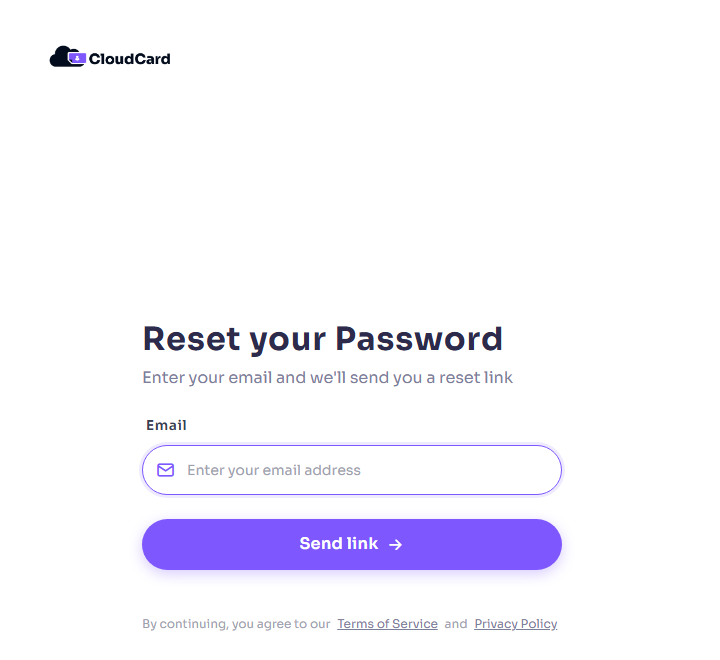
You’ll see “The password reset link will be sent now, if the email address is on record.” Check your inbox, and your spam folder, for the email from CloudCard.
Choose a new password
-
Click the link in the email. The Choose a new password page opens with your email filled in.
-
Enter a New password. It needs:
- at least 8 characters
- an uppercase letter
- a number
- a symbol
The hints under the field turn green as you meet each one.
-
Type it again in Confirm new password.
-
Click Reset password.
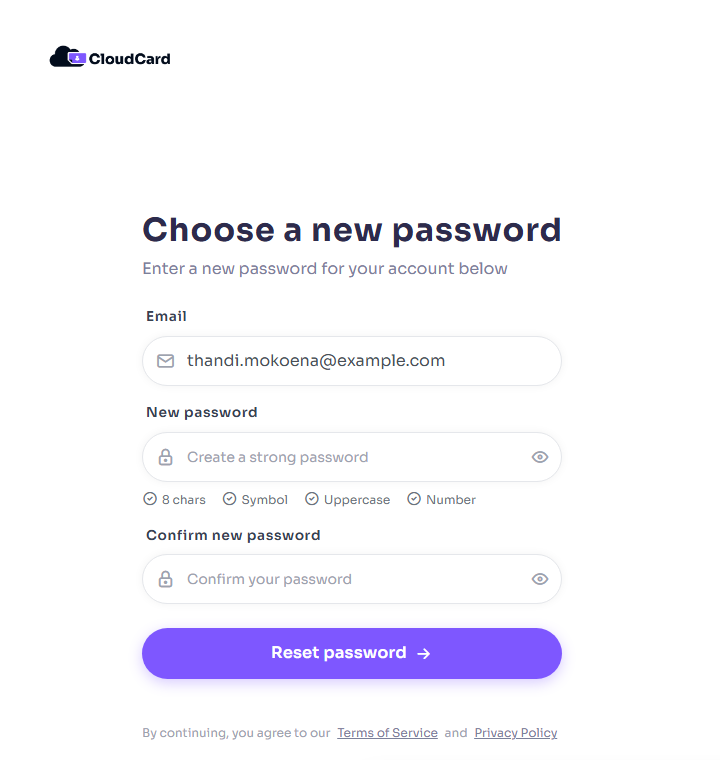
You’re signed in straight away and taken to your dashboard.
If it doesn’t work
- “Please enter a valid email address.” Check the address for typos. You’ll also see this if you request a second link within about a minute of the first. Wait a minute and try again.
- “This password reset token is invalid.” The link has expired or has already been used. Request a new one.
- Your new password isn’t accepted. CloudCard also rejects passwords that have appeared in a known data breach. Choose a different one.
- No email arrives. Check your spam folder. If your company created your account, make sure you’re using the email address your admin added. An admin can also reset your password or reinvite you.
If you still can’t get in, see I can’t sign in or contact support.
Was this article helpful?
Thanks for letting us know.
Still stuck?
Send us a message and we'll know which article you were reading. Or email [email protected].