

Reinvite a user or reset their password
Resend someone's invitation email or give them a new temporary password when they can't sign in.
PlansProPremiumEmail SignatureCompare plans
ForAdmins
If a colleague never received their invitation, let the link expire, or has forgotten their password, you can help from the Team Members page. There are two options:
- Reinvite user sends the full welcome email again, with a fresh link to set their password.
- Reset password emails them a new temporary password straight away.
Most of the time, Reinvite user is the better choice. People can also reset their own password from the sign-in page: see Reset a forgotten password.
Reinvite a user
- Click Team Members in the left-hand menu.
- Find the person and click the three dots in the Actions column.
- Click Reinvite user.
- Check the name on the page, then click Reinvite & Reset Password.
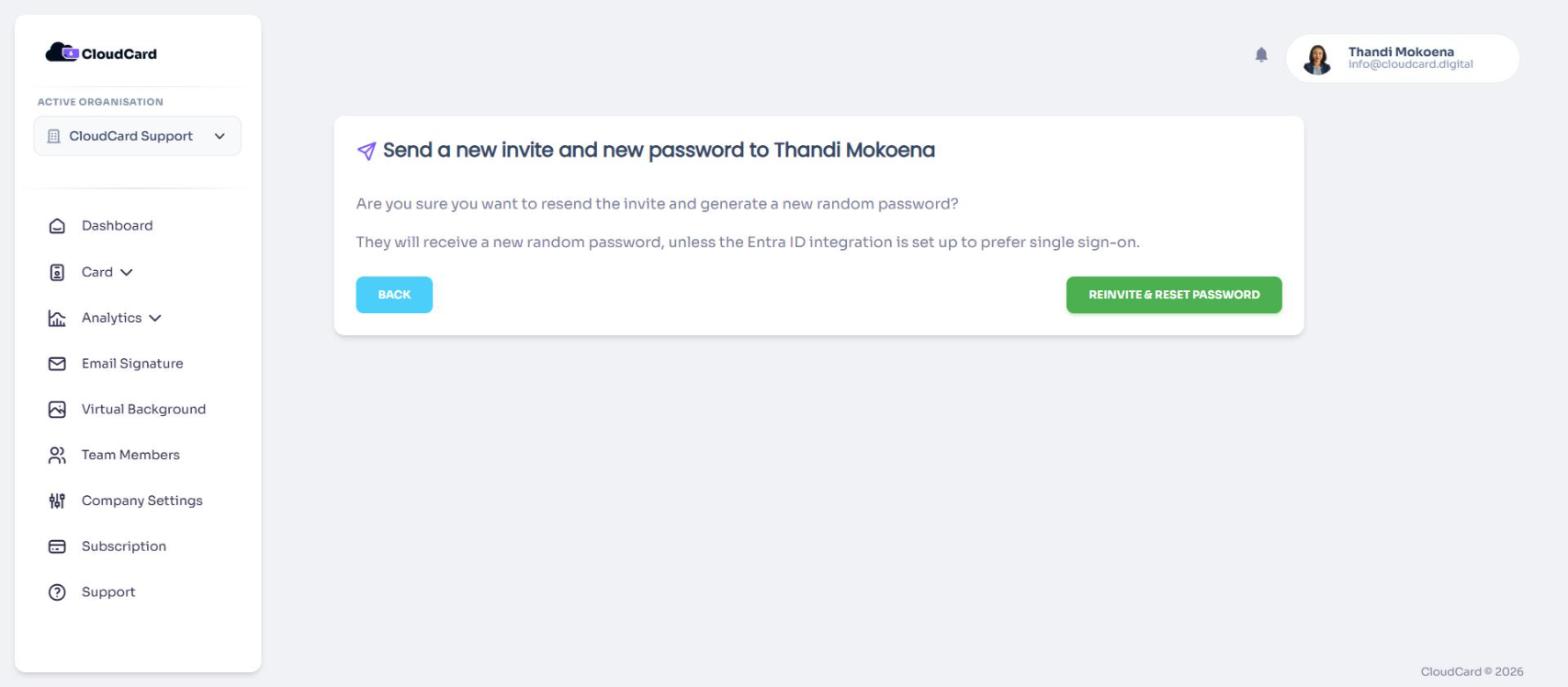
You’ll see “User reinvited.” The person gets the welcome email again with a Set your password button. Their old password stops working.
Reinviting also reactivates the account if it was deactivated.
Reset a user’s password
- On Team Members, click the three dots next to the person, then Reset password.
- The page shows a new Temporary Password. Click Copy if you want to pass it on yourself.
- Click Reset Password.
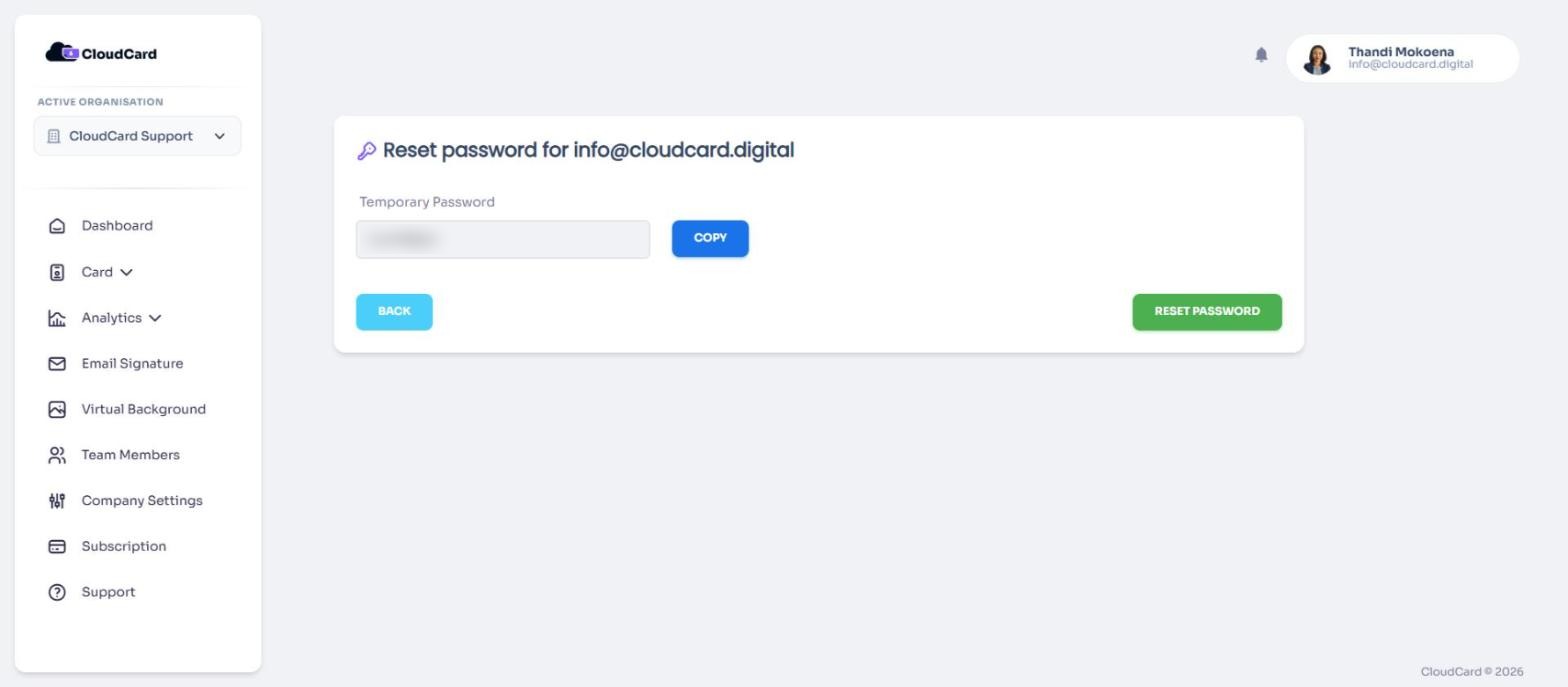
You’ll see “Password reset”. CloudCard emails the person their new password. The next time they sign in, they’ll be asked to choose a new password of their own.
If the email doesn’t arrive
- Check the email address under Edit user is spelt correctly.
- Ask them to check their junk or spam folder for an email from CloudCard.
- Still stuck? Contact support.
Was this article helpful?
Thanks for letting us know.
Still stuck?
Send us a message and we'll know which article you were reading. Or email [email protected].