

Build your email signature
Pick a template, check the live preview and copy a signature built from your CloudCard details.
The Email Signature Builder turns the details on your CloudCard into a ready-made email signature. You choose a template, copy the result and paste it into your email app.
Before you start
- You need a card, or the Email Signature role, in the organisation you have selected. The Email Signature link only appears in the menu when you do.
- Your signature uses what’s on your card, so edit your card details first if anything is out of date.
What goes into your signature
CloudCard fills the template from your card and your organisation’s settings:
- Your name, job title and email address.
- Your mobile number, work number, work address and website, if they’re on your card.
- Your profile photo (in the templates that show one) and your company logo.
- A QR code and a Save Contact button that open your digital card, if you have one.
- Any social icons, banner and disclaimer your admin has set up.
Colours come from your organisation’s brand colours.
Steps
-
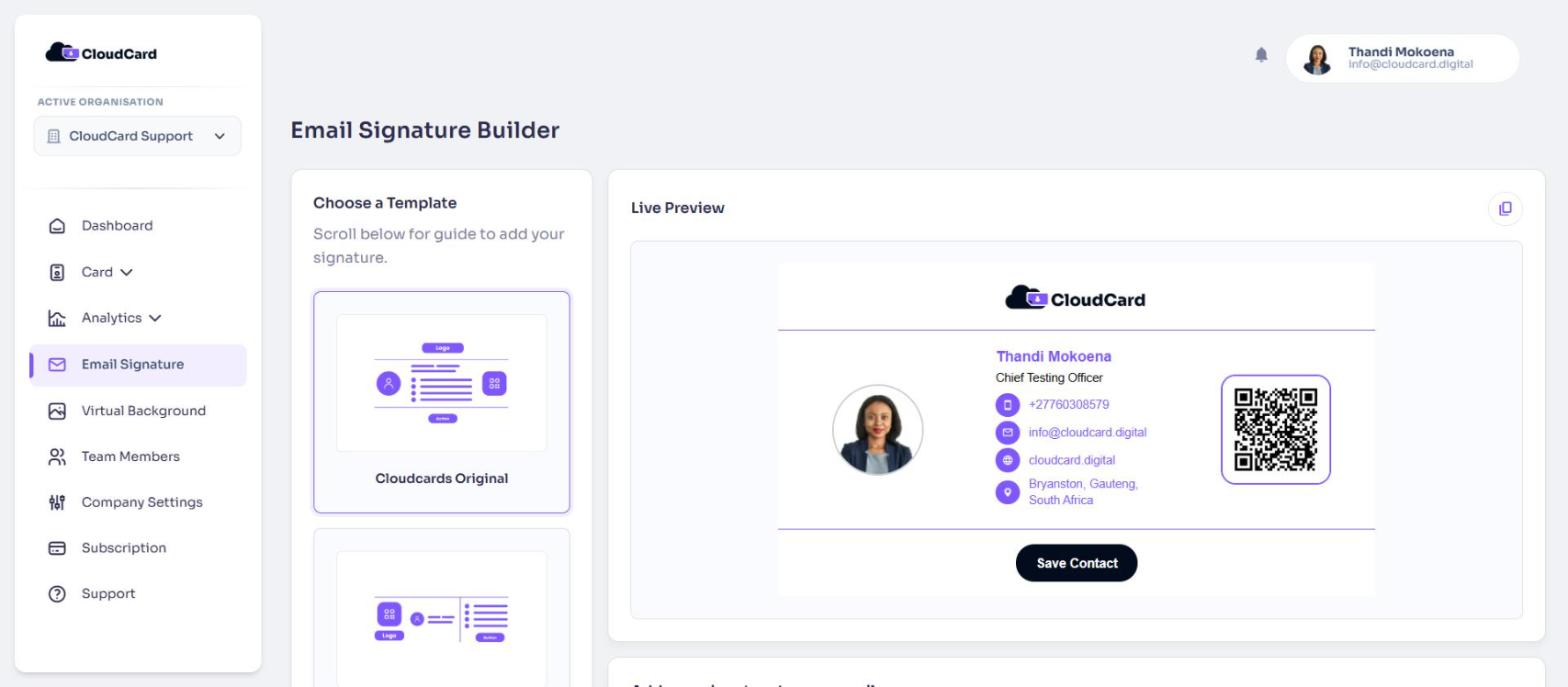
In the left-hand menu, click Email Signature. The Email Signature Builder opens.
-
Under Choose a Template, click a template. The Live Preview updates to show your signature.
-
Check the preview. If a detail is wrong or missing, change it on your card, then come back to this page.
-
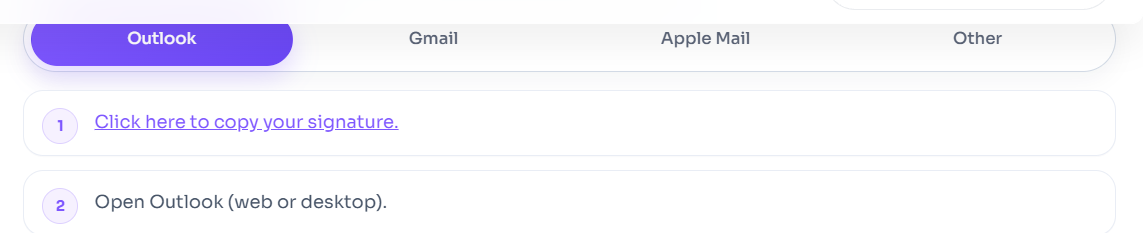
Under Add your signature to your email, choose the tab for your email app: Outlook, Gmail, Apple Mail or Other.
-
Click Copy Signature. The button briefly changes to Copied!.
-
Follow the steps shown on that tab to paste the signature into your email app.
You can also copy the signature with the copy icon in the top-right corner of the Live Preview.
Next steps
Was this article helpful?
Thanks for letting us know.
Still stuck?
Send us a message and we'll know which article you were reading. Or email [email protected].