

Choose one signature template for everyone
Turn on Global Email Signature Management so everyone in your organisation uses the same signature template.
PlansProPremiumEmail SignatureCompare plans
ForAdmins
By default, each person picks their own signature template. If you want every signature in your organisation to look the same, choose one template and lock it in.
Before you start
- You need to be an admin of the organisation.
- On the Free plan, this section is blurred behind an upgrade panel. See Compare plans.
The five templates
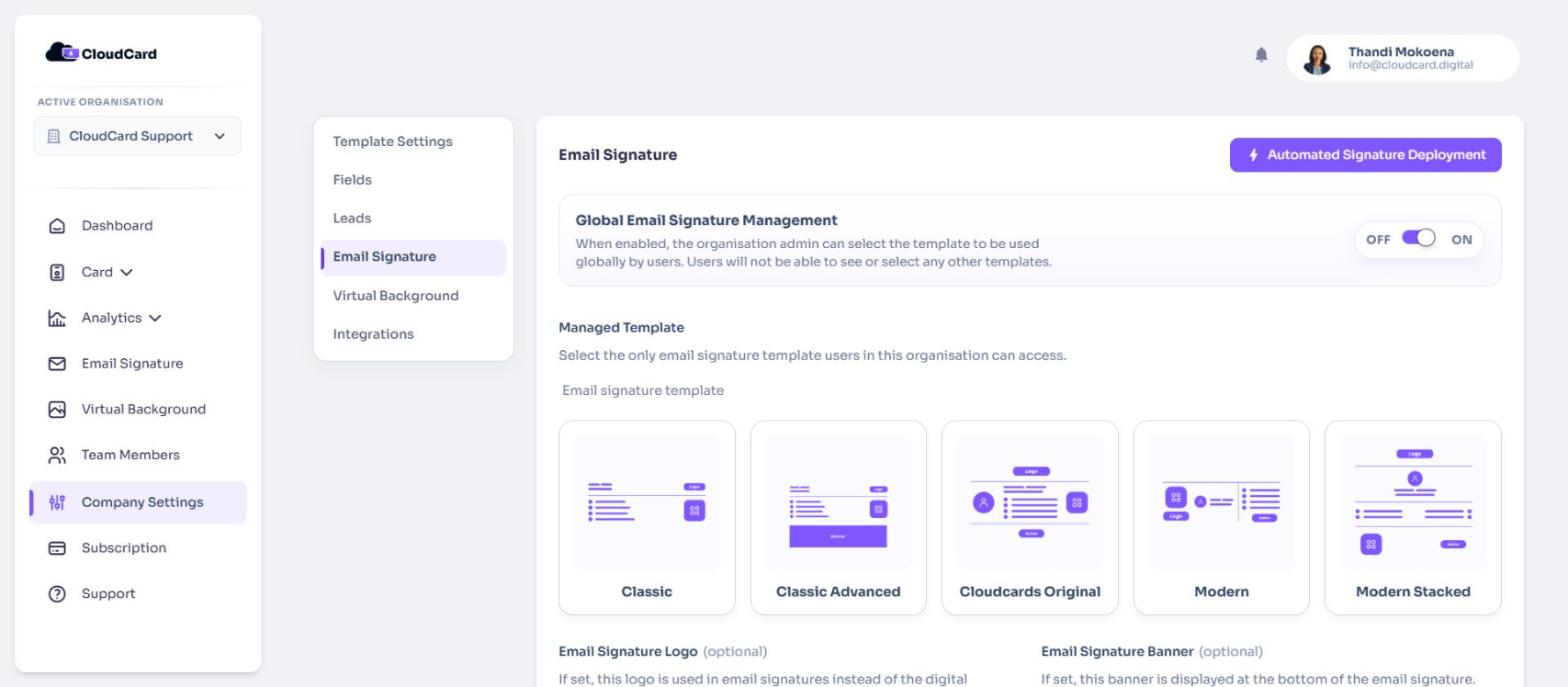
CloudCard has five signature templates: Classic, Classic Advanced, the original CloudCard template, Modern and Modern Stacked. The original CloudCard template is the default when no template has been chosen. Open the Email Signature page from the left-hand menu to preview each one with your own details before you decide.
Steps
- In the left-hand menu, click Company Settings.
- In the list of sections, click Email Signature.
- Switch Global Email Signature Management to On. The Managed Template options appear.
- Under Email signature template, click the template everyone should use.
- Click Save Settings at the bottom of the page.
What your team sees
When people open the Email Signature page, they only see the template you chose, with the message “Your organisation manages this signature template selection.” They can still copy and install it as usual.
Anyone who installed a different template before you made this change keeps it until they copy their signature again. Let your team know to copy the new one from the Email Signature page.
Turn it off
Switch Global Email Signature Management to Off and click Save Settings. Everyone can choose from all five templates again.
Related
Was this article helpful?
Thanks for letting us know.
Still stuck?
Send us a message and we'll know which article you were reading. Or email [email protected].