

Social icons in signatures
Show LinkedIn, Facebook, Instagram and other social icons in your team's email signatures, linked to each person's own profiles.
PlansProPremiumEmail SignatureCompare plans
ForAdmins
On this page
You can add small social media icons to your organisation’s email signatures. Each icon links to that person’s own profile, taken from their digital business card.
Before you start
- You need to be an admin of the organisation.
- On the Free plan, this section is blurred behind an upgrade panel. See Compare plans.
Turn on social icons
- In the left-hand menu, click Company Settings.
- In the list of sections, click Email Signature.
- Scroll down and switch Social Media Icons to On. The Displayed Social Media Icons options appear.
- Tick each icon you want to show. You can choose from:
- LinkedIn (Company)
- X (Twitter)
- YouTube
- TikTok
- Click Save Settings at the bottom of the page.
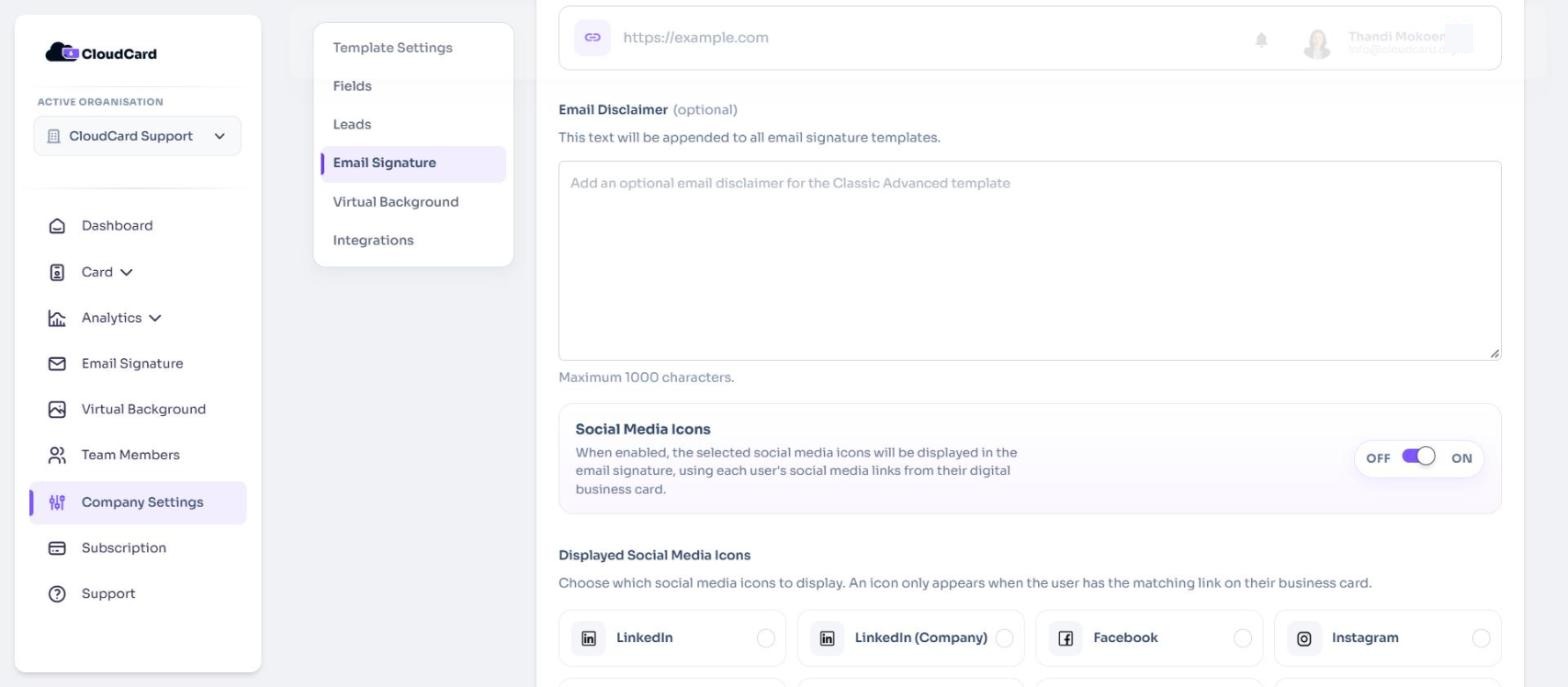
The icons appear in your organisation’s brand colour in every signature template.
Why an icon isn’t showing for someone
An icon only appears when both of these are true:
- You ticked it here.
- That person has the matching link on their card, for example a LinkedIn field with their profile address.
So if you tick Instagram but someone has no Instagram link on their card, their signature simply leaves it out. To fix it, they add the link to their card. See Add or remove fields.
After anyone changes their card, they need to copy their signature again from the Email Signature page. Signatures added by the Outlook add-in update automatically.
Turn off social icons
Switch Social Media Icons to Off and click Save Settings.
Related
Was this article helpful?
Thanks for letting us know.
Still stuck?
Send us a message and we'll know which article you were reading. Or email [email protected].