

Email Signature users and seats
Who counts as an Email Signature user, how Email Signature seats work, and who can receive deployed signatures.
ForAdmins
On this page
Anyone with a card can build and copy their own signature. The Email Signature role is different: it marks the people who get a managed signature, and it’s what Outlook and Gmail deployment look for. Each person with that role uses one Email Signature seat.
Who needs the Email Signature role
Give someone the Email Signature role if:
- you want the Outlook add-in or Gmail deployment to give them a signature, or
- they only need an email signature and not a digital business card.
People with only the Email Signature role see Edit Details in the menu instead of a card, so they can keep their signature details up to date. They don’t get a public digital card, so their signature has no QR code or Save Contact button.
Someone can have both a card and the Email Signature role. For example, give your sales team both so their deployed signatures link to their cards.
Give someone the role
- When you add a user, choose email signature under Roles.
- When you import users from Excel, put Email Signature in the role column. You can choose whether to send these users their login details.
- If you sync users from Microsoft Entra ID, you can map a group to the role. See Manage roles with Entra ID groups.
For more about roles, see User roles: Admin, User and Email Signature.
How seats are counted
- Every active user with the Email Signature role uses one Email Signature seat.
- Email Signature seats are separate from Digital Card seats. A person with both a card and the role uses one of each.
- Deactivated users don’t use a seat.
How many seats you have depends on your plan:
- Premium: Email Signature is included. You get one Email Signature seat for each Digital Card seat on your plan.
- Email Signature plan: you get the number of licences you pay for.
- Pro: you can add Email Signature licences to your plan.
To add or remove licences, see Add or cancel Email Signature licences.
Check how many seats you’re using
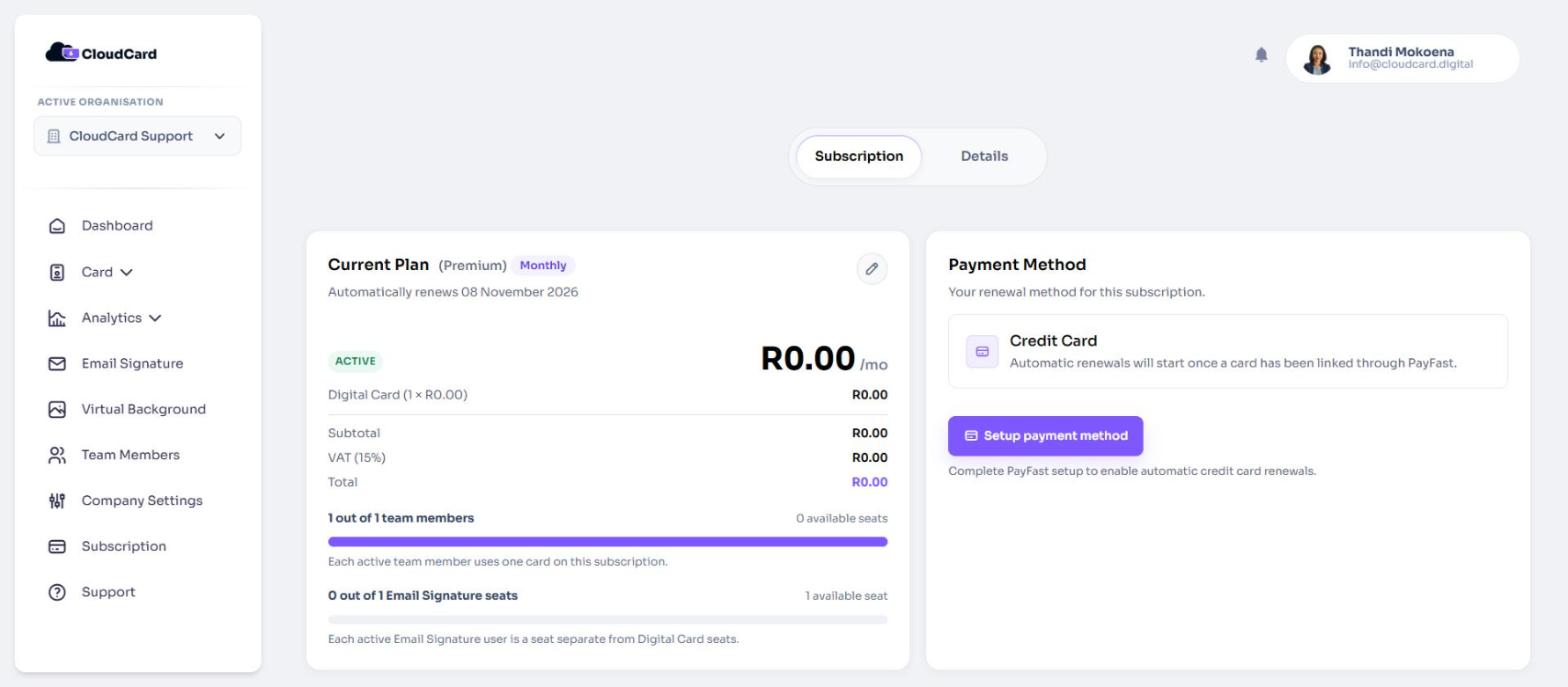
- In the left-hand menu, click Subscription.
- Look for Email Signature seats. It shows how many are in use, out of how many, and how many are still available.
When you run out of seats
If every seat is in use, adding another Email Signature user shows “Email Signature seat limit reached”. An Excel import that needs more seats than you have stops and tells you how many more you need. Add licences, or deactivate someone who no longer needs a signature, then try again.
Who receives deployed signatures
Outlook and Gmail deployment only include people who:
- have the Email Signature role,
- are active, and
- belong to the organisation you’re deploying for.
The Outlook and Google Workspace pages show the number of Eligible users. Click View users to see who they are.
Related
Was this article helpful?
Thanks for letting us know.
Still stuck?
Send us a message and we'll know which article you were reading. Or email [email protected].