

Set your organisation's signature logo, banner and disclaimer
Add a signature logo, a clickable banner and a disclaimer that appear in every email signature in your organisation.
PlansProPremiumEmail SignatureCompare plans
ForAdmins
On this page
As an admin, you can add branding that appears in everyone’s email signature: a logo, a banner with an optional link, and a disclaimer. These apply to every template, and to signatures deployed through Outlook or Gmail.
Before you start
- You need to be an admin of the organisation.
- On the Free plan, this section is blurred behind an upgrade panel. See Compare plans.
Open the Email Signature settings
- In the left-hand menu, click Company Settings.
- In the list of sections, click Email Signature.
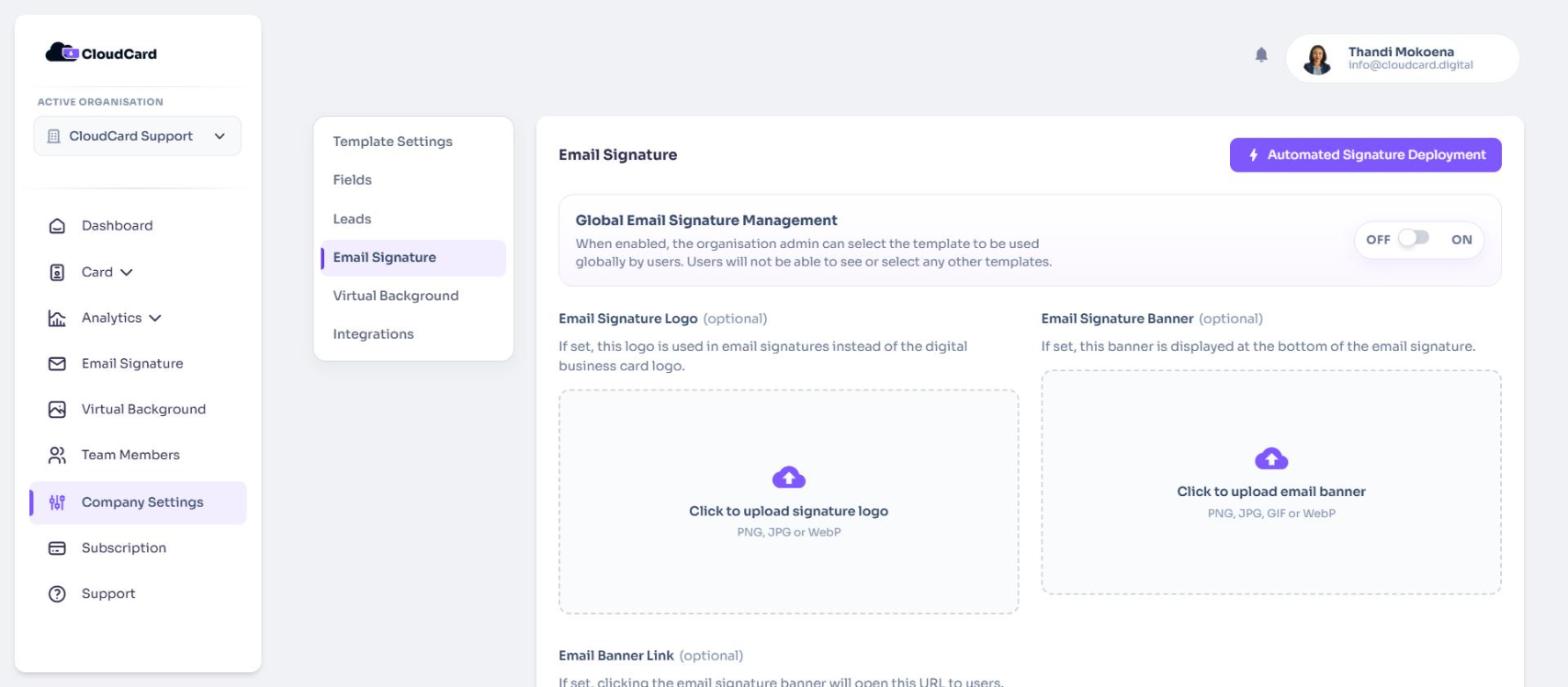
Add a signature logo
By default, signatures use the logo from your digital business card. Upload a separate one if you want a different logo in emails.
- Under Email Signature Logo, click Click to upload signature logo.
- Choose a PNG, JPG or WebP image. A preview appears.
To swap it later, click Change. To go back to your card logo, click Remove.
Add a banner
The banner appears at the bottom of the signature. Wide, short images work best: CloudCard scales the banner to fit within 650 × 180 pixels.
- Under Email Signature Banner, click Click to upload email banner.
- Choose a PNG, JPG, GIF or WebP image.
- If the image is taller than a typical email banner, CloudCard asks Continue with this banner? Click Continue to use it anyway, or Upload another image.
Link the banner to a web page
- Under Email Banner Link, enter the full address, for example
https://example.com.
When someone clicks the banner in your email, this page opens. Leave it blank if the banner shouldn’t be clickable.
Add a disclaimer
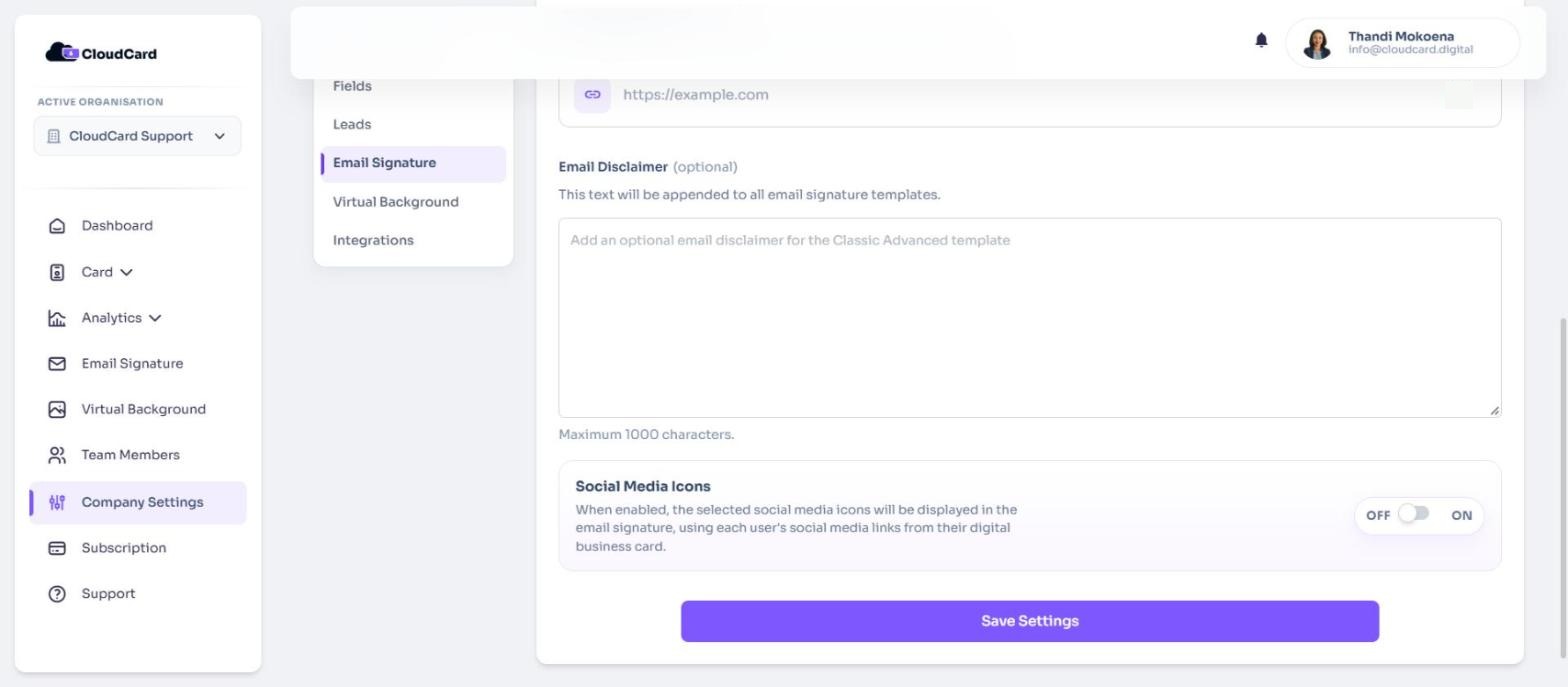
- Under Email Disclaimer, type or paste your disclaimer text. You can use up to 1,000 characters.
The disclaimer appears in small grey text at the bottom of every template.
Save your changes
Click Save Settings at the bottom of the page.
People who copied their signature before your change need to copy it again from the Email Signature page. Signatures added by the Outlook add-in pick up the change automatically. For Gmail deployment, deploy again.
Related
Was this article helpful?
Thanks for letting us know.
Still stuck?
Send us a message and we'll know which article you were reading. Or email [email protected].