

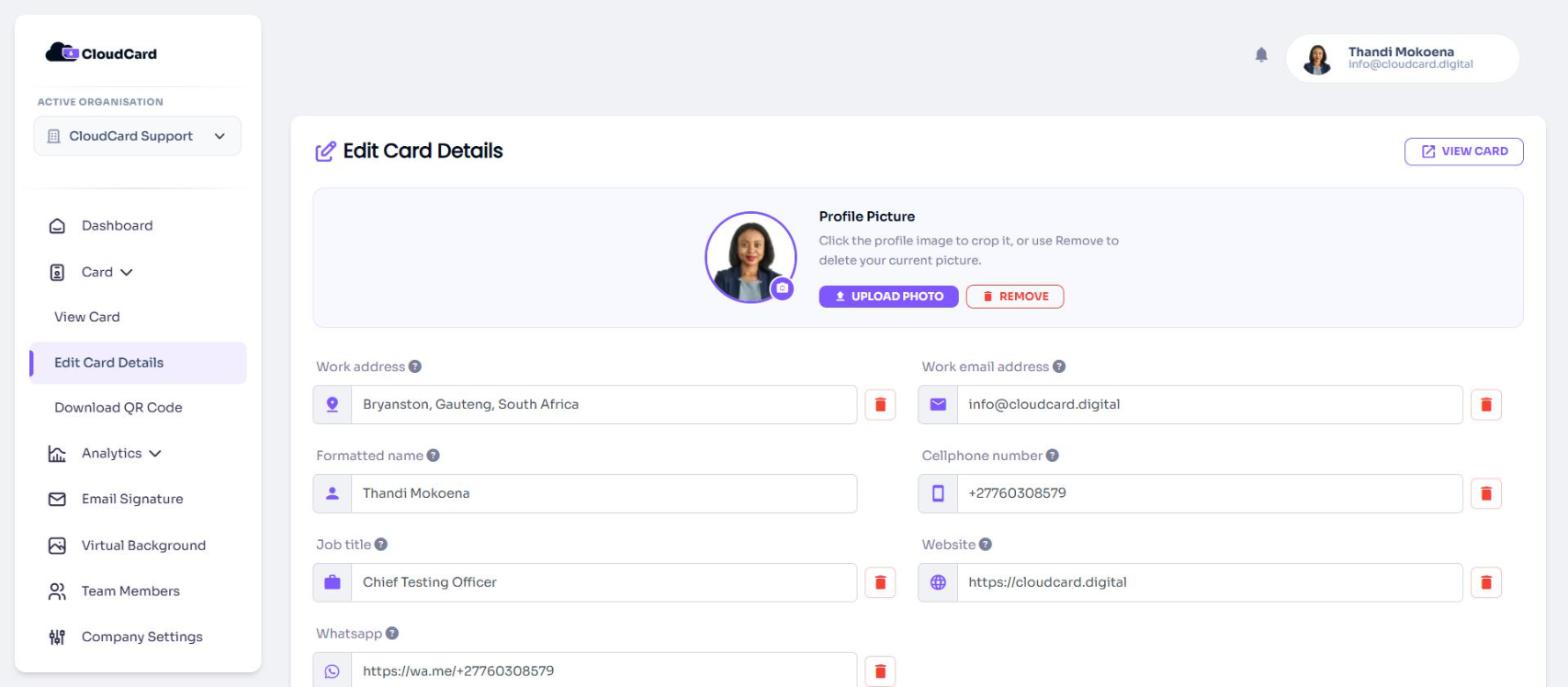
Edit your card details
Change your name, job title, phone numbers, links and other details on your digital business card.
ForCardholders
On this page
You can change the details on your card at any time. Changes show on your card as soon as you save, and anyone who opens your link, scans your QR code or taps your NFC card sees the new version.
Open the edit page
You can get to the Edit Card Details page in three ways:
- In the dashboard sidebar, open Card and click Edit Card Details.
- On the dashboard, click Edit card above the CloudCard Preview.
- On your public card, open the menu (the three-line icon at the bottom) and tap Edit my card. You need to be signed in to see this option.
Steps
- Open the Edit Card Details page.
- Click into the field you want to change and type the new value.
- To add a field that isn’t on your card yet, choose it from Add new field. See Add or remove fields.
- Click Save at the bottom of the page.
CloudCard saves your changes and shows Card updated. Click View card at the top of the page to check how it looks.
Things to know
- Hover over the question mark next to a field name to see what the field is for.
- Phone fields only accept numbers and a plus sign. Use the international format, for example +27 82 123 4567, so the number works for people in other countries.
- Links must be valid web addresses. If you leave off
https://, CloudCard adds it for you. If a link isn’t valid, you’ll see “The URL must be valid and start with either http:// or https://”. - Clearing a field doesn’t remove it. If you empty a box and click Save, the old value stays. To take a field off your card, use its delete icon instead.
- Greyed-out fields have been locked by your admin. See Why some fields are locked.
- Your card link doesn’t change when you edit your name or job title, so printed QR codes and NFC cards keep working.
If you leave the page with unsaved changes, CloudCard warns you first.
Related
Was this article helpful?
Thanks for letting us know.
Still stuck?
Send us a message and we'll know which article you were reading. Or email [email protected].