

Download users' QR codes
Download the QR code for anyone in your team, for name badges, desk signs or printed material.
PlansProPremiumCompare plans
ForAdmins
As an admin you can download the QR code for any team member’s card, for example to print on name badges or a reception sign. Scanning it opens their digital card.
Steps
- Click Team Members in the left-hand menu.
- Find the person and click the three dots in the Actions column.
- Click Download QR followed by their name.
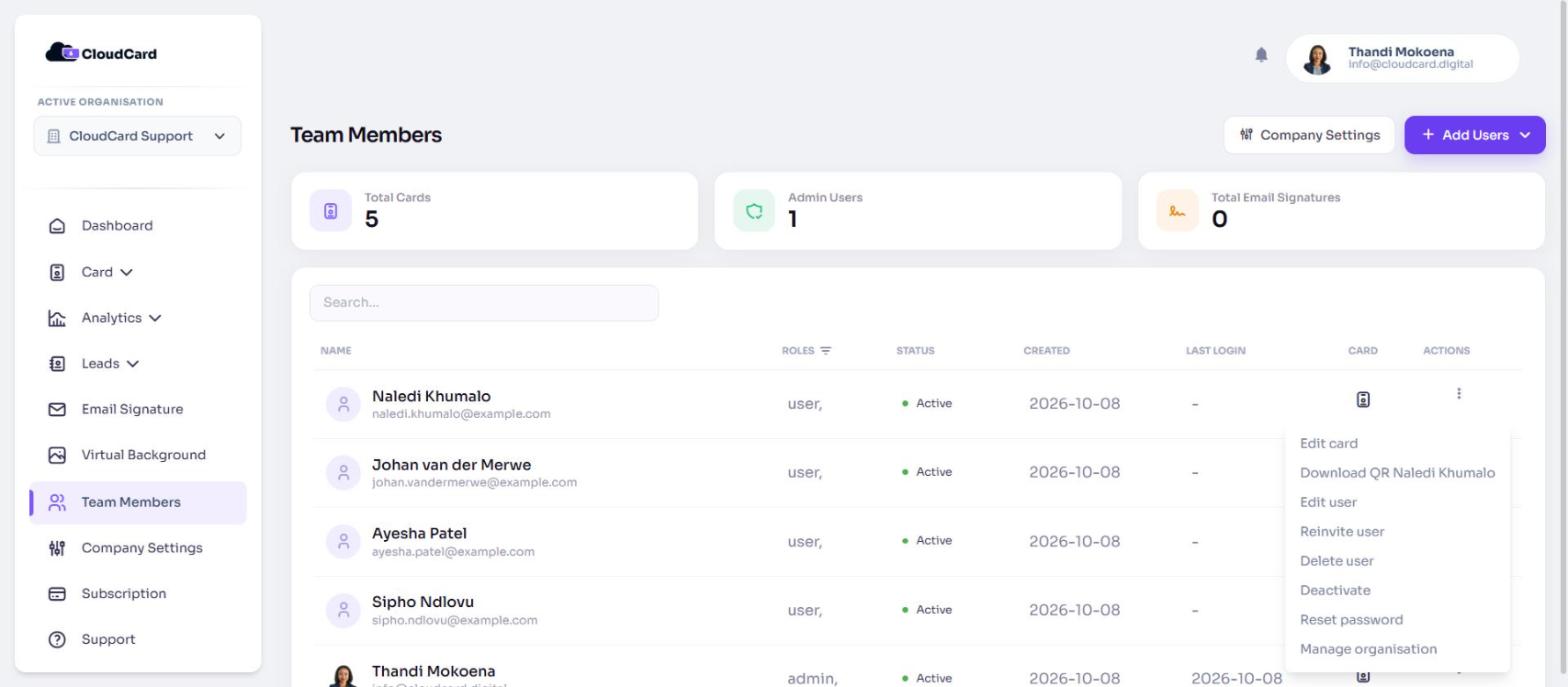
A PNG image downloads straight away. The file name starts with the person’s name, for example jane-smith-…-qr-code.png.
Repeat for each person whose code you need. There’s no option to download everyone’s codes at once.
Good to know
- The QR code is black on a white background, with a quiet border so it scans reliably when printed.
- Scans of this code show up in the person’s analytics as QR code views. See Where your views come from.
- The code points to the person’s card link, so it keeps working when they update their details. It stops working if you deactivate or delete them.
- The option only appears for people who have a digital card. Email Signature users don’t have one.
Team members can download their own code too. See Download your QR code.
Was this article helpful?
Thanks for letting us know.
Still stuck?
Send us a message and we'll know which article you were reading. Or email [email protected].