

What visitors see on the lead capture form
The fields on the lead form, what's required, and what happens after a visitor shares their details.
PlansProPremiumCompare plans
On this page
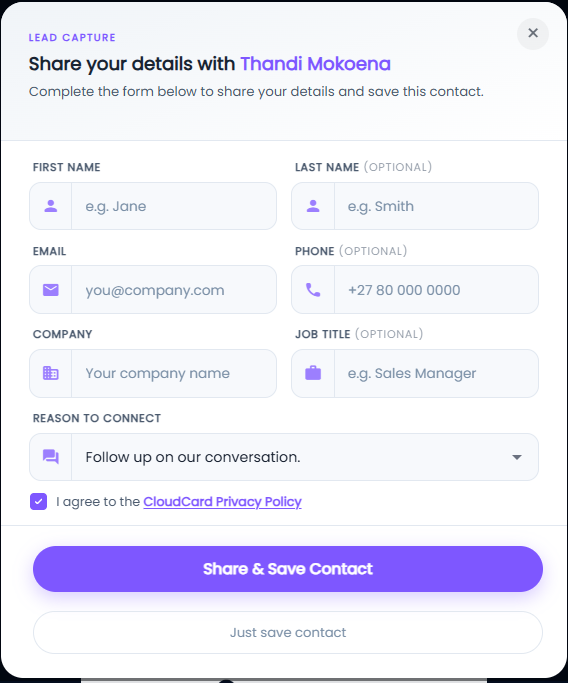
When lead capture is on, tapping Save contact on a card opens a short form instead of downloading the contact straight away. The visitor can share their details, or skip the form and just save your contact.
The form
The form is headed “Share your details with” and the cardholder’s name, under the label “Lead Capture”.
| Field | Required? |
|---|---|
| First Name | Yes |
| Last Name | Optional |
| Yes | |
| Phone | Optional, 5 to 15 digits |
| Company | Yes |
| Job Title | Optional |
| Reason to connect | Chosen from a list |
Reason to connect offers “Follow up on our conversation.”, “Learn more about your products.”, “Schedule a meeting.” and “Other”. Choosing Other shows an Other Reason box for a short note. The reason is saved on the lead.
Below the fields is a ticked box: “I agree to the CloudCard Privacy Policy”. If the visitor unticks it, the submit button is disabled.
The two buttons
- Share & Save Contact sends the visitor’s details to you, shows “Your details were successfully submitted!”, and then downloads your contact to their phone.
- Just save contact skips the form and downloads your contact without sharing anything.
If a required field is empty or the email isn’t valid, the form shows a message under that field, such as “Email is required. Please fill it out.” Email addresses containing a plus sign (+) aren’t accepted.
After they submit
- The visitor gets an email confirming they shared their details with you, with a link back to your card.
- You get an email headed “You have a new lead”.
- The lead appears in View My Leads with the status Open.
Related
Was this article helpful?
Thanks for letting us know.
Still stuck?
Send us a message and we'll know which article you were reading. Or email [email protected].