

Find your way around the dashboard
What's on the CloudCard dashboard, what each sidebar item does and where to find your account settings.
On this page
The dashboard is the first page you see after signing in. It shows your card, how it’s doing and the quickest ways to share it. The sidebar on the left takes you everywhere else.
The main page
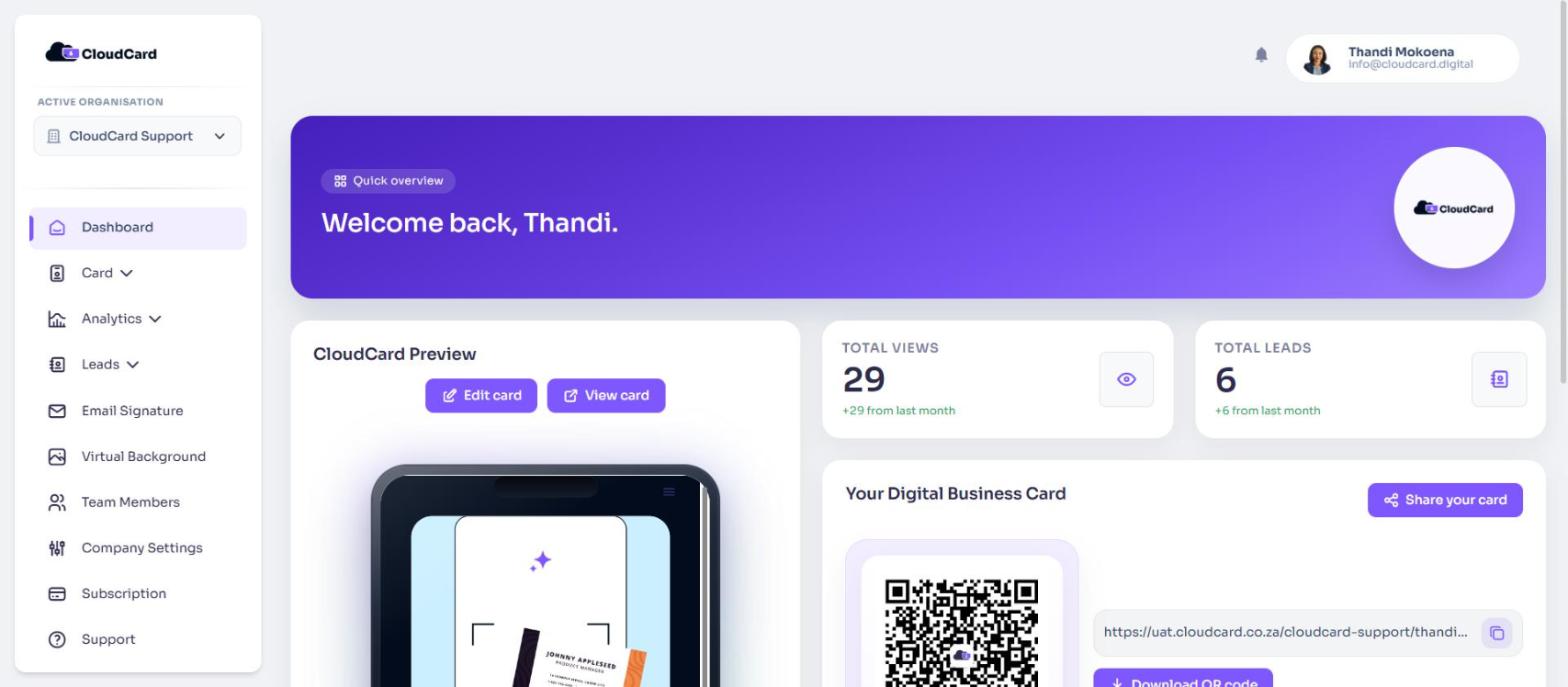
- Welcome banner: greets you by name and shows your company logo.
- CloudCard Preview: a live, scrollable preview of your card. Click Edit card to change it or View card to open it in a new tab.
- Views and leads: tiles showing Total Views and Total Leads for your card, with the change from last month. Click a tile to open the full figures. Leads appear on Pro and Premium only.
- Your Digital Business Card: your QR code and card link.
- Click Share your card to share using your device’s share options.
- Click the link or the copy icon to copy your card’s web address.
- Click Download QR code to save the QR code.
- Recent Leads: the newest people who shared their details from your card. Click View all to open your leads.
If your organisation uses CloudCard for email signatures only, you’ll see a simpler dashboard with Email Signature, Edit Details and Request a Digital Business Card instead.
The sidebar
What you see depends on your role and plan. Items with a lock icon are on a higher plan. Hover over one to see which, for example “Leads is available on Pro and Premium - upgrade to unlock”.
| Item | What it’s for |
|---|---|
| Active organisation | Appears if you belong to more than one organisation. Choose which one you’re working in. See Switch between organisations. |
| Dashboard | Back to this page. |
| Card | Open it for View Card, Edit Card Details and Download QR Code. |
| Analytics | Views of your card. Admins also see My Company’s Views and My Card’s Views. |
| Leads | Your captured leads, plus Deals and the AI Scanner. Admins also see View All Leads. |
| Email Signature | Build and install your email signature. |
| Virtual Background | Create a branded background for video calls. |
| Team Members | Admins only. Add and manage users. |
| Company Settings | Admins only. Branding, templates, fields and integrations. |
| Subscription | Admins who manage billing. Plan, seats and invoices. |
| Support | Opens this Help Centre. |
Your account menu
Click your name and photo in the top-right corner to open your account menu.
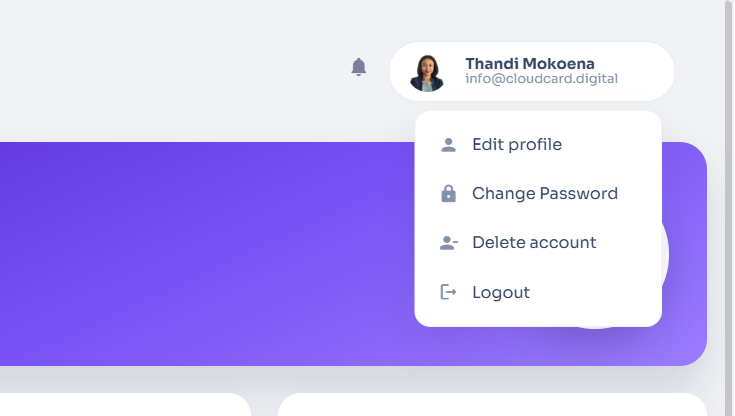
- Edit profile: your name, email address, phone number, profile picture and two-factor authentication.
- Change Password: see Change your password.
- Delete account: see Delete your account.
- Logout: sign out of CloudCard.
If you have lead access, a bell icon next to your name shows task reminders that are due. See Add tasks and reminders.
Was this article helpful?
Thanks for letting us know.
Still stuck?
Send us a message and we'll know which article you were reading. Or email [email protected].