

Create your CloudCard account
Sign up with your work email, verify your address and choose a plan to get your first digital business card.
Signing up creates three things at once: your user account, an organisation for your company, and your first digital business card. You become the admin of that organisation, so you can add colleagues and set up branding later.
If your company already uses CloudCard and has created an account for you, don’t sign up again. See Your company gave you a CloudCard: start here.
Before you start
- Use your work email address. Personal addresses such as Gmail, Outlook.com, Hotmail and Yahoo aren’t accepted, and you’ll see “Please use your work email address for registration.”
- Email addresses that contain a plus sign (
+) aren’t accepted. - Have your mobile number ready. CloudCard checks that it’s a valid number.
Steps
- Go to the CloudCard sign-in page and click Create account, or open the registration page directly.
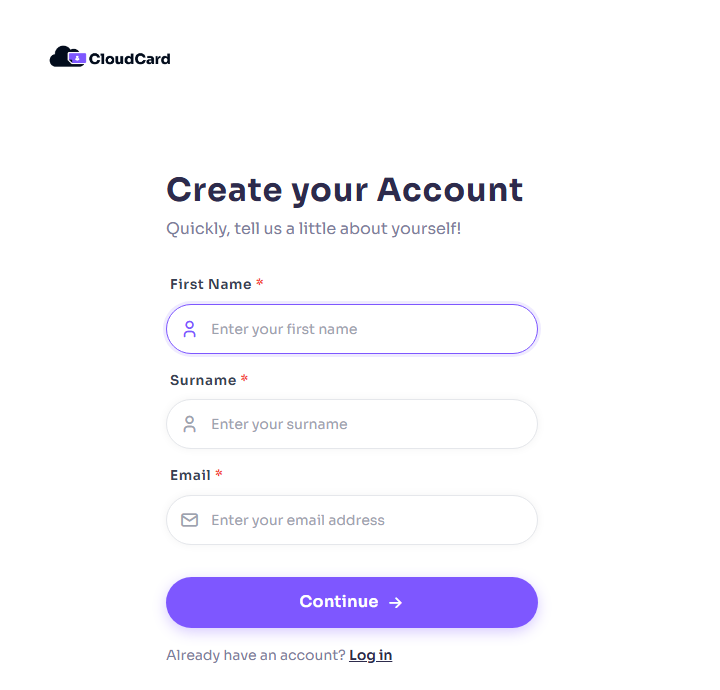
- On Create your Account, enter your First Name, Surname and Email, then click Continue.
- On Create your Profile, enter your Company Name, Job Title and Phone Number. Choose your country code from the flag drop-down first (it starts on +27). Click Next.
- On Create your password, enter a Password and type it again in Confirm Password. The hints under the field turn green as you meet each rule: 8 chars, Symbol, Uppercase and Number.
- If a “not a robot” check appears, complete it.
- Click Create.
Your name, email, phone number and job title are added to your new card straight away. Your company name becomes your organisation’s name.
What happens next
- Verify your email. You’ll see Verify Your Email Address. Open the email CloudCard sent you and click the link. If it doesn’t arrive, check your spam folder or click Request another verification email. See Verify your email address.
- Choose a plan. After verifying, you’ll see Choose Your Plan. You can pick a plan or click Start 14 Day Trial. See Compare plans and Start a 14-day Pro trial.
- Set up your card. CloudCard then opens the setup wizard. See Complete the setup wizard.
If something goes wrong
- “This email cannot be used to create a new account.” That address is already linked to a CloudCard account. Sign in instead, or reset your password if you’ve forgotten it.
- A field turns red. Names, company and job title can only contain letters, numbers, spaces and simple punctuation. Remove characters such as
<,>or/. - The password isn’t accepted. Besides the four rules above, CloudCard rejects passwords that have appeared in a known data breach. Choose a different one.
Was this article helpful?
Thanks for letting us know.
Still stuck?
Send us a message and we'll know which article you were reading. Or email [email protected].