

Turn on two-factor authentication for a user
Require a colleague to enter an emailed code each time they sign in, for extra account security.
PlansProPremiumEmail SignatureCompare plans
ForAdmins
Two-factor authentication adds a second step to signing in. After entering their password, the person is emailed a code and must enter it before they can use CloudCard. As an admin you can turn it on for anyone in your organisation.
Steps
- Click Team Members in the left-hand menu.
- Find the person and click the three dots in the Actions column.
- Click Edit user.
- Turn on the Two Factor Authentication switch. The label next to it changes from Disabled to Enabled.
- Click Save.
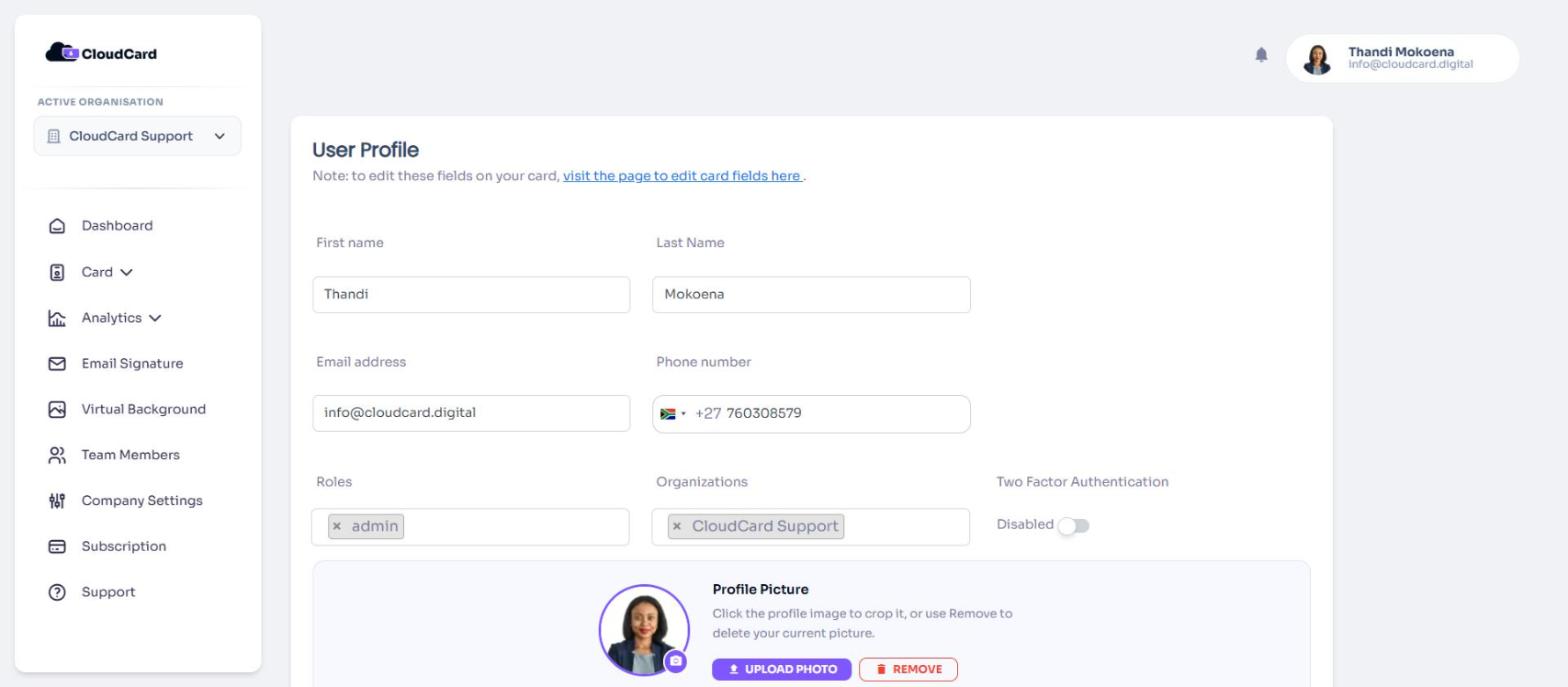
The next time they sign in, CloudCard emails them a code with the subject “CloudCard Two Factor Code”. They enter it to finish signing in.
You can also turn it on while you add a user. The same switch is on the Add user form.
Turn it off
Follow the same steps and turn the switch off, so it reads Disabled. Then click Save.
For what the person sees, and what to do if a code doesn’t arrive, see Two-factor authentication and My two-factor code isn’t working.
Was this article helpful?
Thanks for letting us know.
Still stuck?
Send us a message and we'll know which article you were reading. Or email [email protected].