

Add or remove fields
Add extra details such as a second phone number, social links or a booking link, or take a field off your card.
ForCardholders
Your card is built from fields: your name, job title, phone numbers, email, links and so on. You choose which ones appear by adding and removing them on the Edit Card Details page.
Add a field
- Open the Edit Card Details page. In the dashboard sidebar, open Card and click Edit Card Details.
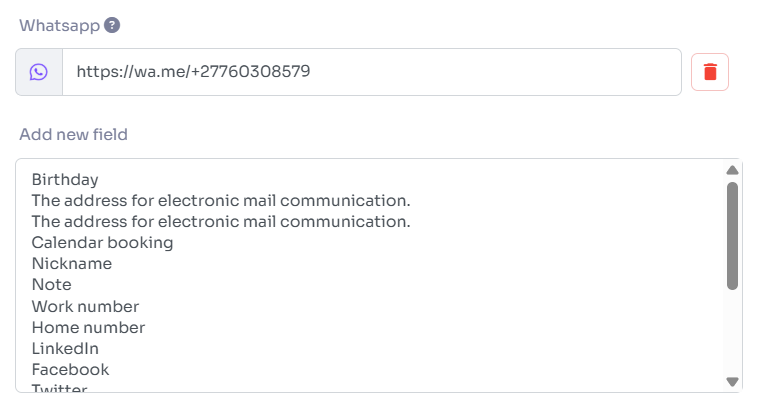
- Click Add new field and choose a field from the list, for example Calendar booking or Whatsapp.
- A new box appears with the other fields. Type the value.
- Click Save.
The field now shows on your card. Each field can only be added once, so it disappears from the Add new field list after you add it.
Remove a field
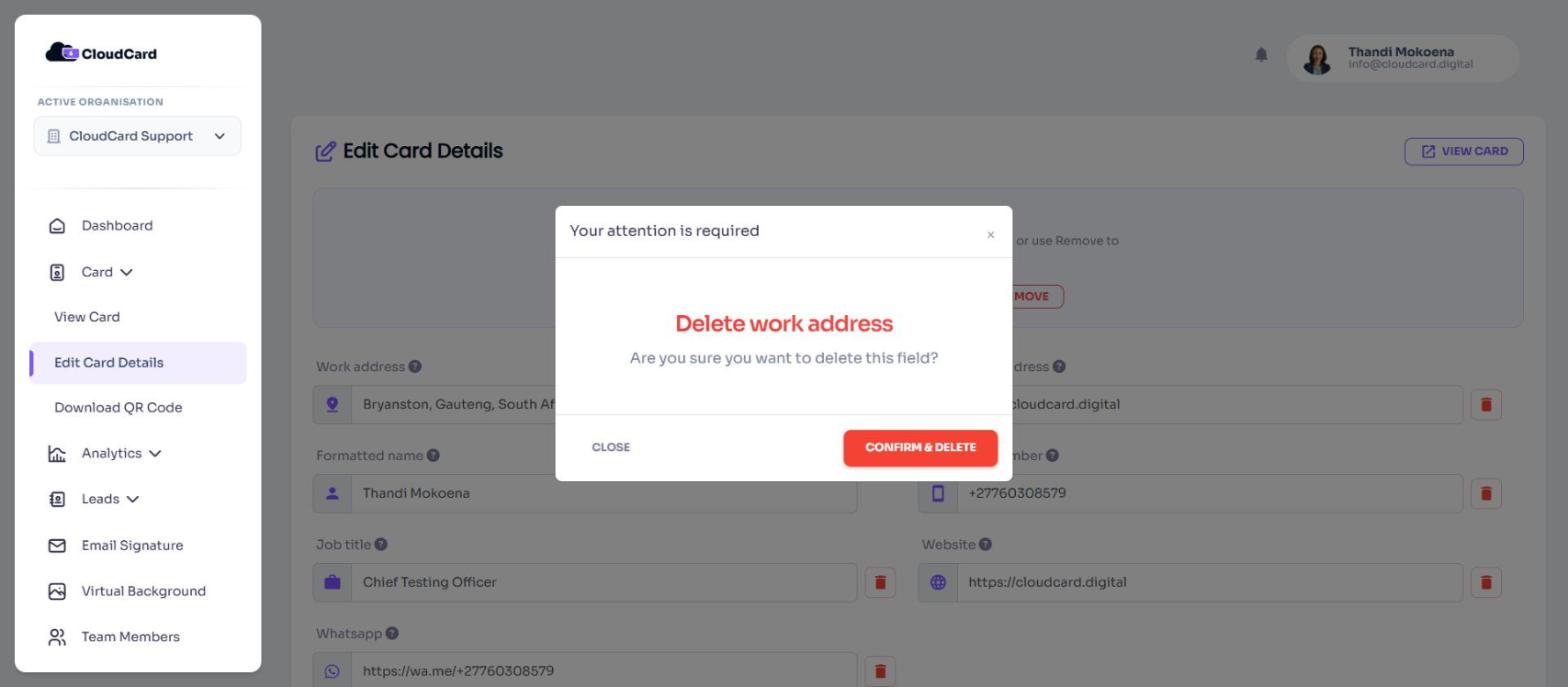
- On the Edit Card Details page, click the red delete icon next to the field.
- In the pop-up, click Confirm & Delete.
The field is removed straight away. You don’t need to click Save.
Fields you can’t add or remove
- Your name can’t be removed. Every card needs one.
- Locked fields have no delete icon and can’t be changed. Your admin controls these. See Why some fields are locked.
- Missing fields: the Add new field list only shows the fields your organisation allows. If you need one that isn’t there, ask your admin. Admins can change this in Control which fields users can edit.
Related
Was this article helpful?
Thanks for letting us know.
Still stuck?
Send us a message and we'll know which article you were reading. Or email [email protected].