

Your company gave you a CloudCard: start here
Set your password from the invitation email, sign in and get your new digital business card ready to share.
ForCardholders
On this page
If your company uses CloudCard, an admin creates your account and card for you. You don’t need to sign up. This article takes you from the invitation email to a card that’s ready to share.
1. Find your invitation email
Look for an email from CloudCard with the subject Your new digital business card is ready! It includes a link to your card, its QR code and a button to get into your account.
- If it has a Set your password button, carry on with step 2.
- If it has a Login with Microsoft button, your company uses Microsoft sign-in. Skip to Sign in with Microsoft and use your work Microsoft account.
Can’t find it? Check your spam or junk folder, then ask your admin to reinvite you.
2. Set your password
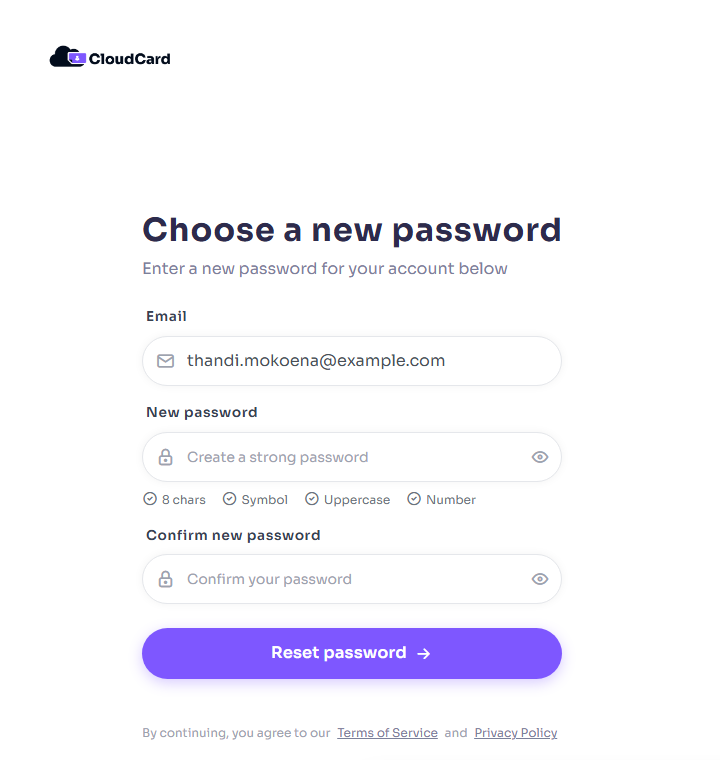
- Click Set your password in the email. The Choose a new password page opens with your email address filled in.
- Enter a New password. It needs at least 8 characters, an uppercase letter, a number and a symbol. The hints under the field turn green as you meet each one.
- Type it again in Confirm new password.
- Click Reset password. You’re signed in straight away.
3. Verify your email if asked
The first time you sign in you may see Verify Your Email Address. Click Request another verification email, open the email and click the link. See Verify your email address.
4. Check your card
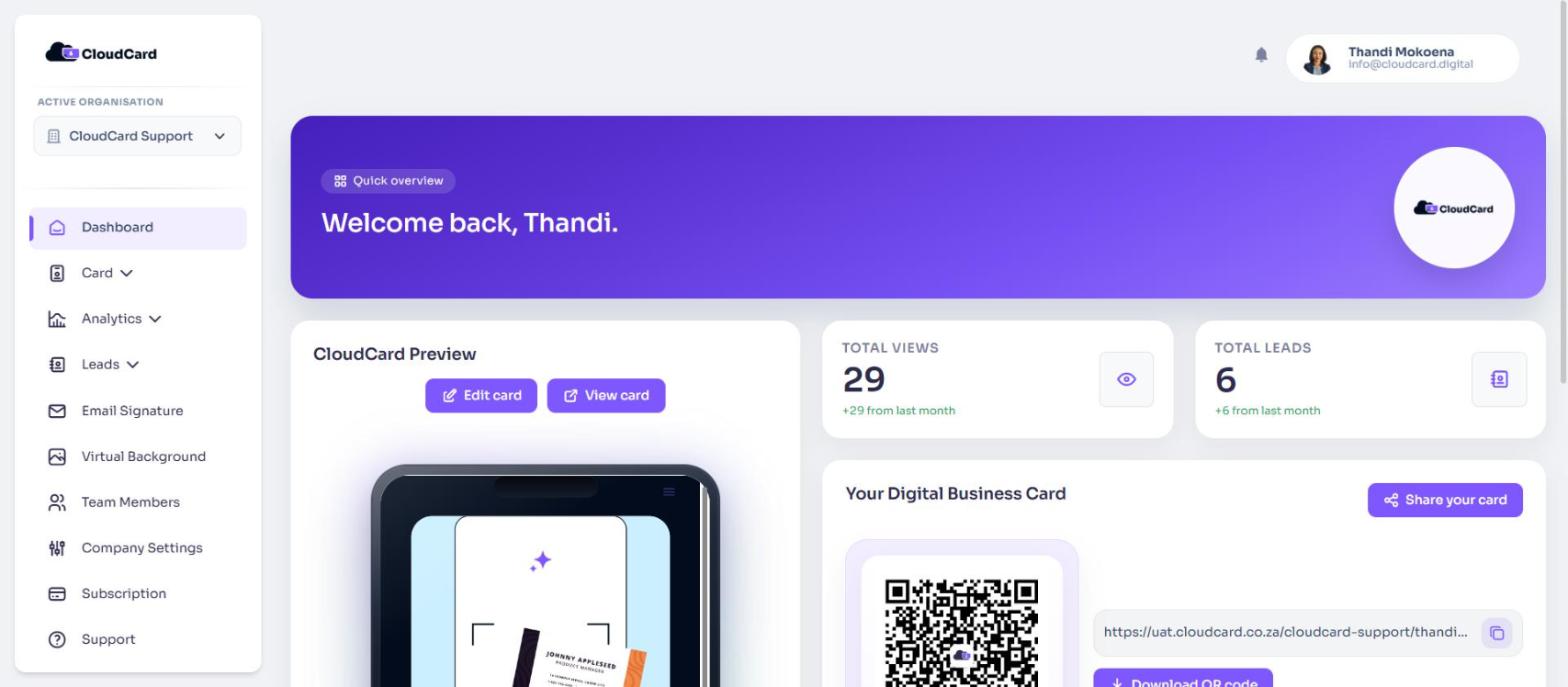
You’ll land on your dashboard, with a live preview of your card.
- Click View card to see your card the way other people will.
- Click Edit card to add a profile photo, check your contact details and add things like your website or LinkedIn.
Some fields may be locked by your admin so that company details stay consistent. See Why some fields are locked.
5. Start sharing
- Ways to share your card
- Add your card to Apple Wallet or Google Wallet
- Add your card to your phone’s home screen
Next time you sign in
Go to the CloudCard sign-in page, enter your email, click Continue, then enter your password. See Sign in to CloudCard.
Was this article helpful?
Thanks for letting us know.
Still stuck?
Send us a message and we'll know which article you were reading. Or email [email protected].