

Add tasks and reminders
Plan your next call, email or meeting with a lead, set a due date and get an email reminder before it's due.
PlansProPremiumCompare plans
A task is something you plan to do for a lead, such as a follow-up call. Tasks have a due date and can send you an email reminder. For things you’ve already done, log an activity instead. See Log calls, emails, meetings and notes.
Create a task
- Open the lead and click the Tasks tab.
- Click Create Task. If you’ve filtered the tab to one type, the button says so, for example Create Call Task.
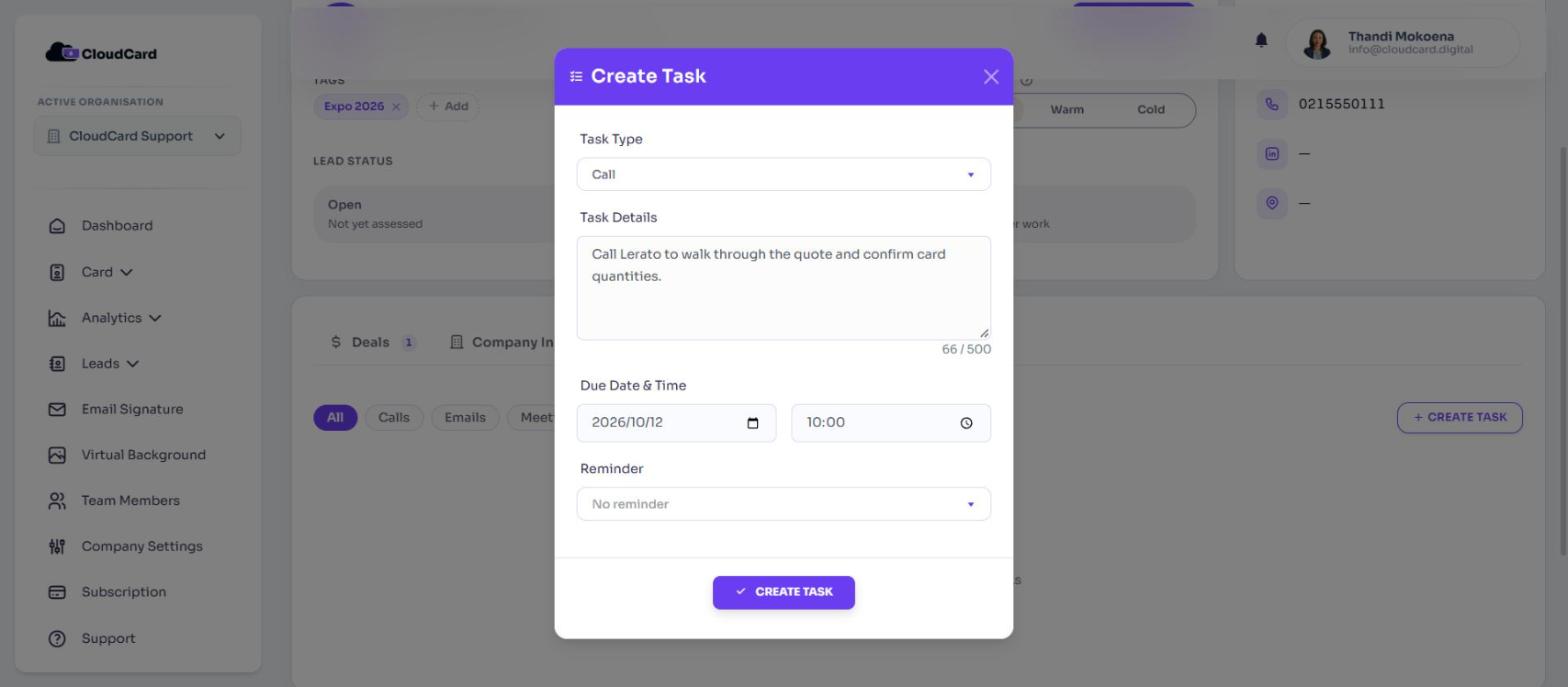
- Choose a Task Type: Call, Email or Meeting.
- Describe the task in Task Details (up to 500 characters).
- Optional: set Due Date & Time.
- Optional: choose a Reminder: 5 minutes before, 10 minutes before, 15 minutes before or 30 minutes before. Leave it on No reminder if you don’t want one.
- Click Create Task.
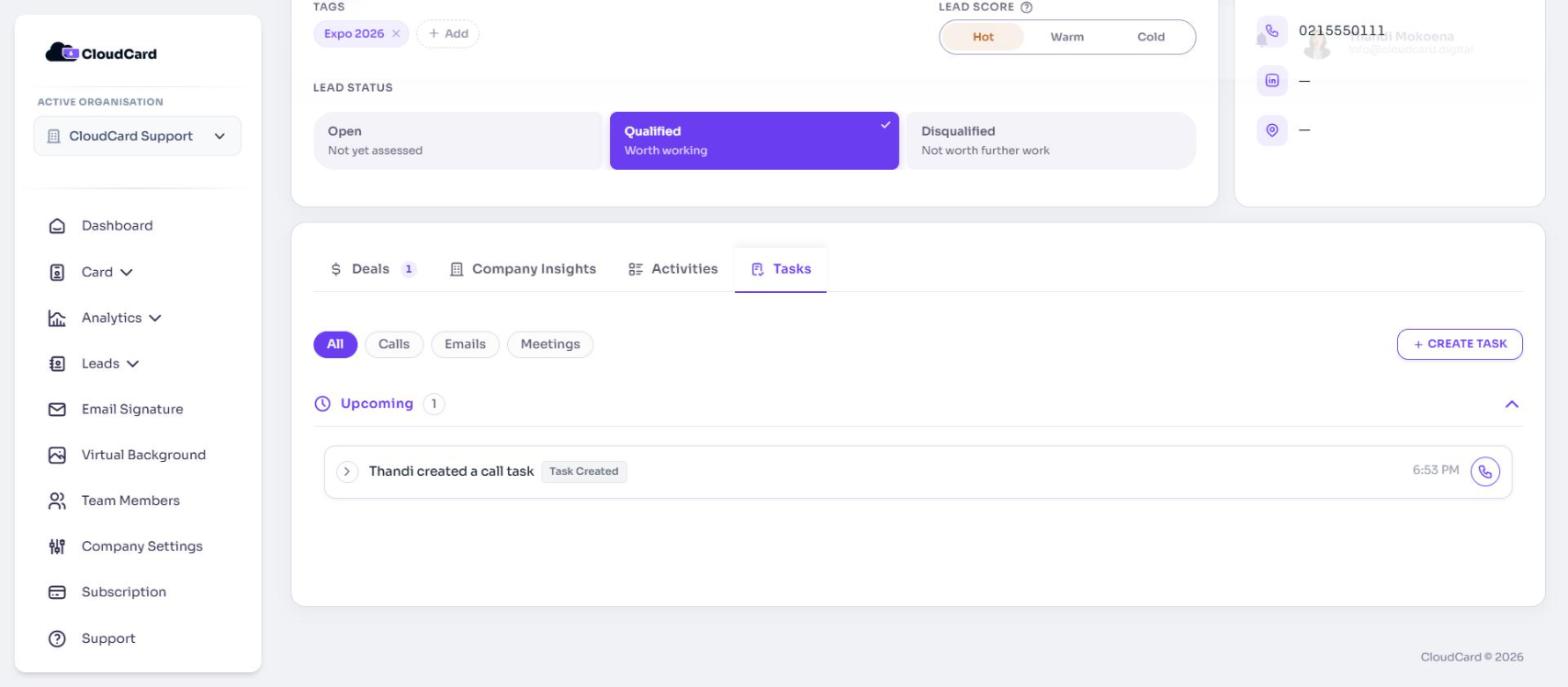
The task appears on the Tasks tab.
Reminders
A reminder needs a due date. At the time you chose, CloudCard emails the person who created the task. The email is headed “Task Reminder” and the task type, and includes the lead’s name and company, the due date and your notes, with a View Lead button.
Keep tasks up to date
The Tasks tab groups tasks into Overdue, Upcoming and Completed, and tells you how many are overdue or upcoming. Use the All, Calls, Emails and Meetings buttons to show one type.
To update a task:
- Click the task to expand it, then click Edit.
- Change the details, due date or reminder, or choose a Task Status: In Progress, Awaiting Response, Completed or Deferred.
- Click Update Task.
Once a task is Completed or Deferred, it’s closed and can’t be edited. To carry on, expand it and click Create Follow-up. This opens a new task with the old notes filled in.
To delete a task, expand it and click the bin icon.
Who can add tasks
You can add tasks to leads you own. Admins can add tasks to any lead in the organisation.
Related
Was this article helpful?
Thanks for letting us know.
Still stuck?
Send us a message and we'll know which article you were reading. Or email [email protected].