

Payment methods
Pay for CloudCard by card through PayFast or by EFT, and update the card used for your renewals.
ForAdmins
On this page
You can pay for a CloudCard subscription by card or by EFT. You can see which one your organisation uses in the Payment Method panel on the Subscription page.
Card through PayFast
Card is the standard way to pay when you sign up or upgrade in the dashboard. Payments are processed by PayFast, a South African payment provider. You enter your card details in a secure PayFast window, and CloudCard never sees your full card number.
With a card linked:
- renewals are charged automatically at the start of each billing cycle
- card and licence increases and plan upgrades are charged straight away
- the Payment Method panel shows Credit Card and “Automatic renewals are enabled through your linked PayFast card.”
EFT (bank transfer)
EFT billing is set up by arrangement with CloudCard. Contact support to ask for it. On EFT:
- the Payment Method panel shows EFT and “Renewals are managed manually via EFT confirmation on your billing cycle.”
- CloudCard emails you an invoice, and you pay it by bank transfer
- card, licence and plan changes are made by the support team rather than in the dashboard
For other payment options listed in CloudCard’s terms, see the Terms of Service.
Update the card used for renewals
- In the left menu, click Subscription.
- In the Payment Method panel, click Manage card. PayFast’s secure page opens.
- Update your card on the PayFast page.
You’re returned to the Subscription page afterwards.
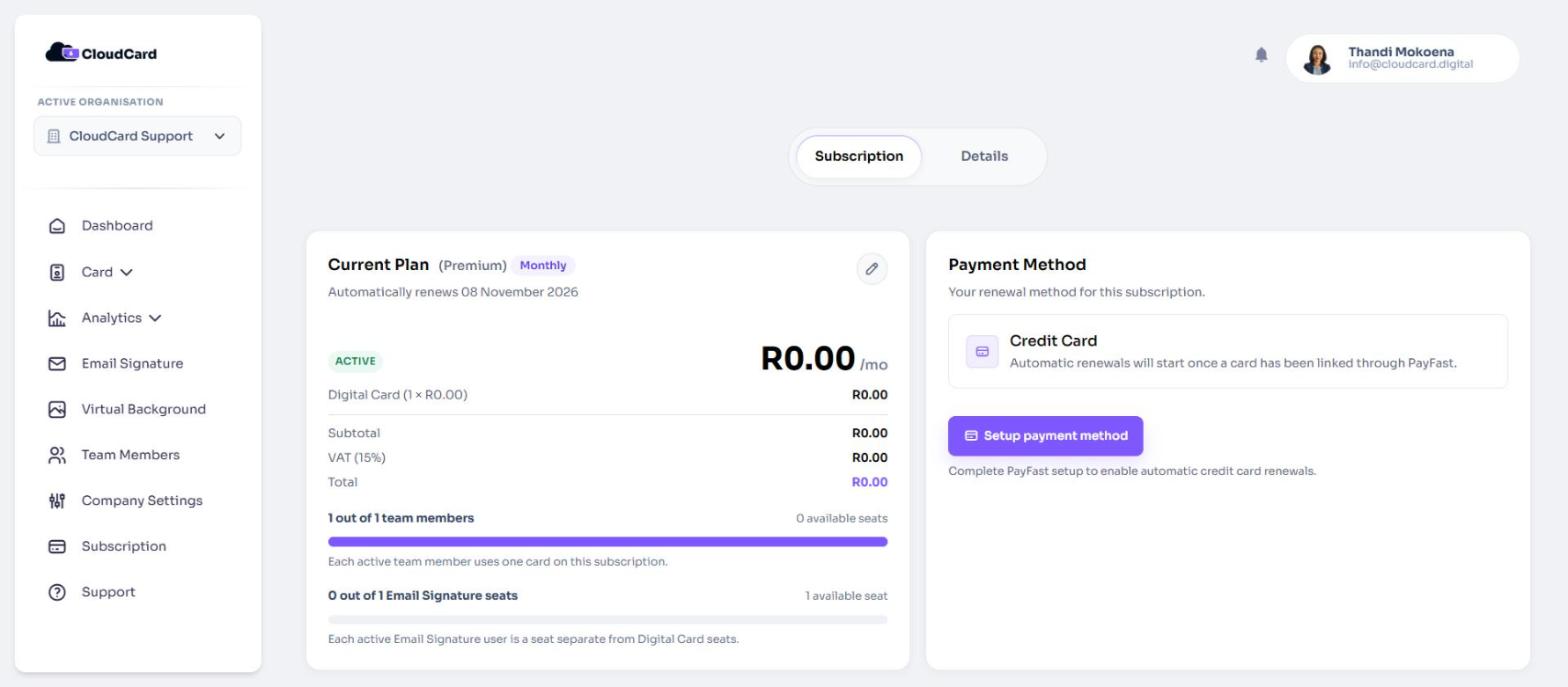
Link a card for the first time
If the panel says “Automatic renewals will start once a card has been linked through PayFast.”, no card is linked yet.
- In the Payment Method panel, click Setup payment method.
- Enter your card details in the PayFast window.
You’ll see “Your PayFast card was linked successfully.” Linking a card doesn’t charge you. Your Billing History shows a Card setup line with the status Card linked.
Related
Was this article helpful?
Thanks for letting us know.
Still stuck?
Send us a message and we'll know which article you were reading. Or email [email protected].