

Update your billing details
Change the company name, VAT number, address and email addresses that appear on your CloudCard invoices.
ForAdmins
Your billing details are the name, company, address and email addresses used on your invoices and payment records. You enter them at checkout, and you can change them at any time.
Before you start
You need to be an admin of the organisation.
Steps
- In the left menu, click Subscription.
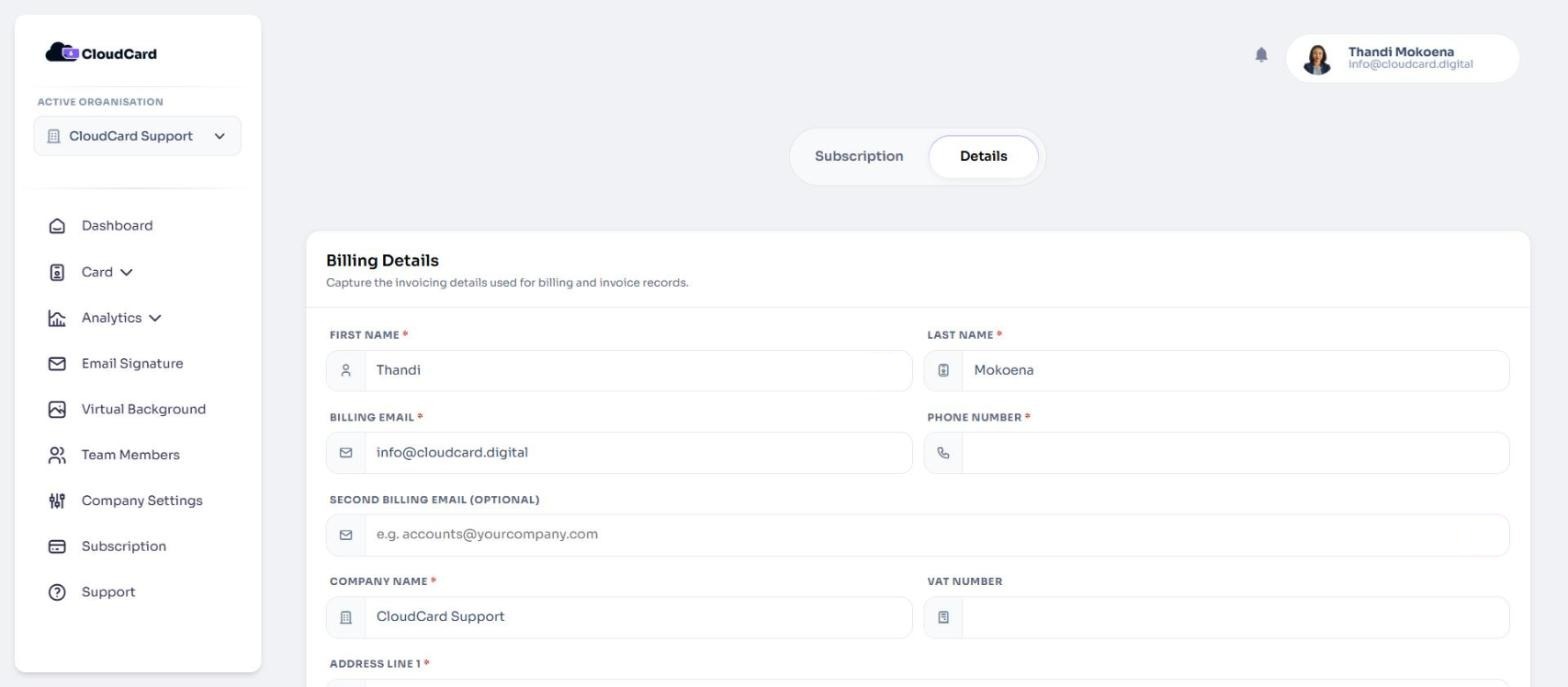
- At the top of the page, click the Details tab. The Billing Details form opens.
- Update the fields you need:
- First Name, Last Name and Phone Number
- Billing Email: where invoices and payment emails are sent
- Second Billing Email: optional, for example your accounts team, who will be copied in
- Company Name and VAT Number
- Address Line 1, Address Line 2, Suburb, City, Postcode and Country
- Click Save Billing Details.
You’ll see “Billing details updated successfully.” The new details are used for future invoices.
Changing details on an invoice you already have
Saving new details doesn’t change invoices that were already issued. If you need an existing invoice corrected, use Cancel Invoice in Billing History to send a request to support. See Invoices and billing history.
Related
Was this article helpful?
Thanks for letting us know.
Still stuck?
Send us a message and we'll know which article you were reading. Or email [email protected].