

Add a user
Create an account and digital card for a colleague, choose their role and send them an invitation to sign in.
PlansProPremiumEmail SignatureCompare plans
ForAdmins
Add one person at a time when someone joins your team. CloudCard creates their account and, if you choose, their digital card, then emails them an invitation.
To add a lot of people at once, use Import users from Excel or Connect Microsoft Entra ID instead.
Before you start
- You need the Admin role.
- Each new digital card uses one card on your plan. If you’ve used them all, you’ll see “Card limit reached” when you save. See Add more cards to your plan.
- Have the person’s name, job title, email address and mobile number ready. All of these are required.
Steps
- In the left-hand menu, click Team Members.
- Click Add Users, then Create 1 user.
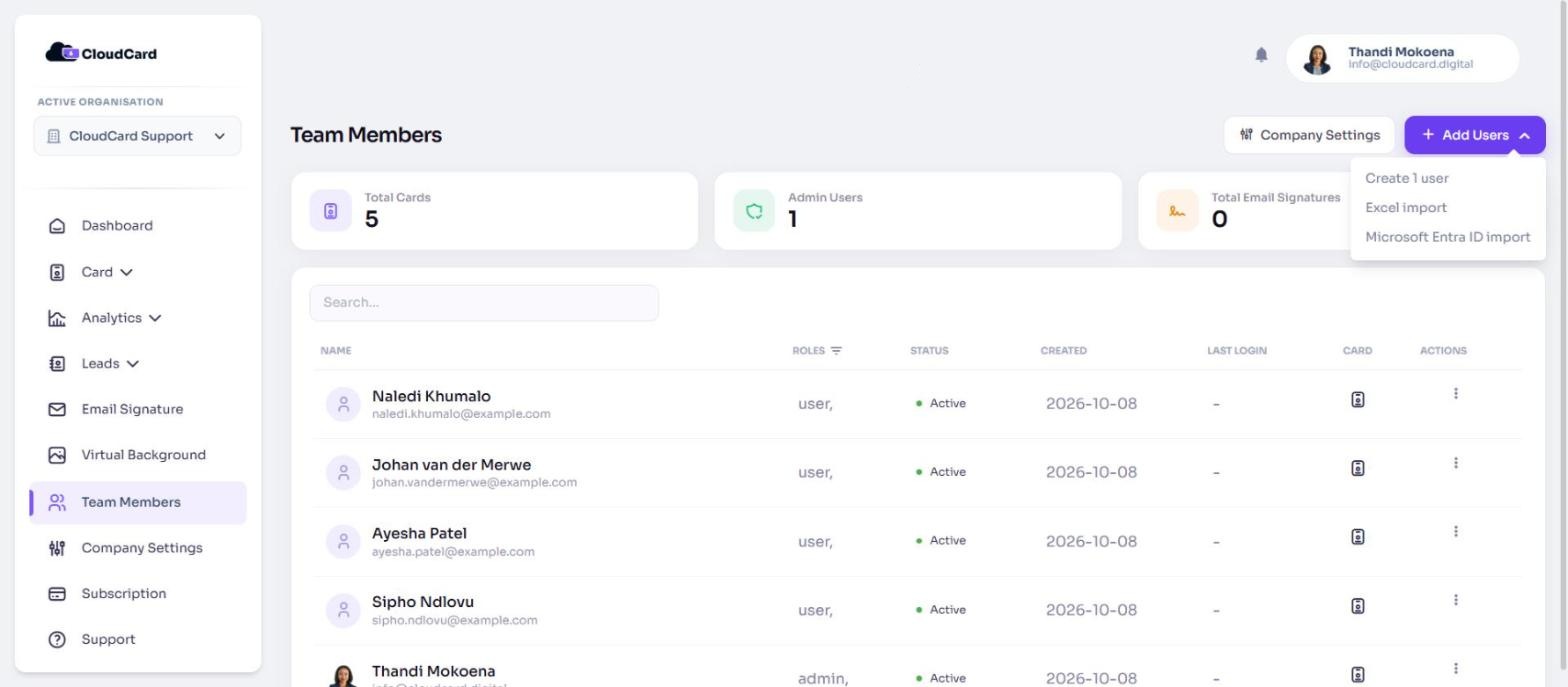
- Fill in First name, Last Name and Job title.
- Enter their Email address. This is the address they’ll sign in with and receive the invitation at.
- Enter their Phone number. Choose the country from the flag list first, then type the number using digits only, with no spaces or dashes (for example
821234567). The form won’t save if the number contains other characters. - Under Roles, choose one or more roles: admin, user or email signature. Not sure which? See User roles.
- Leave Organizations as it is unless you manage more than one organisation and want to add them to another too.
- Turn on Two Factor Authentication if you want them to enter an emailed code each time they sign in. See Turn on two-factor authentication for a user.
- Leave Create business card ticked under Business card to give them a digital card. Untick it for an admin who only manages the account and doesn’t need a card.
- Click Add user.
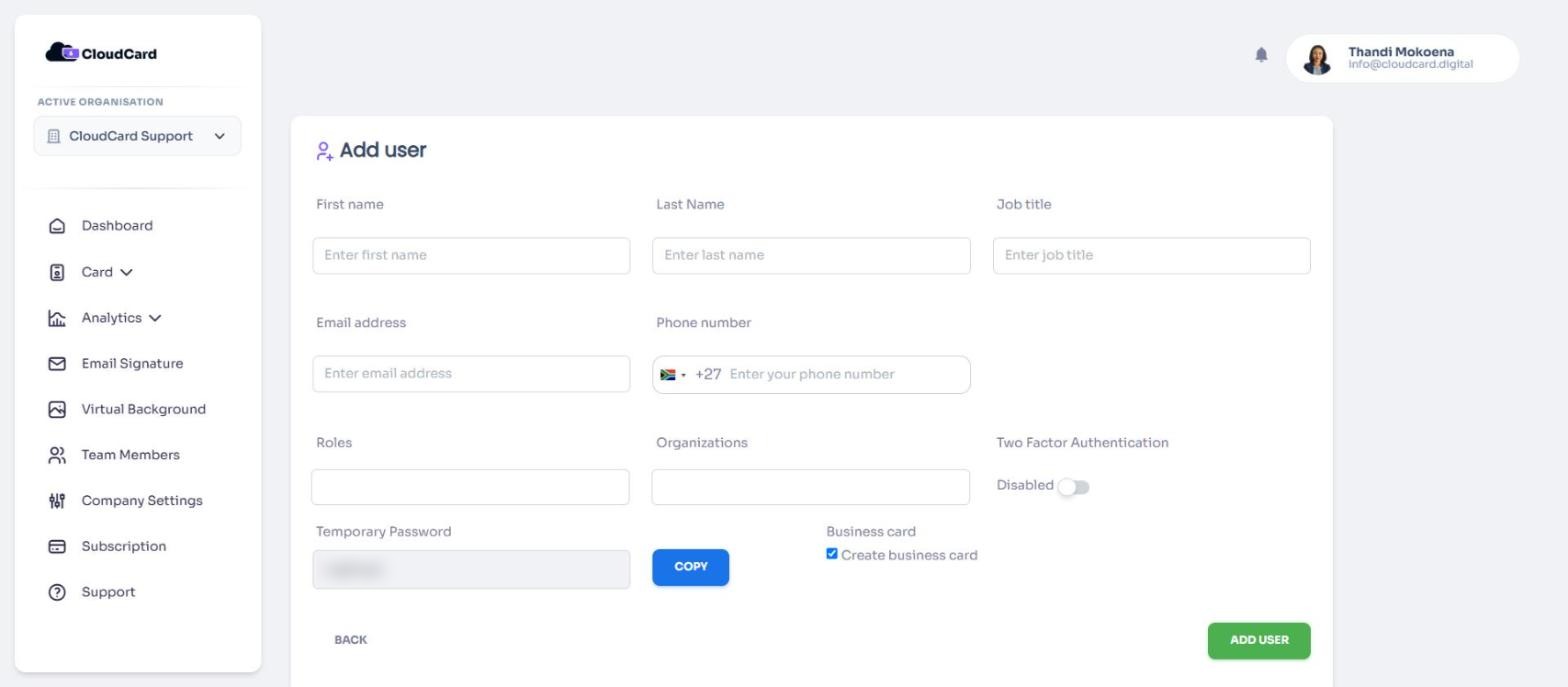
You’ll return to the Team Members page with the message “User created and invited through an email”. Their card is set up with the name, email, mobile number and job title you entered.
What the new user receives
They get an email with a link to their new card and a Set your password button. The link expires after an hour; if they miss it, reinvite them.
If your organisation uses Microsoft Entra ID with single sign-on preferred, the email has a Login with Microsoft button instead.
Adding an Email Signature user
If you choose only the email signature role, no digital card is created and a Profile management option appears:
- Leave Allow user to edit their own details ticked to send them a welcome email with a link to set their password.
- Untick it to create the user without sending them anything. You and the other admins get an email saying a new Email Signature user was created, and you keep their details up to date yourself.
Each Email Signature user uses an Email Signature licence. See Add or cancel Email Signature licences.
Was this article helpful?
Thanks for letting us know.
Still stuck?
Send us a message and we'll know which article you were reading. Or email [email protected].