

Import users from Excel
Add many users at once, or update existing users' card details, by uploading a CloudCard Excel template.
PlansProPremiumEmail SignatureCompare plans
ForAdmins
On this page
Use an Excel import to create cards for a whole team in one go, or to update details for people who already have a card. Each new user gets an invitation email, just as if you’d added them one at a time.
Before you start
- You need the Admin role.
- Each new digital card uses one card on your plan, and each Email Signature user uses an Email Signature licence. If the spreadsheet needs more than you have, CloudCard takes you to the Subscription page to buy the difference before it finishes the import. See Add more cards to your plan.
- The file must be an
.xlsxfile.
Download a template
- Click Team Members in the left-hand menu.
- Click Add Users, then Excel import.
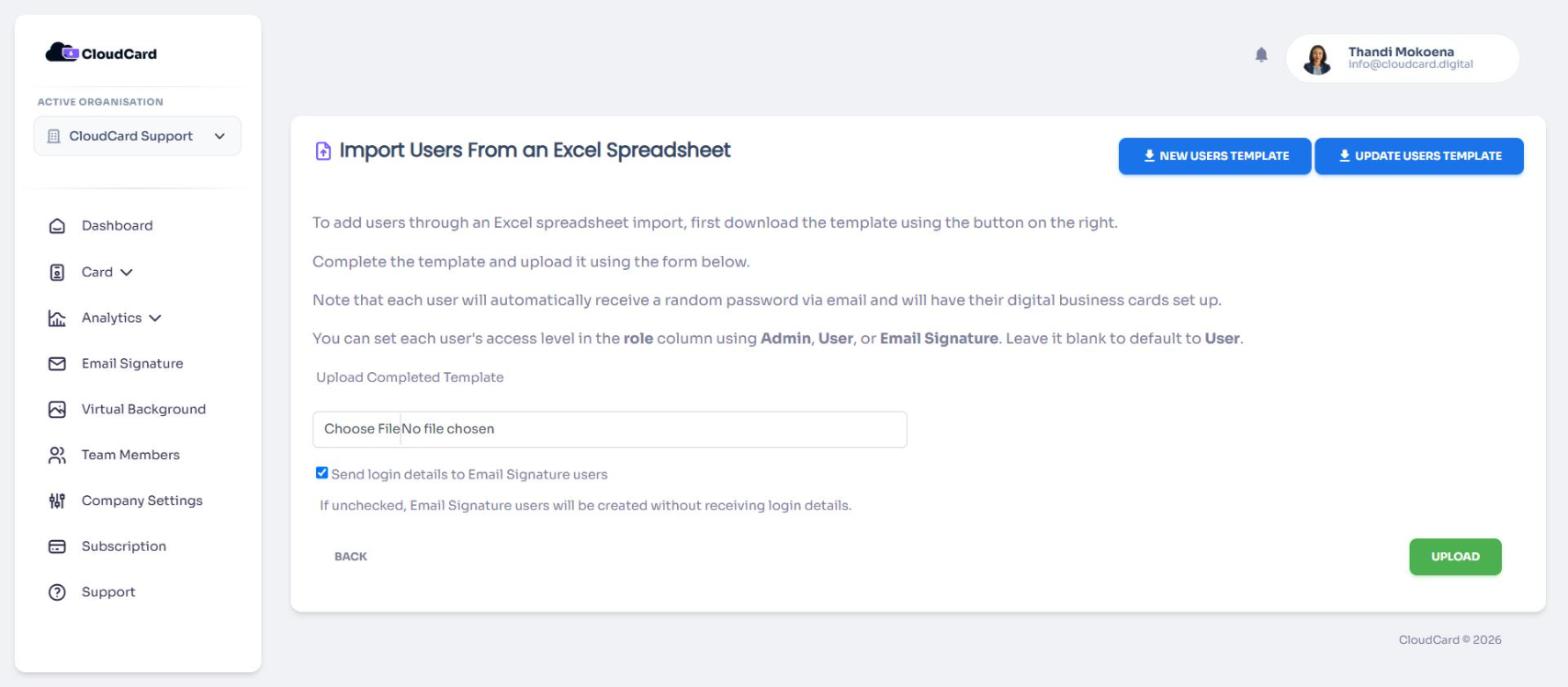
- Choose a template:
- New Users Template downloads an empty template (
cloudcard-template.xlsx) with one example row. - Update Users Template downloads a template already filled in with your current users (
cloudcard-update-template.xlsx). Use it to change details in bulk.
- New Users Template downloads an empty template (
Fill in the template
Keep the header row exactly as it is. Add one person per row.
- Required:
first_name,last_name,job_titleandemail. Each email address can only appear once in the file. - Phone numbers:
tel_cell(mobile),tel_officeandtel_other. - Card details:
address,note,department,website,calendar_bookingand the social columns (personal_linkedin,company_linkedin,twitter,facebook,instagram,tiktok,youtube). You can typewww.example.com; CloudCard addshttps://for you. - WhatsApp: type the number in the
whatsappcolumn and CloudCard turns it into a WhatsApp link. - Role: type Admin, User or Email Signature. Leave it blank for User.
Upload the file
- On the same page, click the file box under Upload Completed Template and choose your file.
- Leave Send login details to Email Signature users ticked if Email Signature users should get an email to set their password. Untick it to create them without sending anything.
- Click Upload.
When it finishes you’ll see “Excel file imported successfully”. New users receive an invitation email with a link to set their password.
Updating people who already have a card
If an email address in the file already belongs to someone in your organisation, CloudCard updates that person instead of creating a new account. Their role is also set to whatever is in the role column.
If some rows weren’t imported
If someone in the file already belongs to a different organisation, CloudCard skips them. You’ll return to the Team Members page with a yellow message listing who was skipped. CloudCard won’t move people between organisations through an import, so change their organisation by hand, then upload again.
If the file has mistakes, such as a missing required column or an invalid web address, a red table shows the row, the column and what’s wrong. Fix those rows and upload again.
Was this article helpful?
Thanks for letting us know.
Still stuck?
Send us a message and we'll know which article you were reading. Or email [email protected].