

Add a calendar booking link
Let people book a meeting with you straight from your card using Calendly, Microsoft Bookings or a similar tool.
ForCardholders
If you use a booking tool such as Calendly, Microsoft Bookings or Google Calendar appointment schedules, you can put the link on your card. People tap it and pick a time that suits them.
Before you start
Copy the public link to your booking page from your booking tool. It usually starts with https://, for example https://calendly.com/your-name.
Steps
- Open the Edit Card Details page. In the dashboard sidebar, open Card and click Edit Card Details.
- Click Add new field and choose Calendar booking.
- Paste your booking link into the new field.
- Click Save.
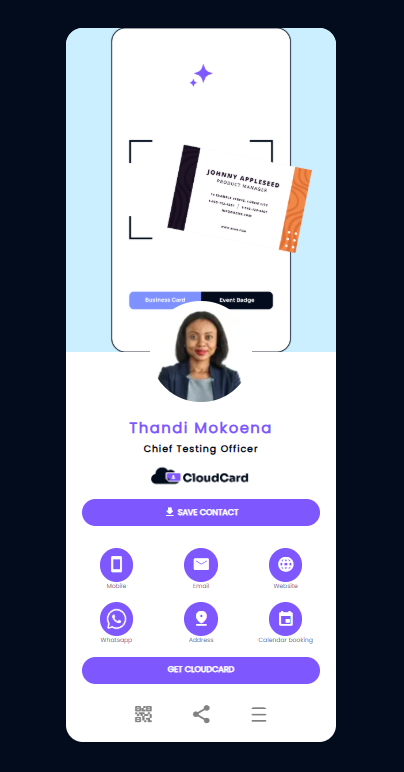
On a Modern card, a Calendar booking button now appears with your other contact buttons. Tapping it opens your booking page.
If you don’t see the button
- Your card uses the Classic design. The Classic design doesn’t currently show a Calendar booking button. The link is still included in the contact file people get when they tap Save contact, though not every phone’s contacts app displays it. Your admin chooses the design; see Choose a card template.
- Calendar booking isn’t in the Add new field list. It’s either already on your card, or your organisation doesn’t allow it. Ask your admin.
Related
Was this article helpful?
Thanks for letting us know.
Still stuck?
Send us a message and we'll know which article you were reading. Or email [email protected].