

The call-to-action button on your card
What the call-to-action button is, where its text and link come from, and how to change it.
The call-to-action button is a button on your card that sends people to one web page of your choice. Use it for whatever you most want people to do next, such as visiting your website, booking a demo or reading a brochure.
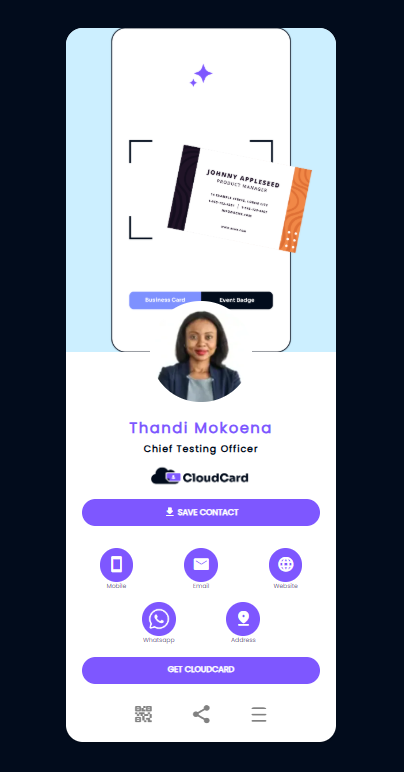
Where it appears
- On the Modern card design, the button sits below your contact buttons.
- On the Classic card design, it sits directly under Save contact, as an outlined button.
The button uses your organisation’s primary colour.
Who sets it
The call-to-action button is the same on every card in your organisation. Your organisation’s admin sets its text and link in Company Settings, on the Template Settings tab, using Call to action text and Call to action link.
If you signed up for CloudCard yourself, your button starts as Get CloudCard. You can change it as soon as you like.
- If you’re an admin: see Set the call-to-action button.
- If you’re not an admin: ask your admin to change it. You can’t change it from Edit Card Details.
Tips for a good call to action
- Keep the text short and specific, for example “Book a demo” or “See our services”.
- Link to a page that works well on a phone.
- Check the link opens the page you expect before you share your card.
Related
Was this article helpful?
Thanks for letting us know.
Still stuck?
Send us a message and we'll know which article you were reading. Or email [email protected].