

Add or change your profile photo
Upload, crop, change or remove the photo that appears on your digital business card.
ForCardholders
A clear, friendly headshot makes your card feel personal and helps people remember who they met. Your photo shows as a circle on your card.
Add or change your photo
- Open the Edit Card Details page. In the dashboard sidebar, open Card and click Edit Card Details.
- In the Profile Picture panel at the top, click Upload Photo. You can also click the photo circle.
- Choose an image from your computer or phone.
- In the Upload Profile Picture pop-up, drag and resize the square to frame your face.
- Click Crop. The new photo appears in the circle.
- Click Save at the bottom of the page.
Your new photo is now on your card.

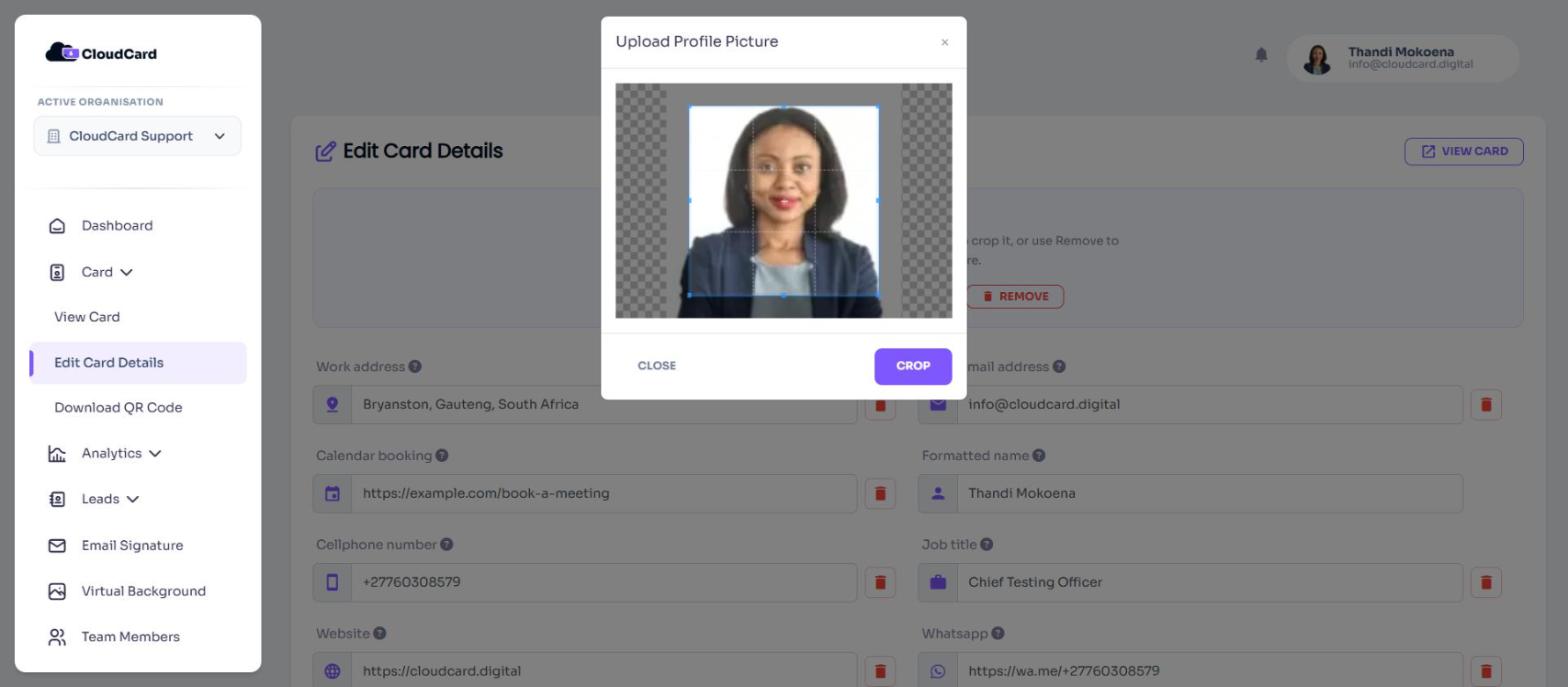
Re-crop your current photo
Click the photo circle to open it in the crop pop-up again. Adjust the square, click Crop, then click Save.
Remove your photo
Click Remove in the Profile Picture panel. If you’d already saved a photo, it’s removed straight away. Your card then shows without a photo.
Photo tips
- Use a JPG, PNG, GIF or WebP file up to 20 MB.
- Choose a square-ish photo with your face in the centre and some space around your head.
- Use good, even light and a plain background.
For more detail, see Recommended image sizes and file types.
Was this article helpful?
Thanks for letting us know.
Still stuck?
Send us a message and we'll know which article you were reading. Or email [email protected].