

Add a promotional banner or video
Show an image or short video across the top of every card in your organisation to promote a product, event or campaign.
ForAdmins
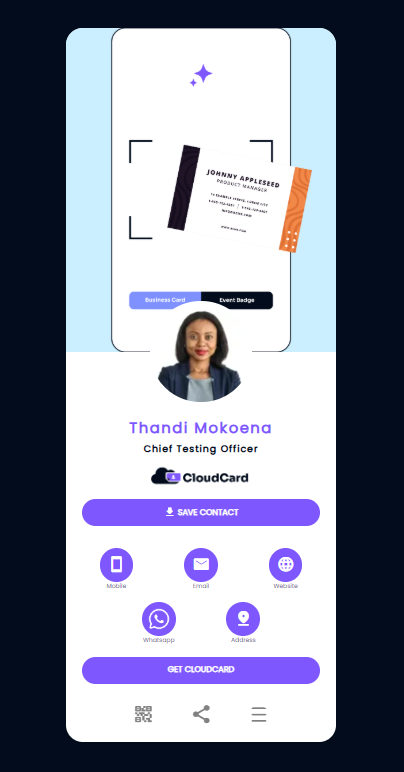
A promotional banner is an image or short video that runs across the top of your cards. Use it to highlight a new product, an upcoming event or a campaign. The banner is set for the whole organisation, so it appears on every card.
Before you start
- You need to be an admin in your organisation. If you’re not, ask your admin to add or change the banner.
- Banners show on the Modern card design only. If your organisation uses Classic, the banner upload is greyed out with the note “Not displayed on the Classic card template.” See Choose a card template.
- Have your image or video ready. See Recommended image sizes and file types.
Add or change the banner
- In the dashboard sidebar, click Company Settings.
- Open the Template Settings tab.
- Under Branding Assets, find Promotional Banner.
- Click Click to upload banner and choose your file. If there’s already a banner, click Change instead.
- Click Save Settings.
The banner now appears at the top of every card in your organisation.
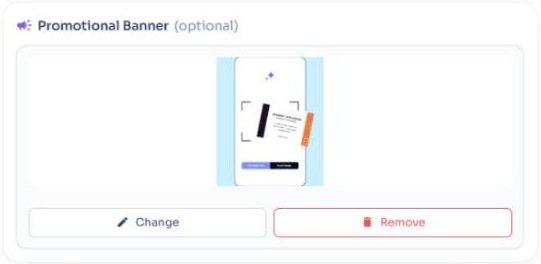
Remove the banner
- In Company Settings, open the Template Settings tab.
- Under Promotional Banner, click Remove.
- In the Remove promotional banner? pop-up, click Yes, remove it.
The banner is removed from every card straight away.
Video banners
You can upload a video instead of an image. It plays automatically, on mute and on a loop, so keep it short and make sure it makes sense without sound. Use an MP4 file; WebM files upload but may not play on the Modern design.
Related
Was this article helpful?
Thanks for letting us know.
Still stuck?
Send us a message and we'll know which article you were reading. Or email [email protected].