

Control which fields users can edit
Choose which fields your team can add to their cards, and lock fields so only admins can change them.
ForAdmins
On this page
The Fields tab in Company Settings decides which details your team can put on their cards, and which ones they’re allowed to change themselves. Use it to keep cards consistent, for example so everyone uses the same office address and company website.
Open the Fields tab
- In the left-hand menu, click Company Settings.
- Click Fields on the left.
You’ll see a table with three columns: Card field, Allowed and Admin edit only.
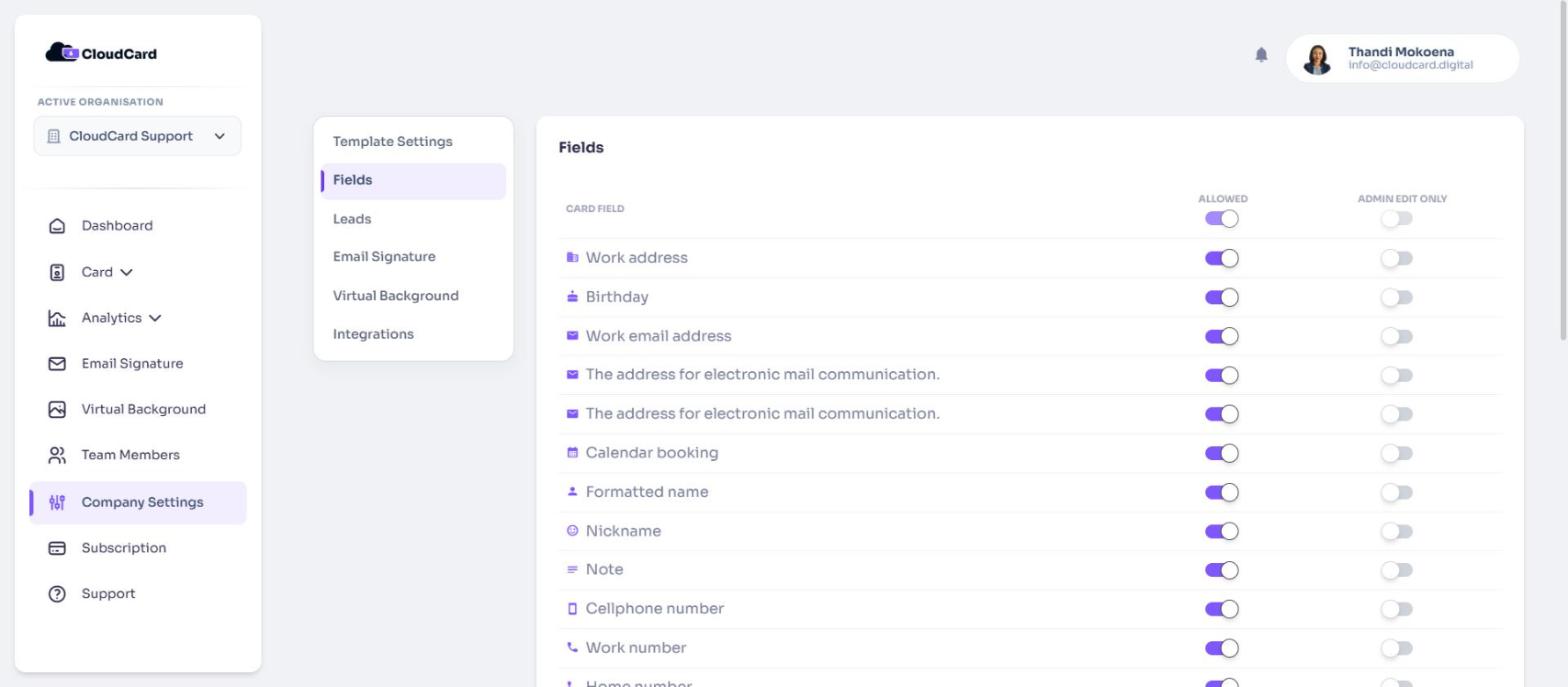
Choose which fields are allowed
Turn on the Allowed switch for each field your team may add to their cards, such as mobile number, LinkedIn or calendar booking link. Turn it off to hide that field from the list people choose from when they add fields to their card.
To turn every field on or off at once, use the switch under the Allowed heading. At least one field must stay allowed.
Lock fields so only admins can edit them
Turn on Admin edit only for a field to lock it. Cardholders then:
- can’t change that field on their card. It appears greyed out with a “Field locked by admin” tooltip.
- can’t add it to their card themselves.
Admins can still edit locked fields for anyone. On Team Members, click the three dots next to a person and choose Edit card. To lock every field at once, use the switch under the Admin edit only heading.
Save your changes
Click Save Settings. You’ll see “Organisation updated” and the rules apply to everyone straight away.
On the Free plan
The Admin edit only column is greyed out. You’ll see “Upgrade to Pro or Premium to set what fields your team members can use on their cards.” with an Upgrade Now button. See Compare plans.
For what your team sees when a field is locked, see Why some fields are locked.
Was this article helpful?
Thanks for letting us know.
Still stuck?
Send us a message and we'll know which article you were reading. Or email [email protected].