

Set the call-to-action button
Choose the wording and link of the button that appears on every card in your organisation.
ForAdmins
The call-to-action button sits on every card in your organisation and sends visitors to one link of your choice, such as your website, a booking page or a current promotion. You set it once for everyone. See The call-to-action button on your card for how it looks to cardholders.
Steps
- In the left-hand menu, click Company Settings.
- Make sure Template Settings is selected.
- In Call to action text, type the words for the button, for example “Visit our website” or “Book a demo”.
- In Call to action link, paste the full web address, starting with
https://. - Click Save Settings.
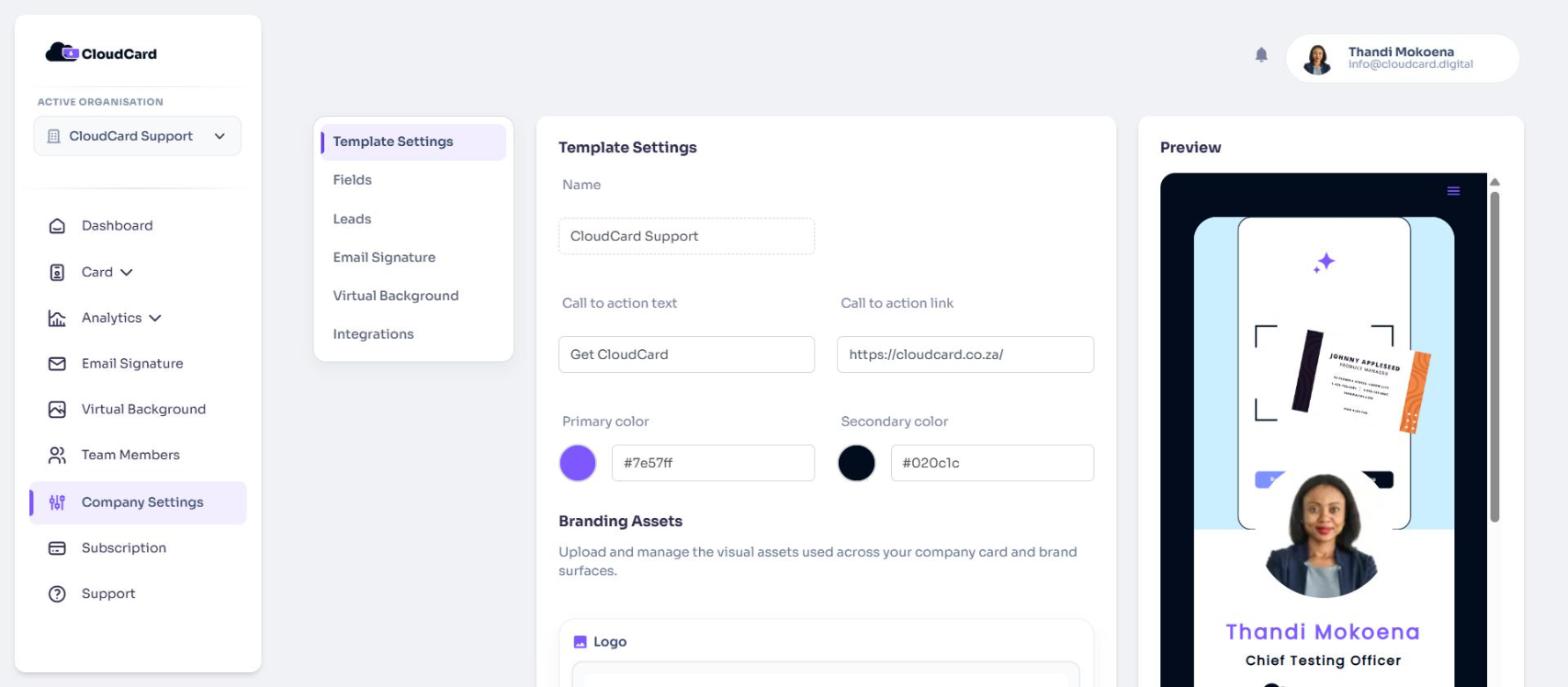
The Preview on the right updates as you type. After you save, you’ll see “Organisation updated” and every card shows the new button.
Good to know
- Both fields are required. If the link isn’t a complete web address, CloudCard won’t save the page.
- Keep the text short so it fits on one line on a phone.
- The button uses your organisation’s primary colour. CloudCard picks black or white text automatically so it stays readable. See Set up your company branding.
- Clicks on the button are counted in your card analytics. See See how your card is performing.
Was this article helpful?
Thanks for letting us know.
Still stuck?
Send us a message and we'll know which article you were reading. Or email [email protected].