

Edit, download or delete a lead
Correct a lead's details, save a lead to your phone's contacts as a VCF file, or delete a lead you no longer need.
PlansProPremiumCompare plans
You can change a lead’s details at any time, download them as a contact file, or delete the lead. You can do this for leads you own. Admins can do it for any lead in the organisation.
Edit a lead
- Open the lead from your leads list.
- At the top of the page, click Edit. The Edit Lead window opens.
- Change what you need:
- First Name, Email and Company Name are required.
- You can also edit Last Name, Phone Number, Job Title, Location and LinkedIn URL.
- Company details: Industry, Website, Company Size and Company LinkedIn.
- Click Save Changes.
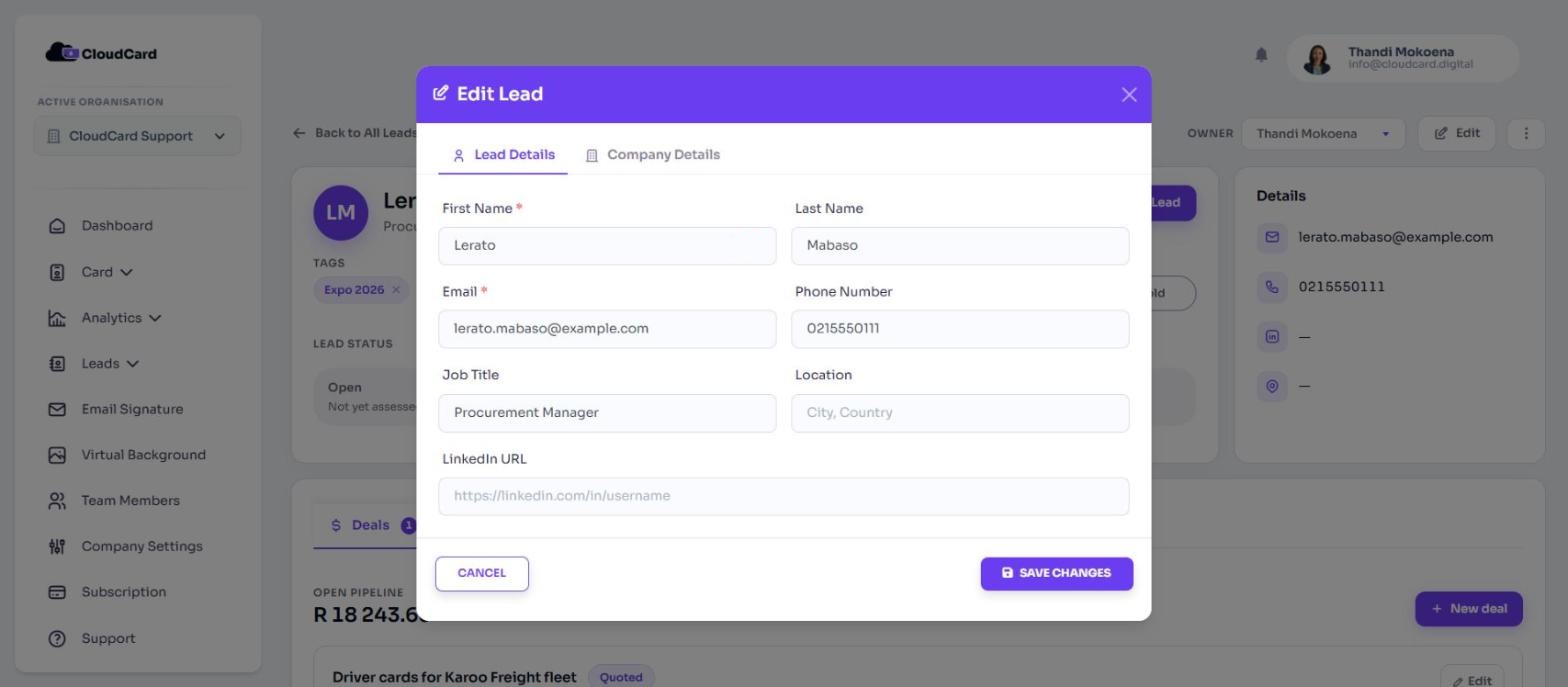
You’ll see “Lead updated successfully.” and return to your leads list.
Phone numbers can have spaces, dashes or brackets. CloudCard removes them, and the number must then be 5 to 15 digits, with an optional + at the start. If something isn’t valid, you’ll see “Lead not saved.” with what to correct.
Download a lead as a contact
- Open the lead, then click the three-dot button at the top of the page. Or, on your leads list, click the three-dot menu on the lead’s row.
- Click Download.
A .vcf contact file downloads with the lead’s name, job title, company, phone number and email. Open it on your phone or computer to add the lead to your contacts. See What is a VCF (vCard) file?
Delete a lead
- Open the lead and click the three-dot button at the top of the page, or use the three-dot menu on the lead’s row in the list.
- Click Delete.
- In Confirm Deletion, click Delete.
You’ll see “Lead successfully deleted.” and the lead disappears from your list.
Related
Was this article helpful?
Thanks for letting us know.
Still stuck?
Send us a message and we'll know which article you were reading. Or email [email protected].