

Change a lead's owner
Reassign a lead to another team member so it appears in their leads list and they get notified.
PlansProPremiumCompare plans
ForAdmins
Each lead has an owner: usually the person whose card captured it. The owner sees the lead in View My Leads and gets its notifications. Admins can hand a lead to someone else, for example when a colleague is better placed to follow up.
Before you start
- You need to be an admin. Other users see the owner’s name but can’t change it.
- The new owner must be a member of the same organisation.
Steps
- In the left menu, open Leads and click View All Leads.
- Click the lead to open it.
- At the top of the page, open the Owner dropdown.
- Choose the team member. Choose Unassigned to remove the owner.
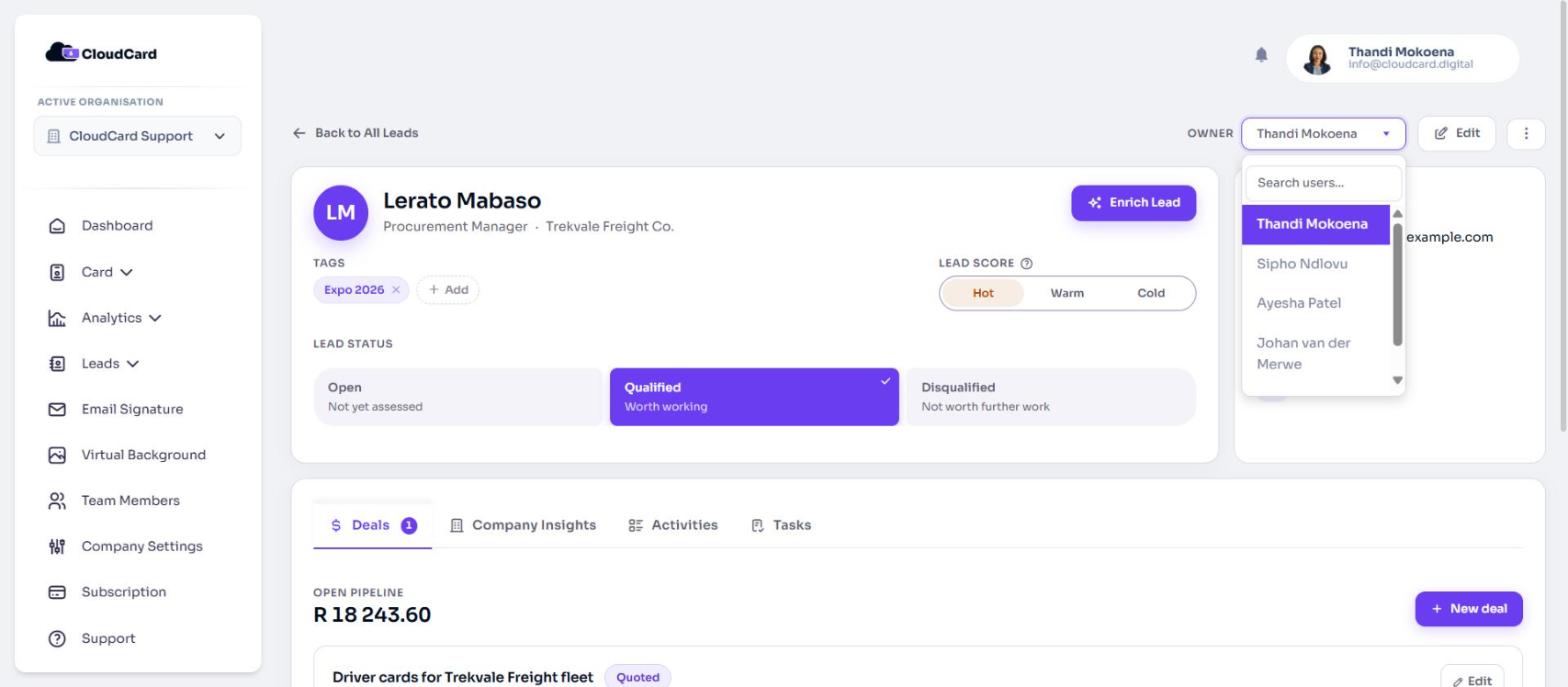
The change saves straight away. The new owner gets an email headed “You have a new lead” with the lead’s details. The lead now appears in their View My Leads list, and their name shows in the Found by column on View All Leads.
Assign a lead when you create it
When an admin creates a lead from View All Leads with Create Lead, the form includes Assign to User. The person you pick becomes the owner and gets the same email.
Find leads without an owner
On View All Leads, click Filter, set Owner to Unassigned and click Apply.
Related
Was this article helpful?
Thanks for letting us know.
Still stuck?
Send us a message and we'll know which article you were reading. Or email [email protected].