

Create a deal
Record what you're selling to a lead as a deal, from the lead's page or straight from the deals board.
PlansProPremiumCompare plans
On this page
A deal records something you’re trying to sell to a lead, and what it’s worth. One lead can have several deals, each at its own stage. Every deal appears on the Deals board, which shows your whole pipeline.
Before you start
- A deal always belongs to a lead. Capture or create the lead first.
- You can add deals to leads you own. Admins can add deals to any lead in the organisation.
Create a deal from a lead
- Open the lead. The Deals tab is open by default.
- Click New deal. If the lead has no deals yet, click Add the first deal.
- Enter a Deal name, for example “50 NFC cards for the sales team”.
- Choose a Stage. See Deal stages explained.
- Optional: set Expected close, the date you expect to win or lose it.
- Optional: add line items so the deal has a value. See Add line items and quotes.
- Click Create deal.
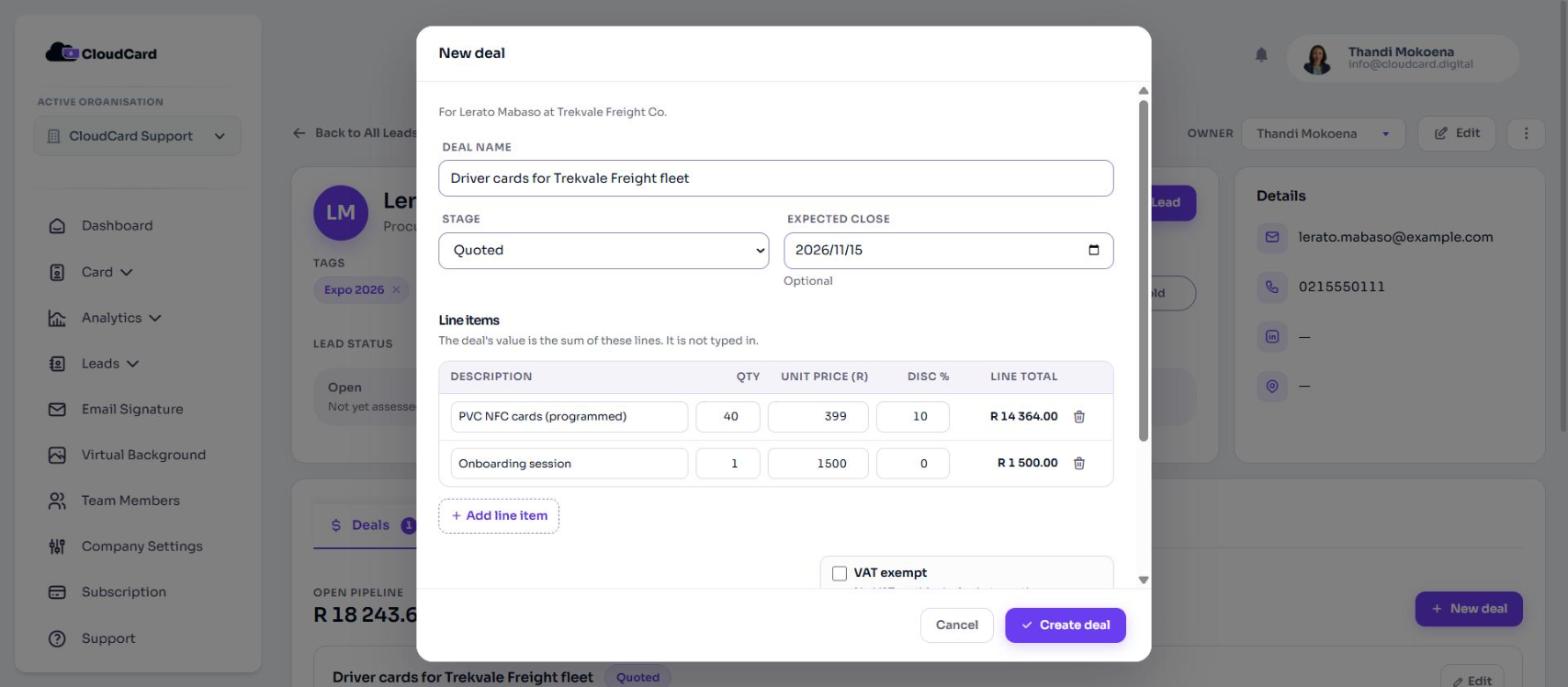
The deal appears on the lead’s Deals tab and on the Deals board.
Create a deal from the board
- In the left menu, open Leads and click Deals.
- In the column for the stage you want, click Add deal.
- Under Lead, search by name, company or email and choose the lead.
- Enter a Deal name, check the Stage, and optionally set Expected close.
- Click Create deal.
To add line items, click the deal on the board. It opens the lead’s Deals tab, where you can edit it.
Use the deals board
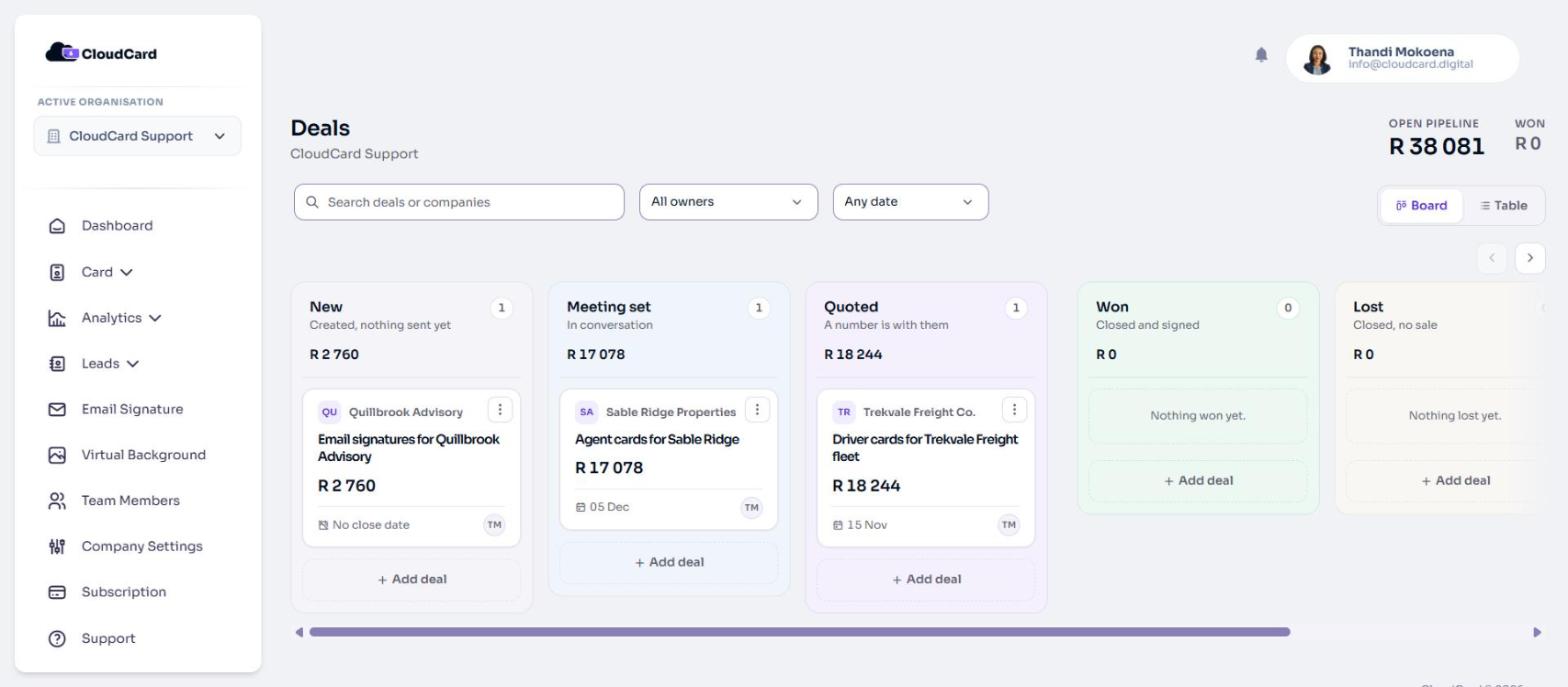
- The top of the board shows Open pipeline (the total of deals that are New, Meeting set or Quoted) and Won. Parked appears when you have future opportunities with a value.
- Each card shows the company, deal name, value, close date and the owner’s initials. A deal without line items shows “No line items yet”.
- Drag a card to another column to change its stage, or click the three-dot button on the card and pick a stage.
- Search with Search deals or companies, filter by date range, and (admins) by owner with All owners.
- Switch between Board and Table views.
Users see deals on their own leads. Admins see every deal in the organisation.
Edit or delete a deal
On the lead’s Deals tab, click Edit on the deal. Change what you need and click Save deal. To remove it, click Delete, then Delete deal. Deleting a deal can’t be undone from the dashboard.
Related
Was this article helpful?
Thanks for letting us know.
Still stuck?
Send us a message and we'll know which article you were reading. Or email [email protected].