

View and filter your leads
Find your leads list, read the counters and table, and narrow the list by date, owner, status, score or tag.
PlansProPremiumCompare plans
Your leads list is where every lead you’ve captured lives. From here you can open a lead, call or email them, and filter the list down to the leads you want to work on.
Open your leads
In the left menu, open Leads, then:
- Click View My Leads to see leads you own. The page is headed My Leads.
- If you’re an admin, click View All Leads to see every lead in the organisation. The page is headed “Leads found for” and your organisation’s name.
The counters
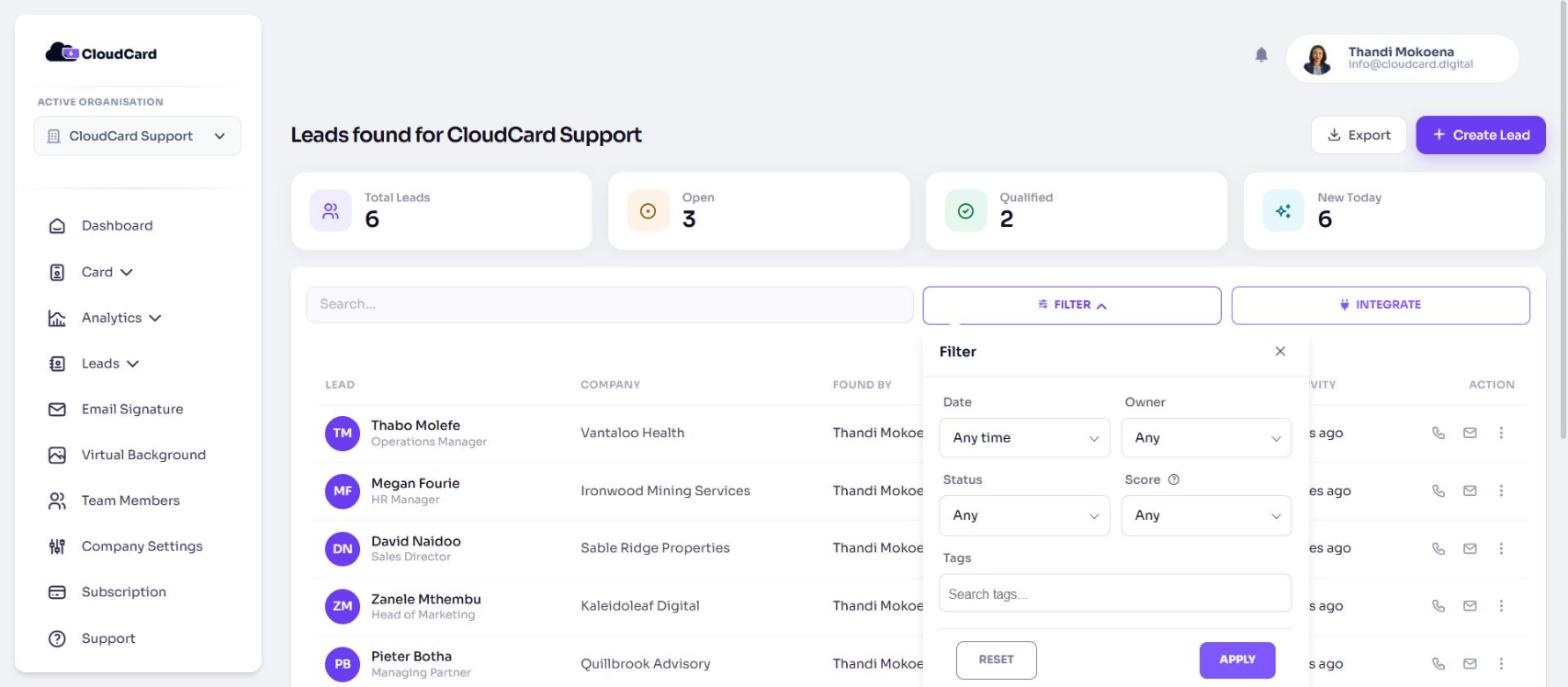
Four counters sit above the list. They count the leads currently shown, so they change when you filter.
- Total Leads
- Open: leads with the status Open
- Qualified: leads with the status Qualified
- New Today: leads captured today
The table
Each row shows:
- Lead: name and job title, with the company logo when CloudCard can find one
- Company, with a link to the website if the lead has one
- Found by: the lead’s owner (admins only)
- Score: Hot, Warm, Cold or Unscored
- Status: Open, Qualified or Disqualified
- Last activity: when the lead was last changed
Click a row to open the lead. In the Action column, the phone and envelope icons start a call or an email. The three-dot menu has Lead Details, Download and Delete.
Use the search box above the table to find a lead by text. Click a column heading to sort by it, for example sort Score to put your hottest leads first.
Filter the list
- Click Filter.
- Choose any of these:
- Date: Any time, This Week, This Month, This Year or Custom from…. Custom shows two date boxes for the start and end.
- Owner (admins only): a team member, or Unassigned.
- Status: Open, Qualified or Disqualified.
- Score: Hot, Warm, Cold or Unscored.
- Tags: one or more tags.
- Click Apply.
While filters are on, the Filter button is filled in and shows how many are active. To clear one filter, click Clear beside it in the panel. To clear them all, click the X next to Filter, or Reset in the panel.
Related
Was this article helpful?
Thanks for letting us know.
Still stuck?
Send us a message and we'll know which article you were reading. Or email [email protected].