

Log calls, emails, meetings and notes
Keep a record of every conversation with a lead on its Activities tab, and turn an activity into a follow-up task.
PlansProPremiumCompare plans
On this page
An activity is a record of something that has already happened with a lead: a call, an email, a meeting or a note. Activities build up a history on the lead’s Activities tab, so anyone working the lead can see what’s been said.
Log an activity
- Open the lead and click the Activities tab.
- Click Log Activity. If you’ve filtered the tab to one type, the button says so, for example Log Call.
- Choose an Activity Type: Call, Email, Meeting or Note.
- Describe what happened in Activity Details (up to 500 characters).
- Click Log Activity.
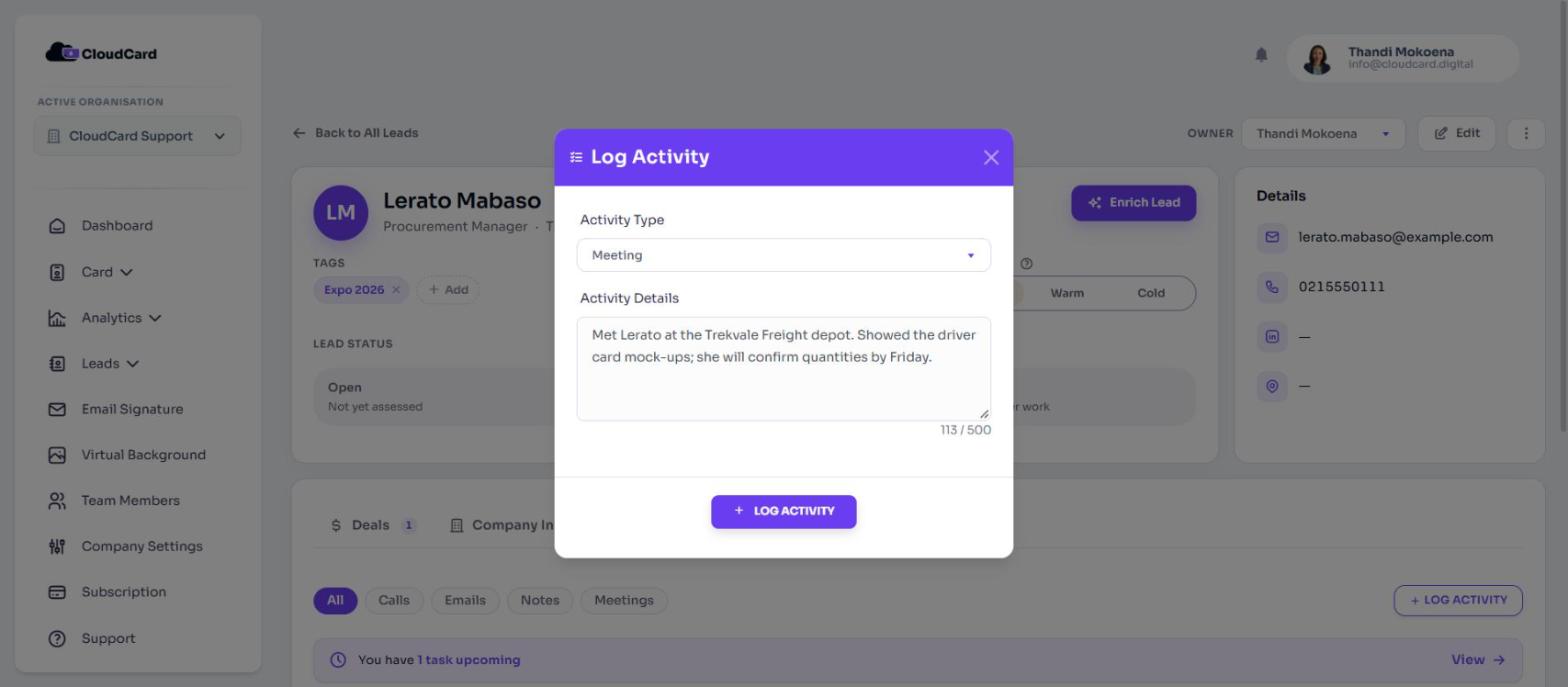
The activity appears on the Activities tab with your name and the time.
Read the history
The Activities tab lists everything logged on the lead. Use All, Calls, Emails, Notes and Meetings to show one type. Click an entry to see its full text.
The tab also shows entries CloudCard adds for you, such as notes saved when you scanned the lead’s card and changes made when the lead was enriched. At the bottom is the date the lead was created.
Edit or delete an activity
- Click the activity to expand it.
- Click Edit, change the details and click Update Activity. Or click the bin icon to delete it.
Turn an activity into a task
If a conversation needs a follow-up, expand the activity and click Create Task. A new task opens with the activity’s type and notes filled in. Add a due date and reminder, then click Create Task. See Add tasks and reminders.
Who can log activities
You can log activities on leads you own. Admins can log activities on any lead in the organisation.
Related
Was this article helpful?
Thanks for letting us know.
Still stuck?
Send us a message and we'll know which article you were reading. Or email [email protected].