

Make someone an admin
Give a colleague admin access so they can manage users, branding and settings for your organisation.
PlansProPremiumEmail SignatureCompare plans
ForAdmins
Admins can manage users, branding, fields and integrations for your organisation. There’s no limit on how many admins you can have, and the admin role doesn’t use a card on your plan. See User roles for what admins can do.
Make an existing user an admin
- Click Team Members in the left-hand menu.
- Find the person and click the three dots in the Actions column.
- Click Edit user.
- Click in the Roles field and choose admin. Keep user selected if they should keep their digital card.
- Click Save.
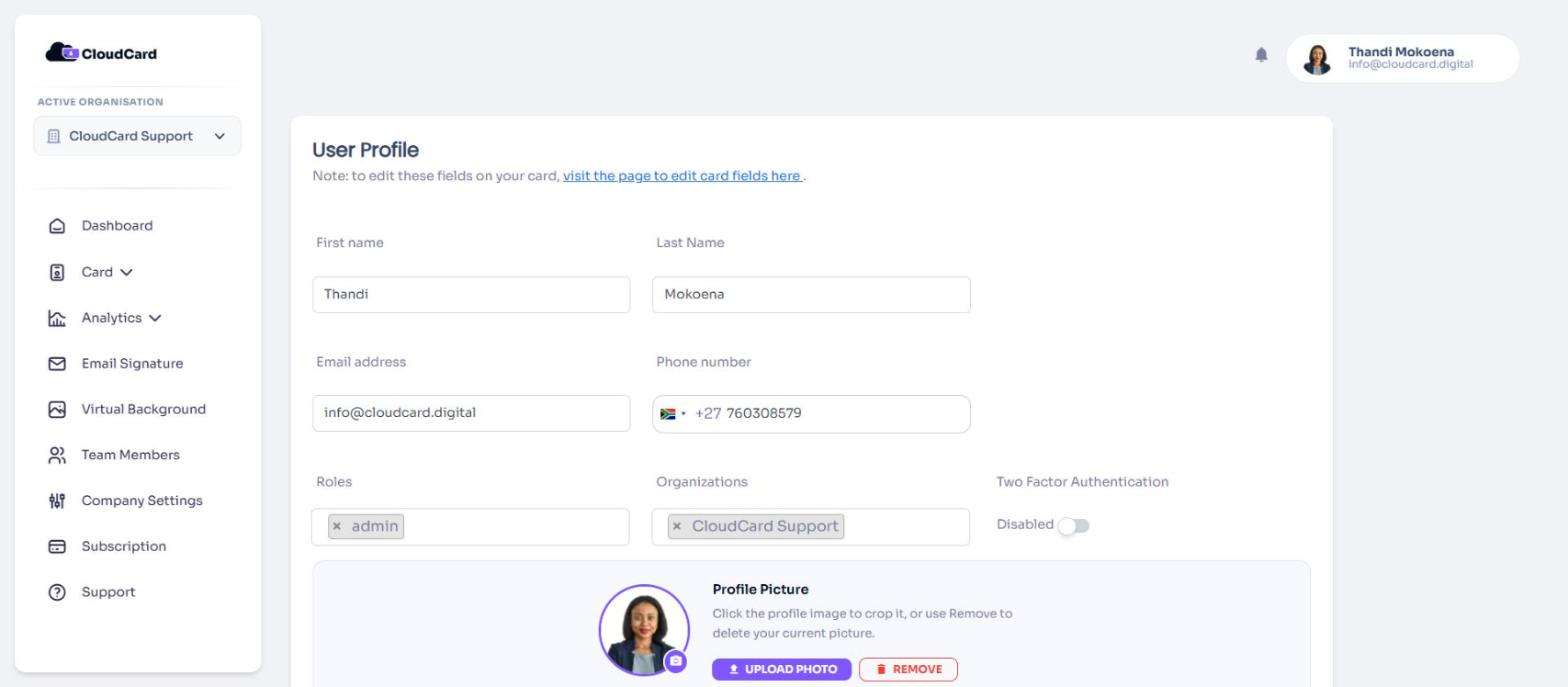
You’ll return to Team Members and the Roles column shows admin. The Admin Users count at the top goes up by one. The next time they sign in, they’ll see Team Members and Company Settings in their menu.
Add a new admin
When you add a user, choose admin under Roles. If they only need to manage the account and don’t need a card, untick Create business card.
Remove admin access
Follow the same steps, remove admin from Roles, make sure they still have another role such as user, and click Save.
If your organisation uses Microsoft Entra ID with Let Entra ID groups manage roles turned on, change roles through your Entra ID groups instead. Otherwise the next sync puts the roles back. See Manage roles with Entra ID groups.
Was this article helpful?
Thanks for letting us know.
Still stuck?
Send us a message and we'll know which article you were reading. Or email [email protected].