

The Team Members page
See everyone in your organisation, their roles and status, and find every action for managing a person.
PlansProPremiumEmail SignatureCompare plans
ForAdmins
The Team Members page is where you add, edit and manage the people in your organisation. Open it from Team Members in the left-hand menu.
If you belong to more than one organisation, the page heading shows the organisation’s name followed by “Team” instead, so you can tell which one you’re looking at. Use the organisation switcher to change it. See Switch between organisations.
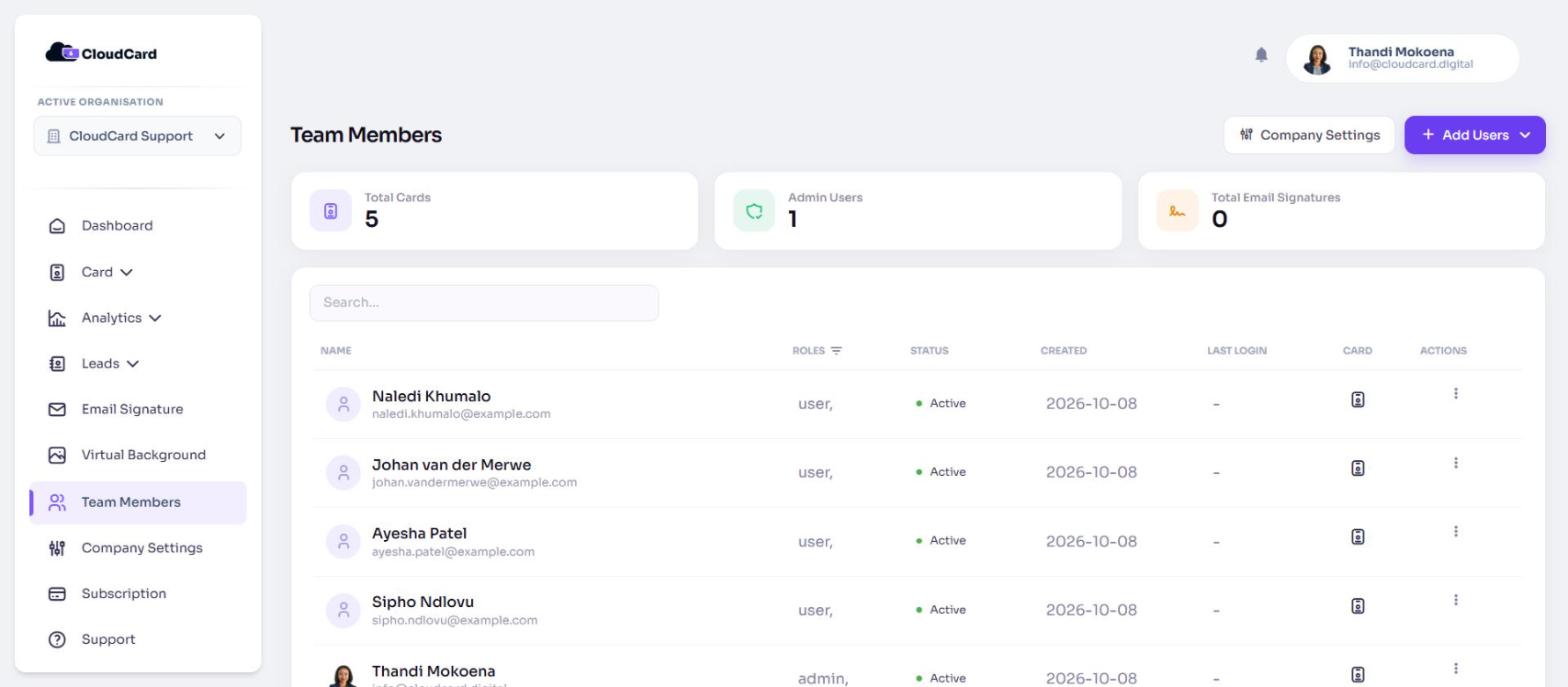
What’s on the page
At the top you’ll see:
- Company Settings: opens your branding, fields, leads and integrations settings.
- Add Users: a menu with Create 1 user, Excel import and Microsoft Entra ID import.
Below that are summary cards:
- Total Cards: how many digital cards your organisation has. Organisations on the Email Signature plan don’t see this card.
- Admin Users: how many people have the Admin role.
- Total Email Signatures: how many people have the Email Signature role.
The users table
Use the search box above the table to find someone by name or email. The table shows:
- Name: photo, name and email address.
- Roles: click the filter icon next to the heading to show only certain roles.
- Status: Active or Deactivated.
- Created and Last login dates.
- Card: click the card icon to open that person’s public card.
- Actions: the three-dot menu.
On narrower screens some columns are hidden to save space.
The Actions menu
Click the three dots at the end of a row to see what you can do for that person:
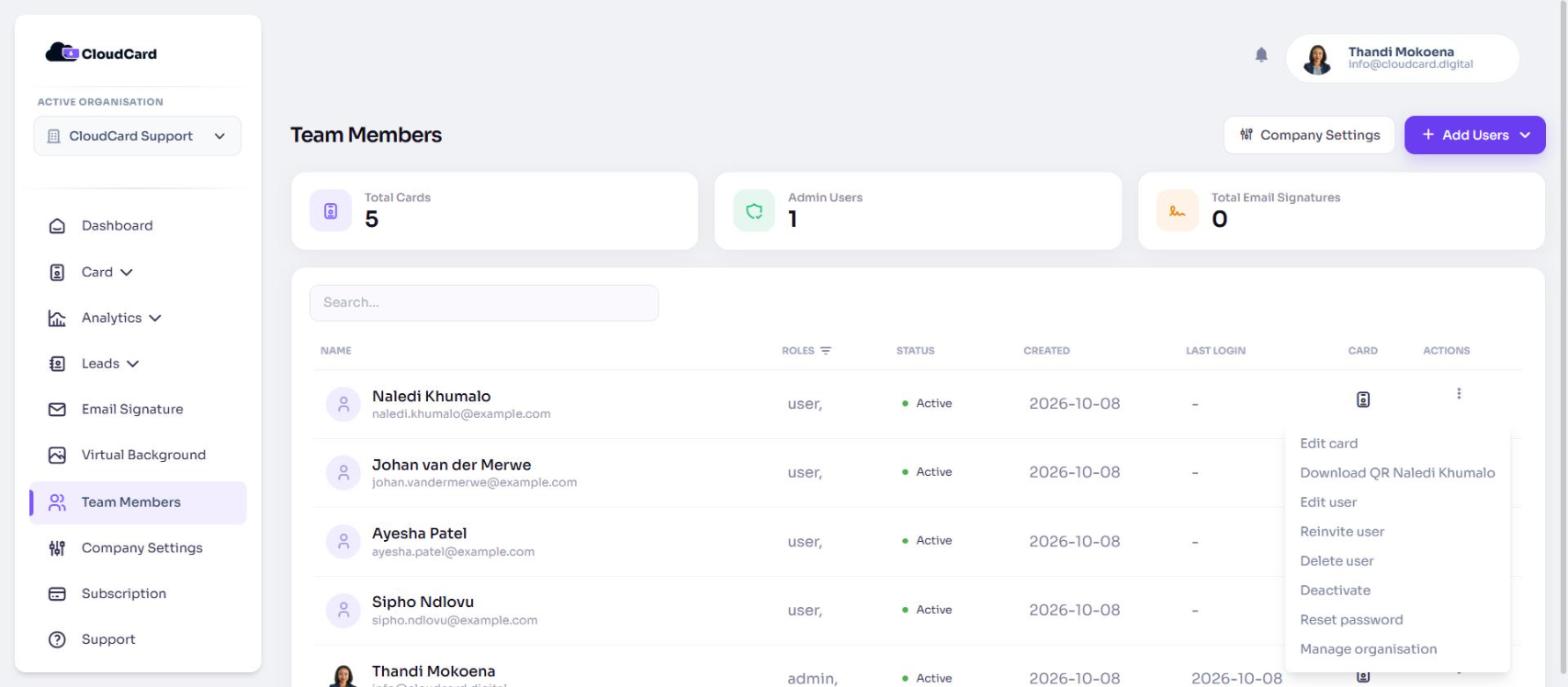
- Edit card: change the details on their digital card.
- Edit Details: shown instead for Email Signature users, to edit their signature details.
- Download QR followed by their name: see Download users’ QR codes.
- Edit user: change their name, email, phone, roles and two-factor setting.
- Reinvite user and Reset password: see Reinvite a user or reset their password.
- Deactivate (or Activate) and Delete user: see Deactivate, reactivate or delete a user.
On the Free plan
On the Free plan, Team Members shows a lock icon in the menu. When you open it, the page is covered by an upgrade panel explaining that managing a team is only available on the Pro or Premium plan. See Compare plans.
Was this article helpful?
Thanks for letting us know.
Still stuck?
Send us a message and we'll know which article you were reading. Or email [email protected].