

Deactivate, reactivate or delete a user
Suspend someone's access and card temporarily, bring them back, or remove them from CloudCard for good.
PlansProPremiumEmail SignatureCompare plans
ForAdmins
On this page
When someone leaves or goes on extended leave, you can either deactivate or delete them.
| Deactivate | Delete | |
|---|---|---|
| Can they sign in? | No | No |
| Does their card still open? | No, it shows “Card not available.” | No |
| Can you undo it? | Yes, any time | Not yourself. See below. |
| Uses a card on your plan? | No | No |
If you’re not sure, deactivate. It’s easy to reverse.
Deactivate a user
- Click Team Members in the left-hand menu.
- Find the person and click the three dots in the Actions column.
- Click Deactivate.
- Click Deactivate again to confirm.
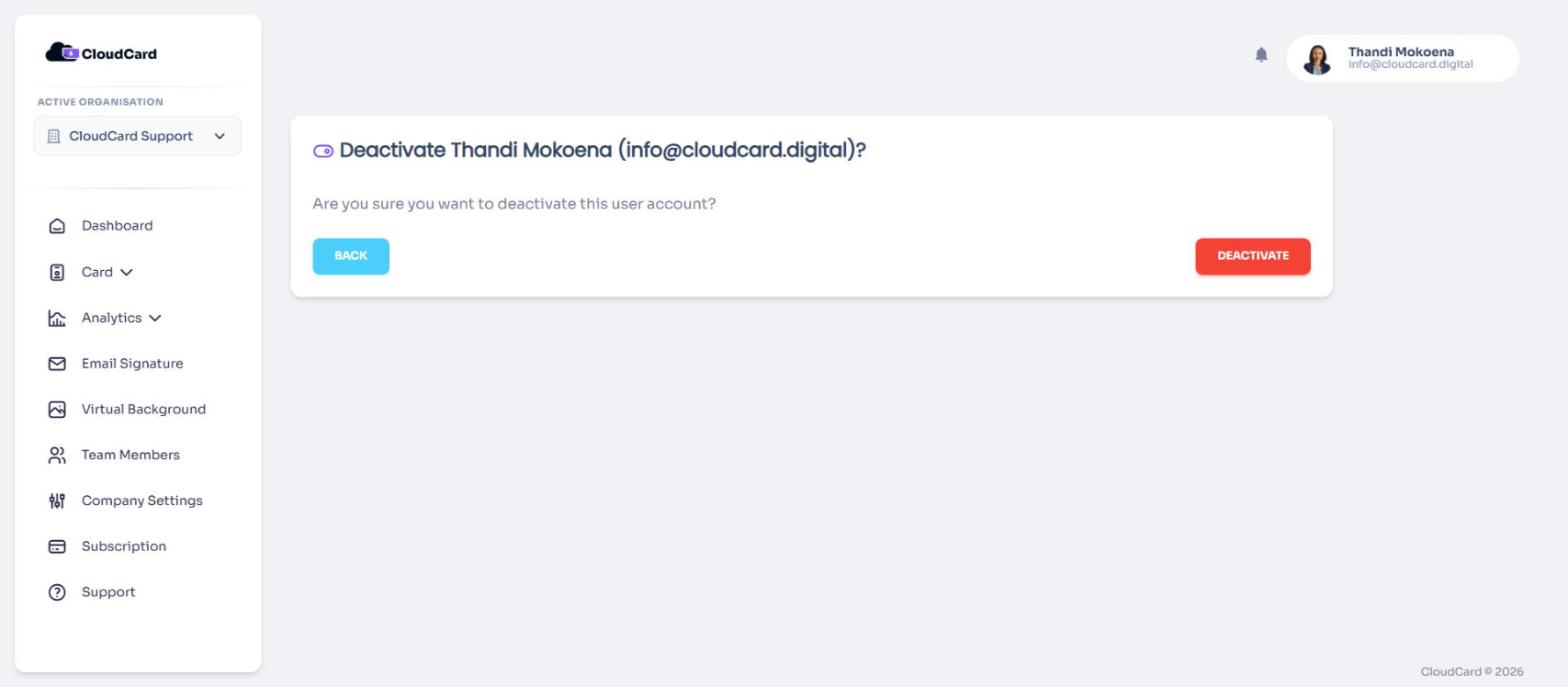
You’ll see “User updated.” and their Status changes to Deactivated. If they try to sign in, they’ll see that their account is suspended. Anyone who opens their card link or scans their QR code sees “Card not available.”
Reactivate a user
- On Team Members, click the three dots next to the deactivated person.
- Click Activate, then Activate again to confirm.
Their Status changes back to Active. They can sign in with their existing password, and their card works again. Once they’re active, their card counts towards your plan again. See Add more cards to your plan.
Delete a user
- On Team Members, click the three dots next to the person.
- Click Delete user.
- Check the name and email on the page, then click Delete.
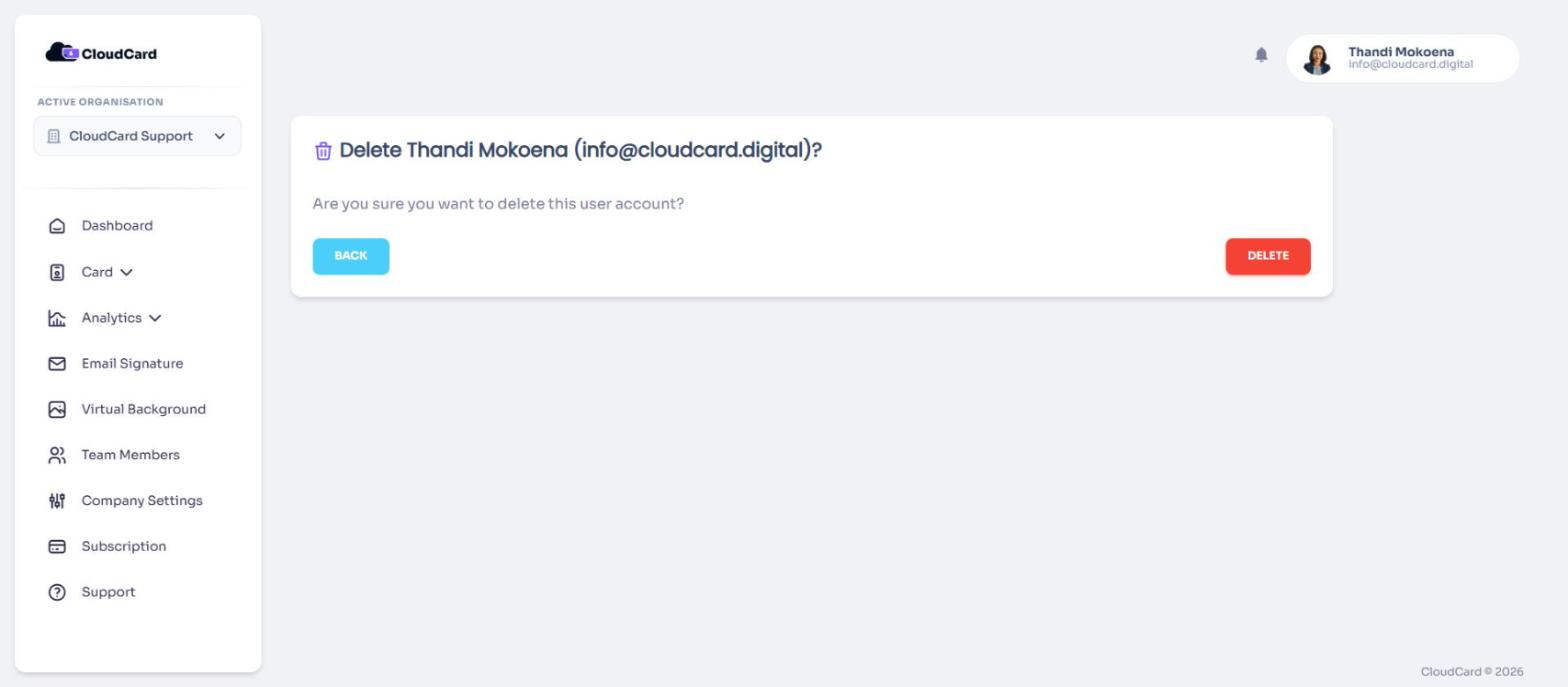
You’ll see “User deleted successfully.” and they disappear from the list. Their account and their cards are deleted.
Before you delete someone, think about their leads. See What happens to leads when someone leaves.
Was this article helpful?
Thanks for letting us know.
Still stuck?
Send us a message and we'll know which article you were reading. Or email [email protected].